
I’ve been doing a lot of scale testing of DeployR over the past couple of months (because building a fast and reliable content download process, especially under significant load, is hard work). That gave me the opportunity to try out some new things in Windows Server 2025.
NVMe
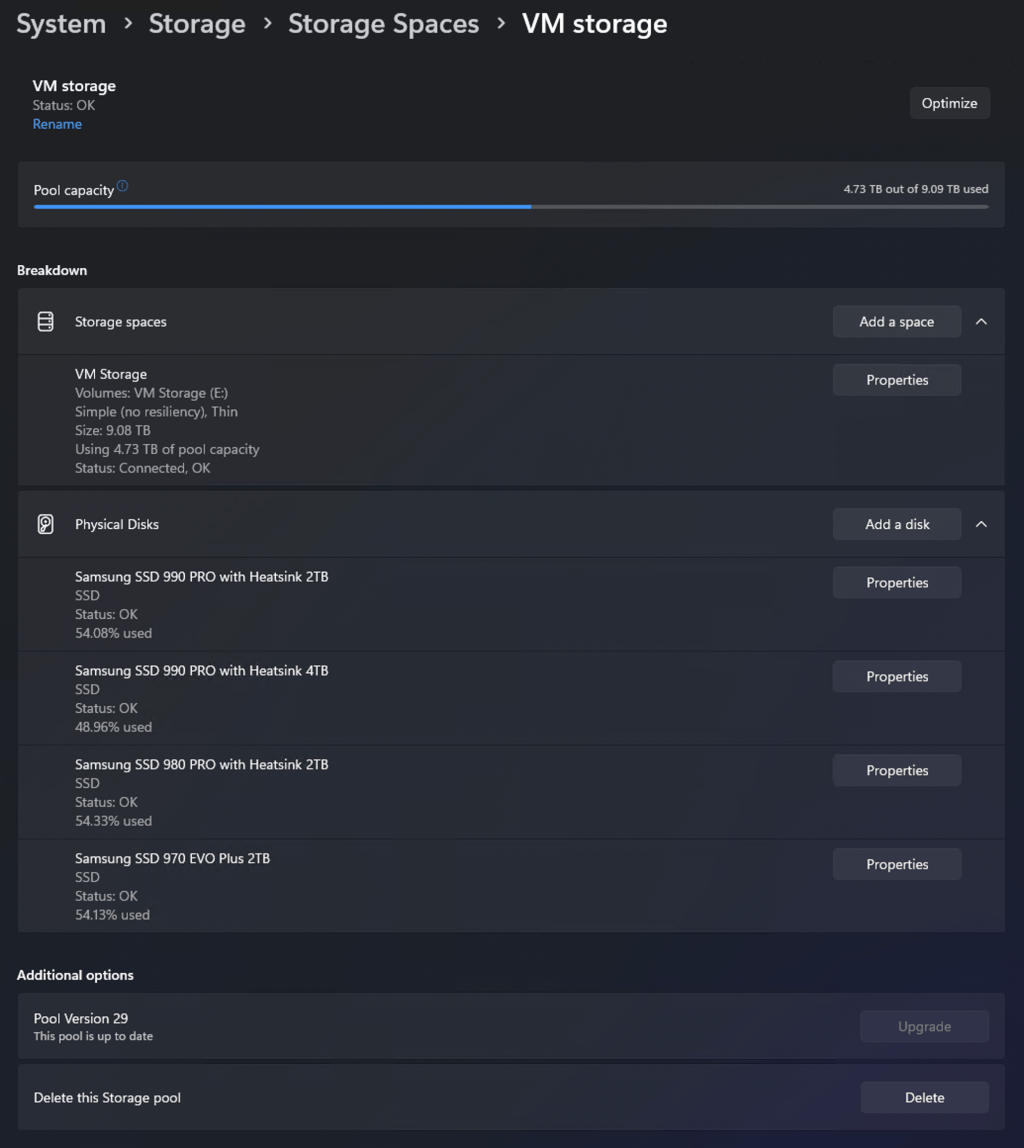
First, I switched to the new NVMe driver in Windows Server 2025. That was announced a while back by Microsoft, so I enabled it on my Hyper-V server. Were there performance improvements? I didn’t take the time to measure, but I’ll take everyone else’s word for it. You’ll notice that once you enable this, disk drives will now show up in two different spots in Device Manager:
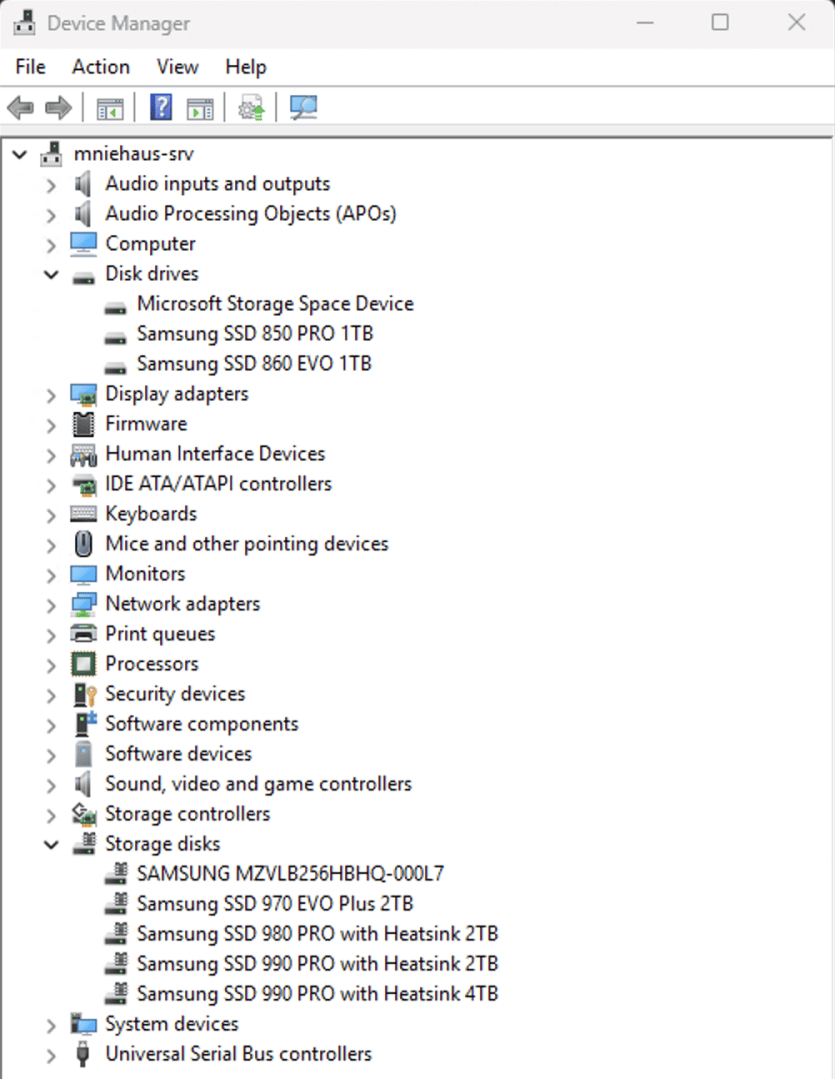
(Yes, I now have 8 drives, 6 NVMe and 2 SATA, in this Lenovo ThinkStation P620 workstation, which I previously reviewed.)
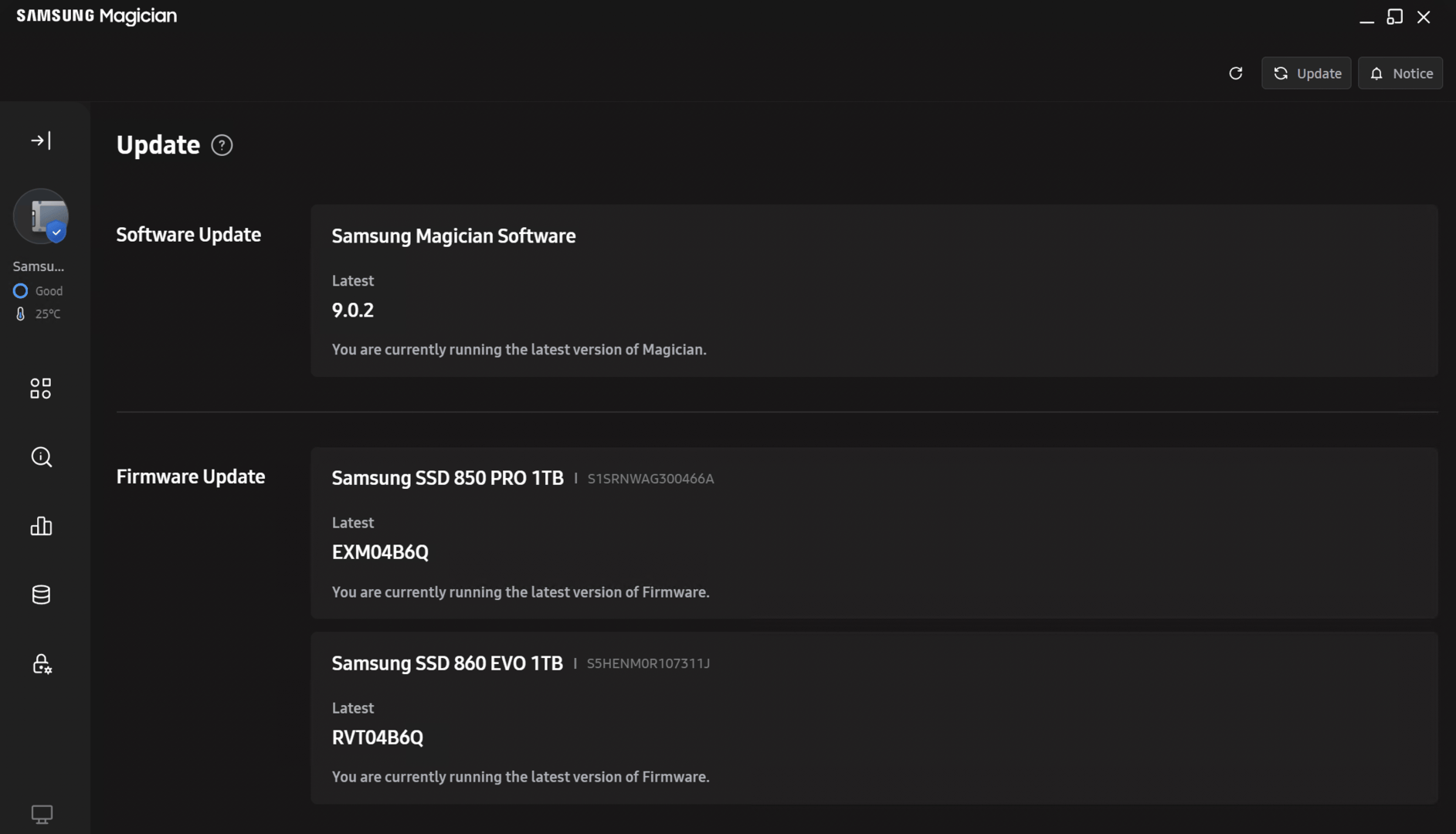
There is one interesting side effect though: I am using Samsung NVMe drives, which work fine with the Microsoft NVMe driver. But the Samsung Magician software (which has never been a good tool) can no longer see the drives, so it can’t update the firmware or check the health anymore either. From Samsung’s own forums, they don’t seem to see the need to do this. Let’s hope they come to their senses at some point and realize that people using their “consumer” drives with “server” boxes. Boo Samsung.
Storage Spaces
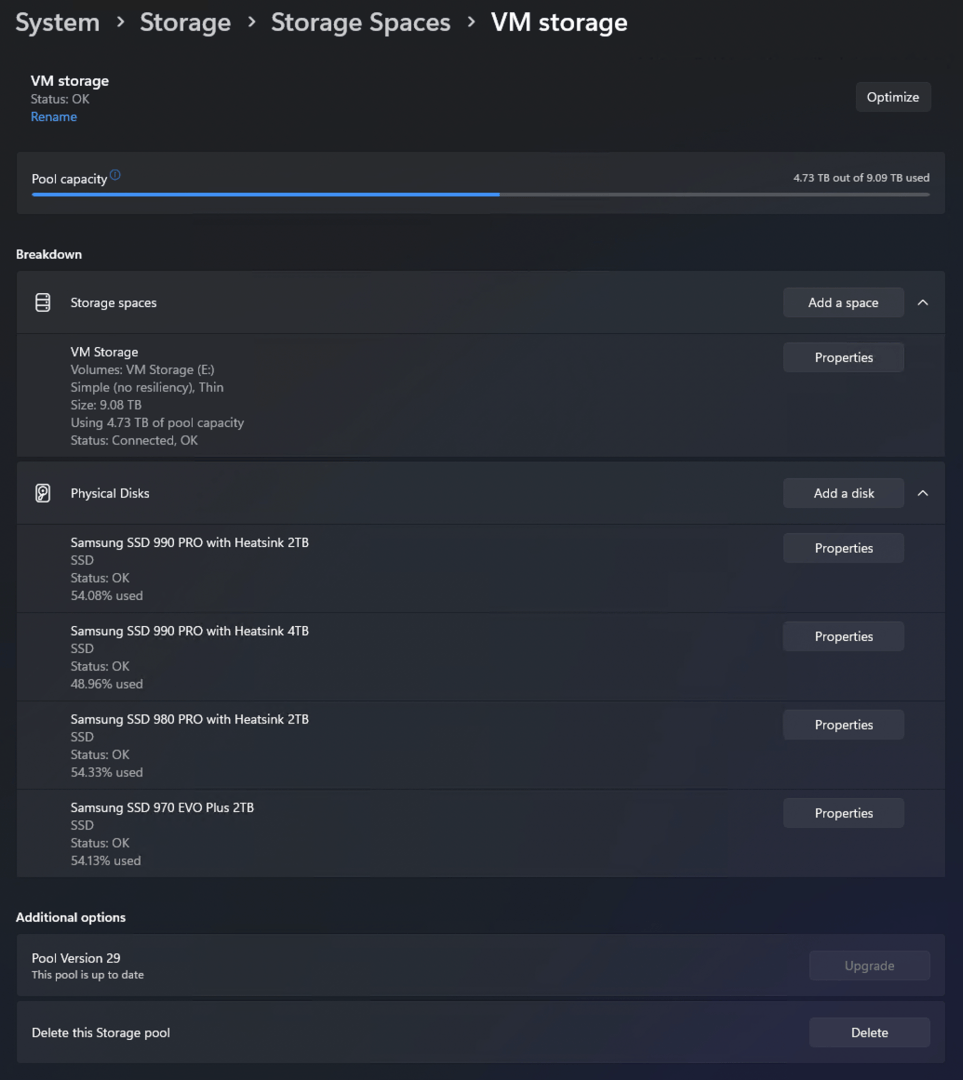
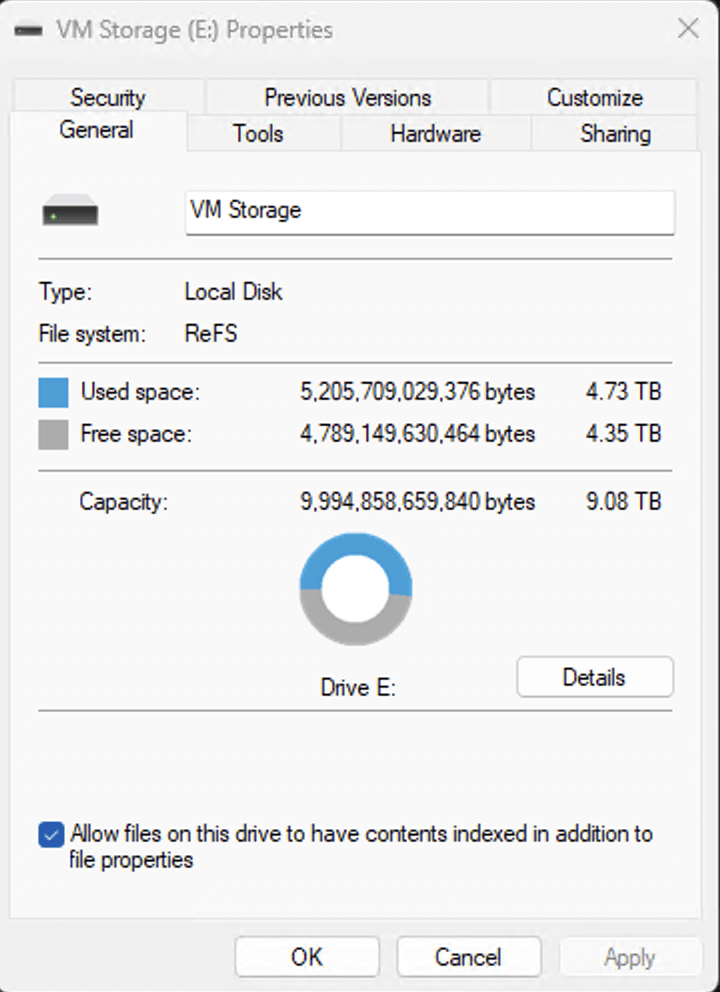
The downside of having free space spread across multiple drives: managing that storage is more work. In my case, I wanted to create 50 VMs at once, 70GB each. That’s well over 3TB of storage — I had the space, but it wasn’t all on one drive. Through a bunch of shuffling (including a highly-recommended Samsung T9 USB-C external SSD), I combined three 2TB drives into one pool; the content on the resulting combined drive is striped across all the drives. (I chose no resiliency, so if any of these drives fail it will take all of the storage with it. It’s a choice I made, I need space and performance more than I need reliability. But it will still be annoying if/when it happens.)
I later expanded the pool and storage space by adding the last drive, a 4TB Samsung 990 Pro (worthy of a blog of its own at some point, because I swapped all the drives to an ASUS Hyper M.2 PCIe card, which required removing the heatsinks from the NVMe drives), and then Windows re-balanced the storage through its “Optimize” process to use the drives equally.
In theory, because writes are interleaved (striped) across the disks, read and write performance should be improved. Again, I didn’t take the time to measure that, I’ll just take Microsoft’s word for it.
One thing that I probably should have done but didn’t learn about until later: You can increase the interleave size for chunks of data that get spread between the available disks. This can’t be set from the UI and can’t be changed after the storage space is created. Fortunately, the default is 256K. Not awful, but it could be bigger.
ReFS + 64K allocation units
When you format the virtual drive in the storage space, you can specify any of the standard available settings. In this case, I chose ReFS because it is supposed to be more performant. At the same time, I increased the allocation unit size from the default 4KB to the much more reasonable 64KB — it’s a drive for VHDs, so bigger allocation units are better.
Next up
I have two 1TB SATA drives (remember, SATA is not fast) that I would like to combine into one single 2TB volume, for convenience. Fortunately I have enough space on the NVMe volume to copy everything from those two SATA drives over, then clean those drives and create a second storage space containing just those two. (You don’t want to combine fast and slow drives together in a single pool because the performance will effectively be driven by the slowest of the drives.)
And I also need to add some sort of backup for if/when one of these drives fails.
Ignoring the performance that I didn’t try to measure (not quite as important for what I’m trying to do), it’s turned out well. Thumbs up for NVMe drivers, Storage Spaces, ReFS, and the Lenovo P620.







Leave a Reply