
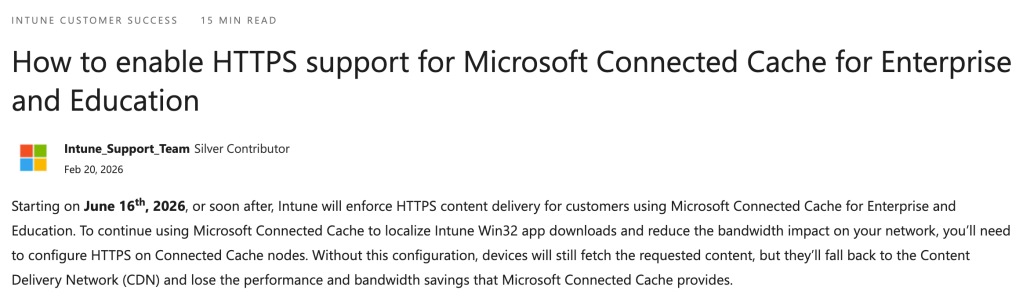
Microsoft announced late last year that the standalone version of Microsoft Connected Cache for Enterprise is now generally available (so no longer just in preview), with one new feature added: support for HTTPS content.
Before we dig more into that, let me explain what “MCC for Enterprise” is. This is the new standalone version of MCC, available separately from SCCM, that is built around a Linux foundation. It runs on Windows using the Windows Subsystem for Linux (WSL) as well as on various flavors in Linux.
When it was first announced, there was exactly one type of content using HTTPS that would benefit from this: Teams updates. Before this, those updates (which are frequent and last I checked around 80MB per machine) could never be cached by MCC. All other content (Windows Update, Office, Intune) would continue using HTTP. But there was an ominious note:
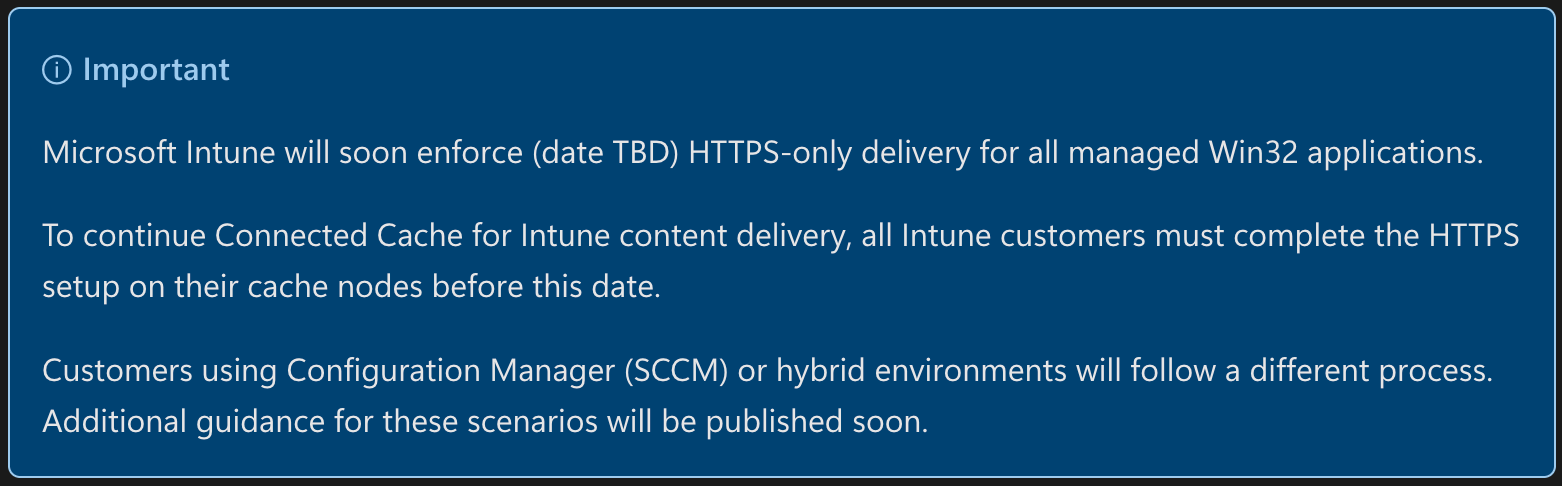
Since then, an Intune blog was posted with an actual date: June 16, 2026.
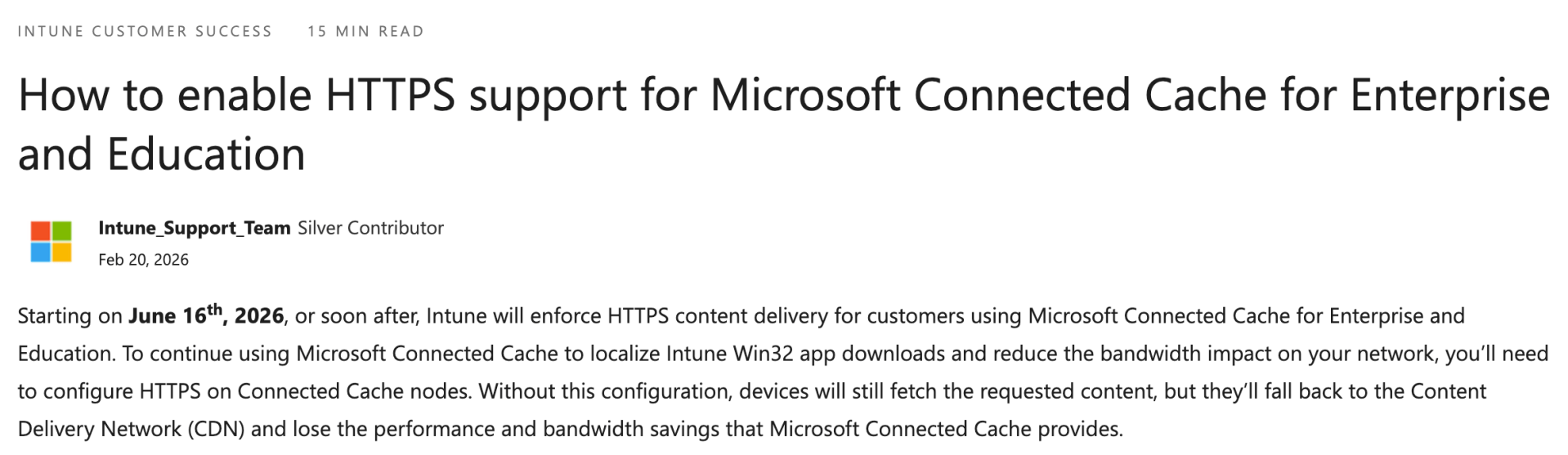
Yes, that’s 75 days from now, and no, it’s not an April Fool’s joke. Assuming there are no delays, that means if you do nothing your MCCs will stop being able to cache Intune content on that day. Autopilot provisioning will slow down. Internet bandwidth consumption will go up. And you might find yourself having a very bad day.
The “easy” route: SCCM
Time to panic? Well, maybe. Remember the SCCM-integrated version of MCC? It was updated too (somewhat unexpectedly) back in February, mainly to add the same HTTPS support. See KB33247081 document (how can KB number have that many digits?) for more details. At a high level, the process is simple:
- Make sure you have HTTPS/TLS enabled in IIS on all the DPs that are set up with MCC.
- Download the updated DoincInstall.exe and manually copy it to all of your SCCM site servers.
- Uncheck the MCC box on each DP, wait for it to be removed, and then re-check the box.
- Verify that it is working.
Overall, that’s not too bad and can be completed pretty quickly (well, unless you have hundreds of DPs enabled for MCC, but if that’s the case we should talk).
The harder route: MCC for Enterprise in WSL
Building this new MCC on top of Linux is an interesting choice for Microsoft. And running it in a Linux virtual machine isn’t too bad, if you are already familiar with Linux. But running it in WSL isn’t much fun at all. It’s not too bad to get it running if you follow the instructions exactly, but throwing HTTPS/TLS into the mix complicates matters.
I like WSL overall: it enables you to run one or more Linux environments on a single Windows box. And it works great for the scenarios it was designed for: helping developers build apps. What it doesn’t do particularly well at this point: running Linux-based services on top of Windows. (You know, like MCC.) The current WSL can’t run as a service, so using it like a service requires a “creative workaround” like running it via a long-running scheduled task. And that makes interacting with it messy. That is supposed to be fixed in a future version of WSL, but until then it’s going to remain messy.
Ideally Microsoft would provide a web-based interface for administering the MCC service running inside of WSL, but it doesn’t do that, so you’ll find yourself running some odd commands to pull a certificate request (CSR) out of the WSL environment, generating a certificate for that CSR, and then pushing the resulting certificate back into the WSL environment. I’ve tried multiple times and failed. And having to install an MSIX package using Add-AppxPackage just to get the needed installation and configuration scripts is just weird.
But even if I succeeded, this isn’t what I really want to do. I already have a certificate that I want to use; I just want to tell MCC to use it. Good luck with that, you might as well just switch to a Linux VM. What I wouldn’t give for a nice, simple MSI installer…
Oh, and be sure to read all the instructions. Installing MCC for Enterprise on a Windows server running SCCM or anything else that uses port 80, you will cause yourself much pain.
So get busy…
If you are using MCC and you haven’t yet taken action on this, now is the time. And if you go the MCC route and figure out a way to inject your own existing cert into WSL for use with MCC, let me know. Although at this point, I might just wait for the new WSL…


 Out of Office Hours
Leave a comment