

Way back in December 2024, Microsoft released the ConfigMgr Tech Preview 2411 release. It wasn’t long after that before the India-based team maintaining ConfigMgr was either laid off or reassigned to other things, so not surprisingly there was then an announcement in November 2025 that laid out a new annual release cycle for ConfigMgr. Reading between the lines, this is part of Microsoft’s ongoing emphasis on the cloud, and ConfigMgr doesn’t have a role to play in that future. Does this mean that ConfigMgr is dead? More like “on life support” with mimimal investments and an uncertain future.
But that’s not really news. What caught me off guard was a question and answer in the comments of the release cycle blog post:
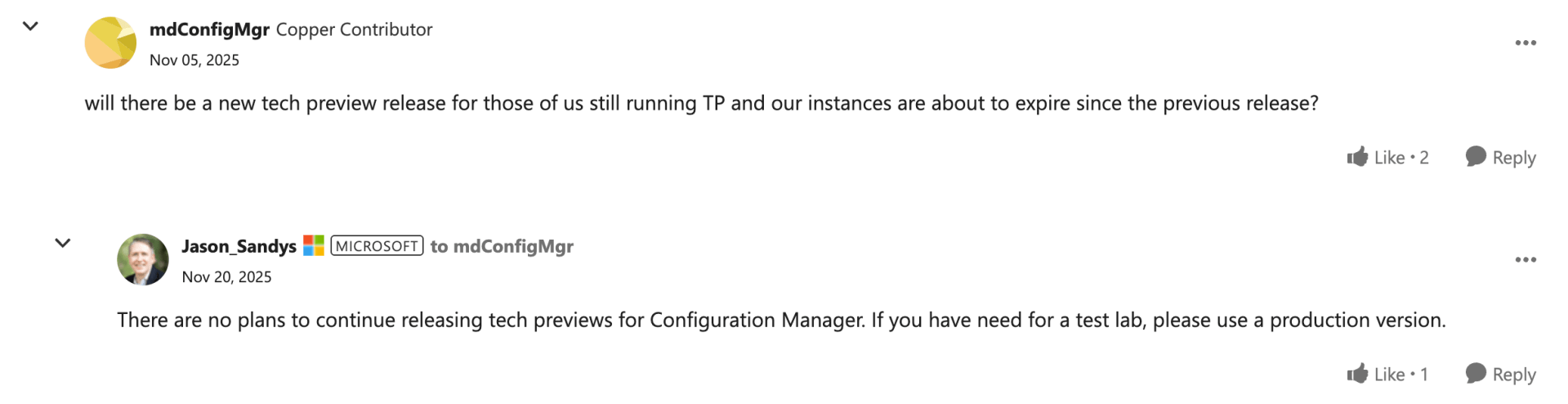
Well OK then. So those like me running labs with TP2411 are running out of time: that release was good for a year, with the countdown starting on the day that you installed it. I didn’t install it right away, so I still have 84 days left, but it’s officially a dead-end. At the end of those 84 days, I’ll be forced to reinstall.
This TP2411 release is already behind on the times, as it doesn’t include the changes (mostly fixes) that have been made in ConfigMgr 2503 and 2509, so it makes sense to “upgrade” (which really means “completely reinstall and reconfigure, and find a product key from somewhere) sooner rather than later. Add that to the to-do list…
p.s. Of course Microsoft hasn’t updated the eval media, so it’s back on 2403. But at least you can install it and then update through the console to 2509. But for future reference, if you want to download the 2509 media you can get it from https://go.microsoft.com/fwlink/?linkid=2341103.
p.p.s. That doesn’t mean the process is easy. It sounds easy enough: uninstall the tech preview, then install the latest baseline build. Except the uninstall doesn’t clean up the SQL Service Broker definition, and the new install won’t install to the same instance if there are other databases on the instance — SCCM doesn’t want to share. OK, create a new instance, install to that, right? Well, that’s where the SQL Server Broker problem comes in. At the end of the install process, it tries to create a new SQL Server Broker in the new instance, but that uses the same 4022 port that the old database is still using, so it fails and leaves your install incomplete, so you have to uninstall and start over. But in case you need to manually clean this up:
- Connect to the old database in SQL Management Studio.
- Run a query to “select * from sys.service_broker_endpoints” to confirm that the ConfigMgrEndpoint endpoint is defined.
- Use “ALTER ENDPOINT ConfigMgrEndpoint STATE=STOPPED” and then “DROP ENDPOINT ConfigMgrEndpoint” to clean it up.
Or you could just specify a different port…




5 responses to “Still running ConfigMgr tech preview? Not for long…”
Ha ha ha ha ha ha ha ha ha, the best part is: “Finding a product key from someone”! The whole universe is using the same product key of SCCM!
LikeLike
Hah, I figured in the years since I had last installed SCCM without using a tech preview (which was great for labs) they would have actually starting using real product keys that were customer-specific. I guess not…
LikeLike
No, tthey never ever had a separate key for each customer, and you should look at my customer’s faces when they discover this. If you also download the STANDARD SQL coming with ConfigMgr ISO from the Volume Licensing page, you get the SQL licence key embedded in the setup itself and don’t have to type it. In fact when installing the Reporting Services separately it asks you for the product key, so I first run the SQL Server setup, click next next next till I reach the licensing page that gives you the product key already typed for you, copy it and cancel SQL setup and use it for Reporting Services! And YES this key is also the same for all customers!
LikeLike
Having a similar lab setup, I too faced the yearly reinstall. But I did it with evaluation versions, not the tech preview. The only glitch I encountered was using the eval version of SQL, which expired without warning and trashed my CM install for all intents and purposes. When I rebuilt, I used the DEV version. For my eval W11, I have a PowerShell rearm script. I just need to be diligent about running them before they expire. I have one question: if you did a complete backup of your CM database and restored it to a new install, would that work, and what would be retained? I never tried it because I used CM in a simple deployment scenario, so I just reinstalled. The ironic part is that most IT folks will no longer dedicate their time to CM as it is now “deprecated” for all intents and purposes. We who made our bones with it, may actually become more valuable for a short time as legacy systems which need to be maintained far longer than management wants, will require that expertise.
CM like Generals, do not die, they merely fade away.
I remember working with SMS 1.1 and 1.2; fortunately, my post-traumatic stress from those times has long faded. ChatGPT says you are 66 years old, so that makes me 8 years older and now retired. I thoroughly enjoyed my nearly 30 years as a software deployment engineer, so much so that even after 3 years of retirement, I still maintain my simple CMIntune lab. But my activity is winding down because an isolated environment has its limits, and at my age, my time is short.
You seem to be a young 66, too young to retire, like me, who retired at 70. My advice is to keep going, doing what you are doing. But make sure you have a plan to explore other passions in retirement. Perhaps the question is, when you can no longer do technology, will you slide into depression or, like a phoenix, rise to new challenges?
You already know what I am talking about, as you transitioned from Microsoft to your present role, it had to be hard, really hard. A Corporation has no soul; their lack of appreciation for all you accomplished for them really made me feel for you. When they denied your MVP status, I thought how petty.
I seem to have run on here, but it reveals how important your work was, how it helped thousands of people, and how we respect your contribution to the community of Microsoft Professionals everywhere. Keep up the good fight. Excelsior!
LikeLike
ConfigMgr_2509.exehttps://go.microsoft.com/fwlink/p/?LinkID=2350307
LikeLike