
When you initially sign into Windows, by default you’ll see the “pulsing color” screen as first-time “things” are done in the background:

You can disable that “first sign-in animation” via GPO, MDM policy, or equivalent registry entry. I cover that a while back: https://oofhours.com/2020/06/08/make-esp-look-better-by-disabling-fsia/
But other than the extra CPU consumed by the animation (a good way to peg a single CPU core), it doesn’t really do any harm. And if you turn it off, here’s what you see instead:
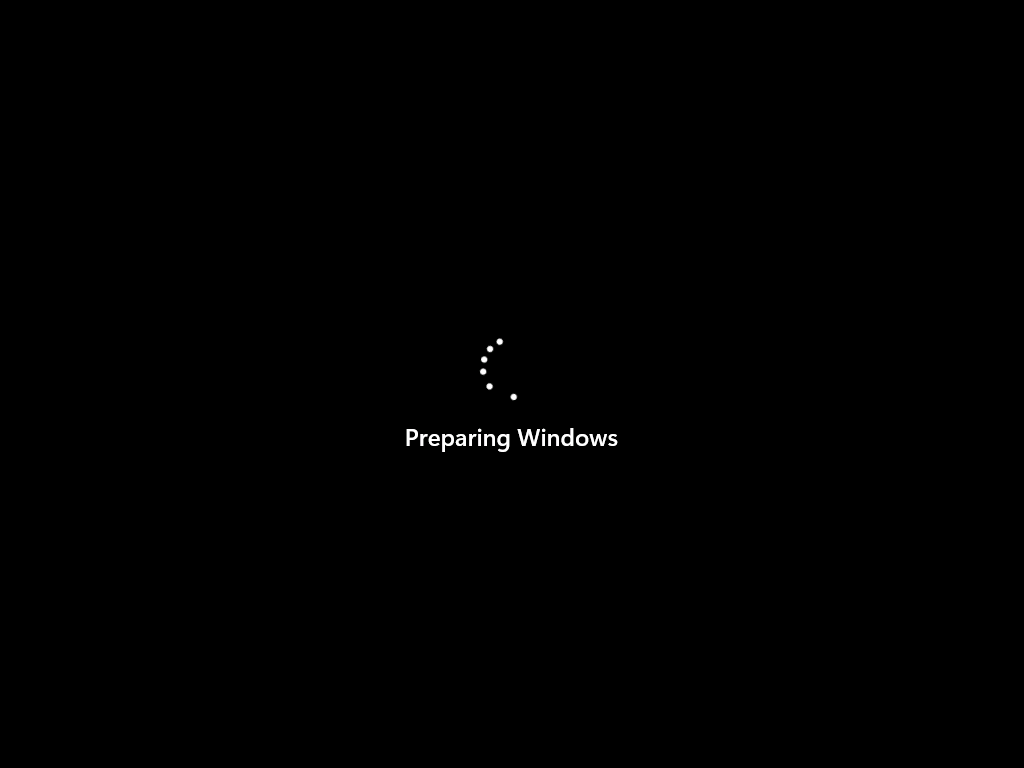
Still pretty boring, and you can’t see what’s going on behind that progress UI. But you can get rid of that layer too, using another policy mentioned in various corners of the internet such as this one. The policy to turn that off is in the same place, just a different value:
[HKEY_LOCAL_MACHINE\SOFTWARE\Microsoft\Windows\CurrentVersion\Policies\System]
DelayedDesktopSwitchTimeout=0
Why does that policy exist? Imagine that you are using a logon script and that script prompts the user for some reason. Without this policy applied, the user wouldn’t even know that they are being prompted; switching to the desktop without a delay fixes that. But in our case, it just makes the process feel faster.
Capturing a screen shot of that is rather difficult, but if you recall what the “Active Setup” window looks like, that’s what flashes on the screen (video isn’t sped up, but I did remove a number of in-box apps, so that would make it faster):
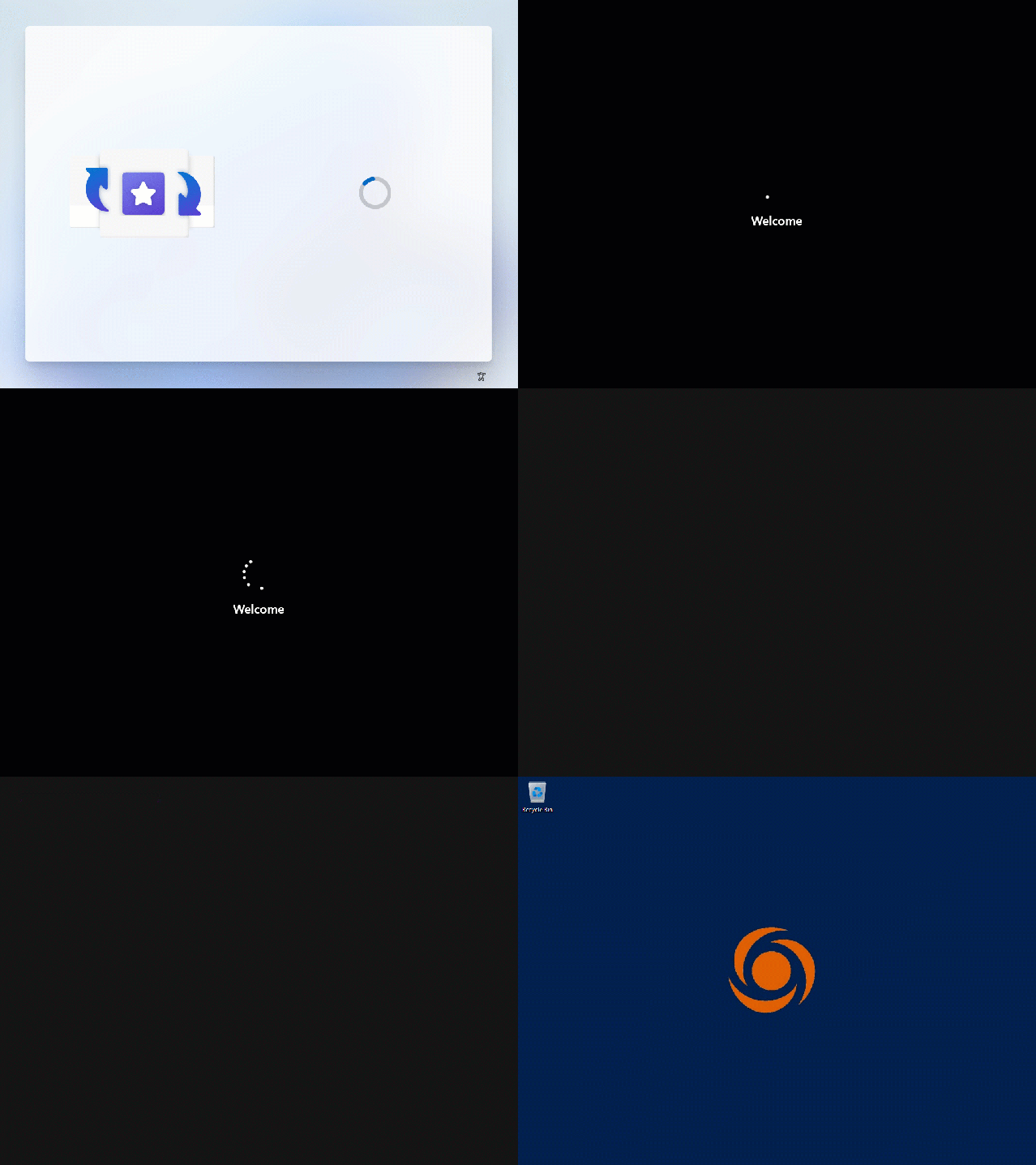
You have to look quickly — it’s a small dialog at the top left, which is then followed by a command that is executed. If there were any RunOnce or Run commands, or any Active Setup commands , those are run at this point too, so you could see them impact the overall time. If you are like me and have removed a number of the in-box apps, the wait time is really short — and then the desktop appears. So two layers of UI to hide stuff that just flashes by anyway.
I’ve added some logic to the Autopilot Branding script to do this automatically, with a switch to turn it off if you don’t want to see it.

That will be available in the next release.



 Out of Office Hours
2 responses to “What’s really happening on first user logon?”
If I’m not mistaken, the small dialog box that appears on the top left is a relic of the Windows 98 era. On that version of Windows, said dialog box would describe everything being added or removed, e.g., Internet Explorer, Media Player, and ActiveMovie.
Anyway, if you’re looking for a way to capture the screen on that stage, a virtual machine is your best option.
LikeLike
Yes, this is an “Active Setup” relic. The animated GIF I included in the post captures it, but it flashes by so fast that you can’t really see anything but the outline, even if you go through the video frame-by-frame. I guess that’s a good thing, at least in Windows 11 24H2 the process is fairly quick (compared to the earlier Windows 10 releases at least).
LikeLike