
I’ve seen a lot of blog posts about registering devices with Windows Autopilot, either at a command prompt in OOBE (Shift-F10, run PowerShell) or as part of some other automation. Now with Autopilot v2, there are actually two diferent types of registrations to be concerned with too:
- Autopilot device registration for APv1, using a hardware hash. This is a more complicated case: you need to import the device and then ensure that it gets an Autopilot profile assigned before continuing.
- Corporate device identifiers for APv2. This is a simpler case: add the device to your Intune tenant so that it enrolls as a corporate device instead of a personal device (since you may block personal devices running Windows, as many customers do).
So, let’s walk through the process needed for both of those, if nothing else so that the instructions are in one place. (This is as much for me as it is for you…)
Authentication
You need to be able to authenticate to Microsoft Graph in order to interact with Intune to perform either type of registration. Since we want to automate this process, we don’t want to have to log in with a username and password. Instead, we want to use an app secret. Let’s create one using the (new-ish?) https://entra.microsoft.com portal. (I have to break the habit of using https://portal.microsoft.com. Plus the Entra portal is prettier.)
First, expand under “Identity” and then “Applications” to find “App registrations.” Click on “App registrations” and then “All applications” to see a list of the ones in your tenant.

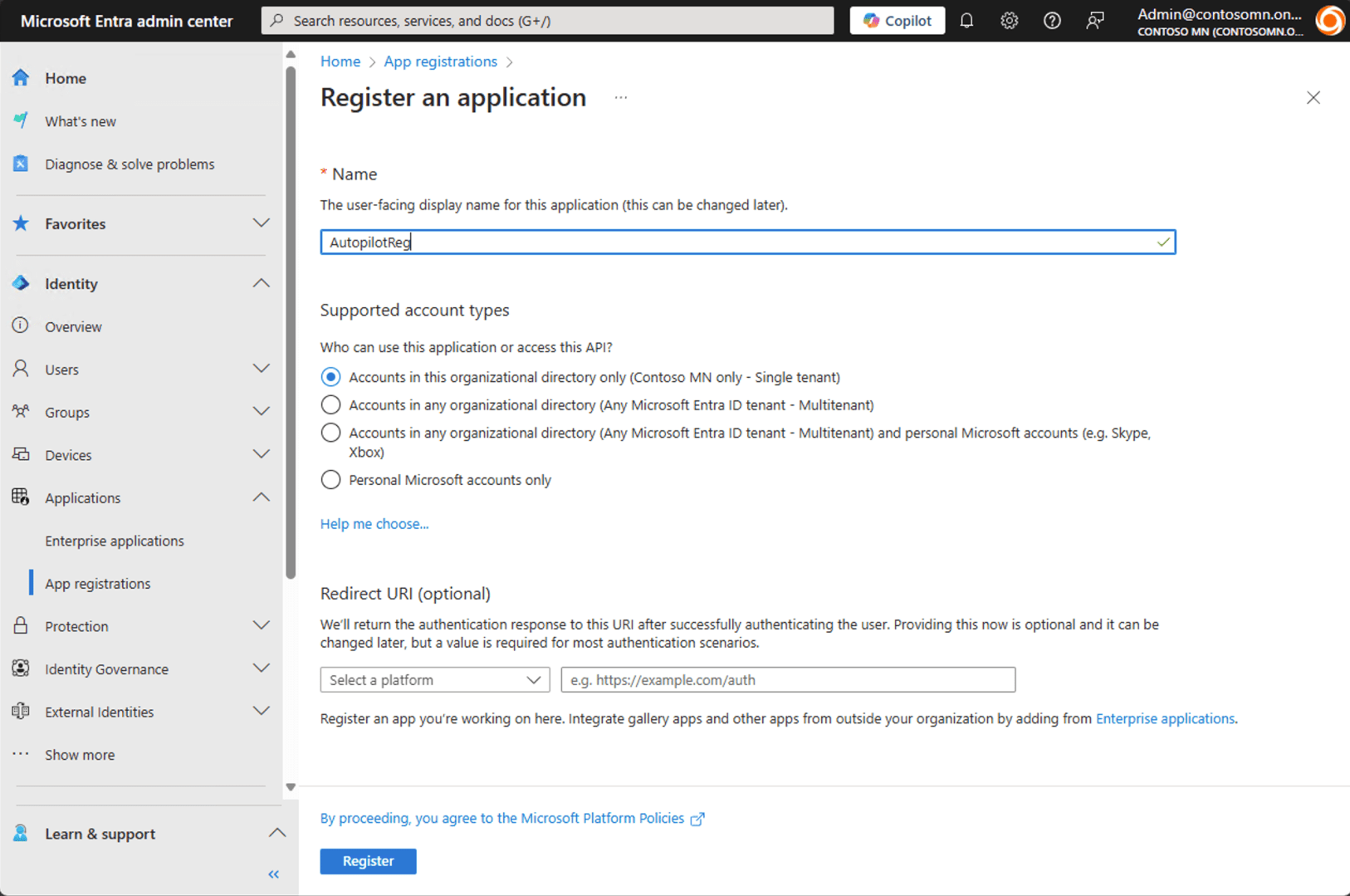
Next, click “+ New registration” to start the process of adding a new one. Let’s call it “AutopilotReg.” The defaults are fine for the rest, so click “Register.”
After registering, we now we have an app, but it doesn’t have rights to do much of anything anything. Click on “API permissions” to see:
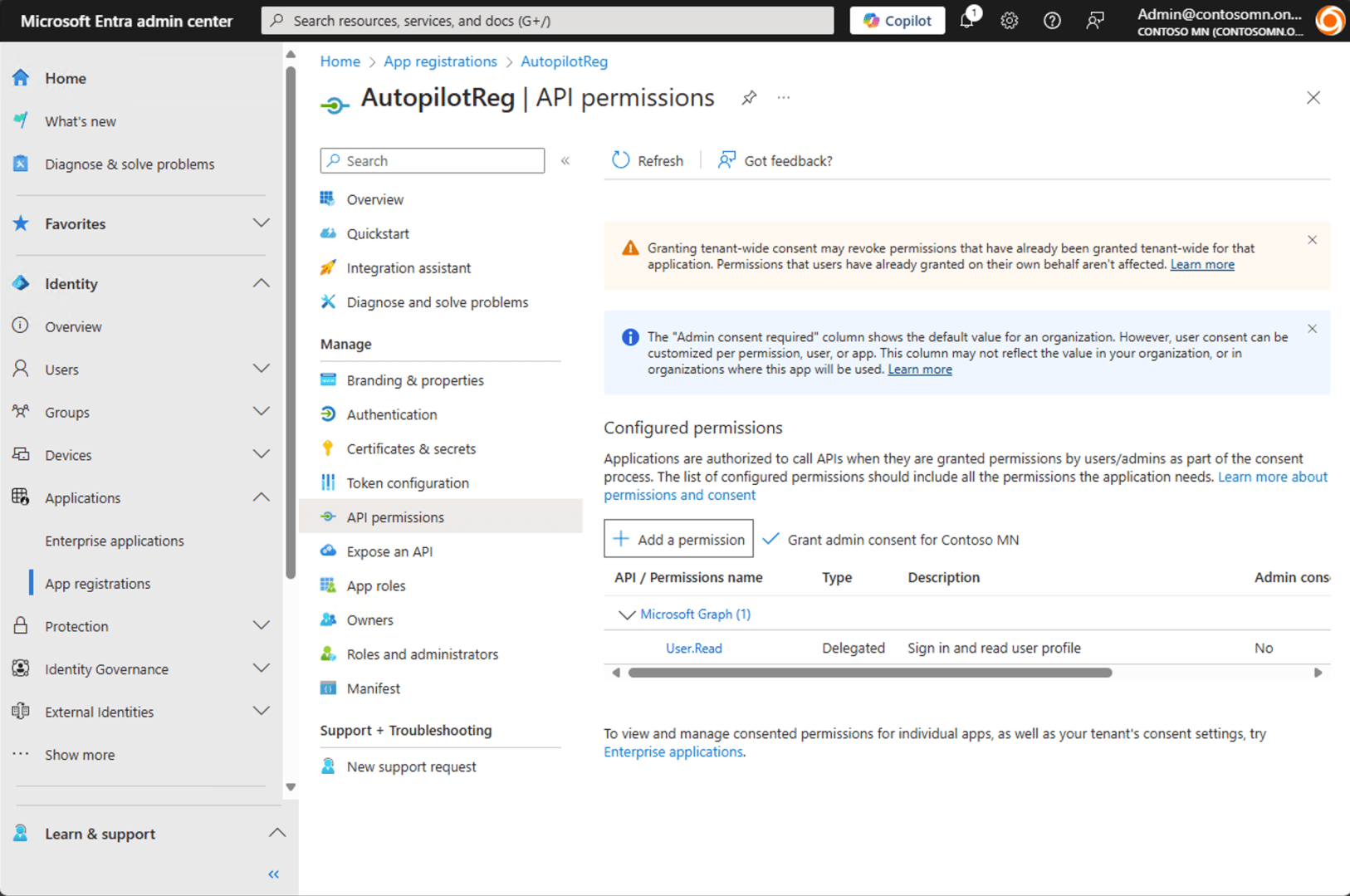
So we need to grant it some additional permissions. The needed permissions for each type of registration:
- For hardware hash registration:
- DeviceManagementServiceConfig.ReadWrite.All
- For corporate device identifiers:
- DeviceManagementServiceConfig.ReadWrite.All
- DeviceManagementConfiguration.ReadWrite.All
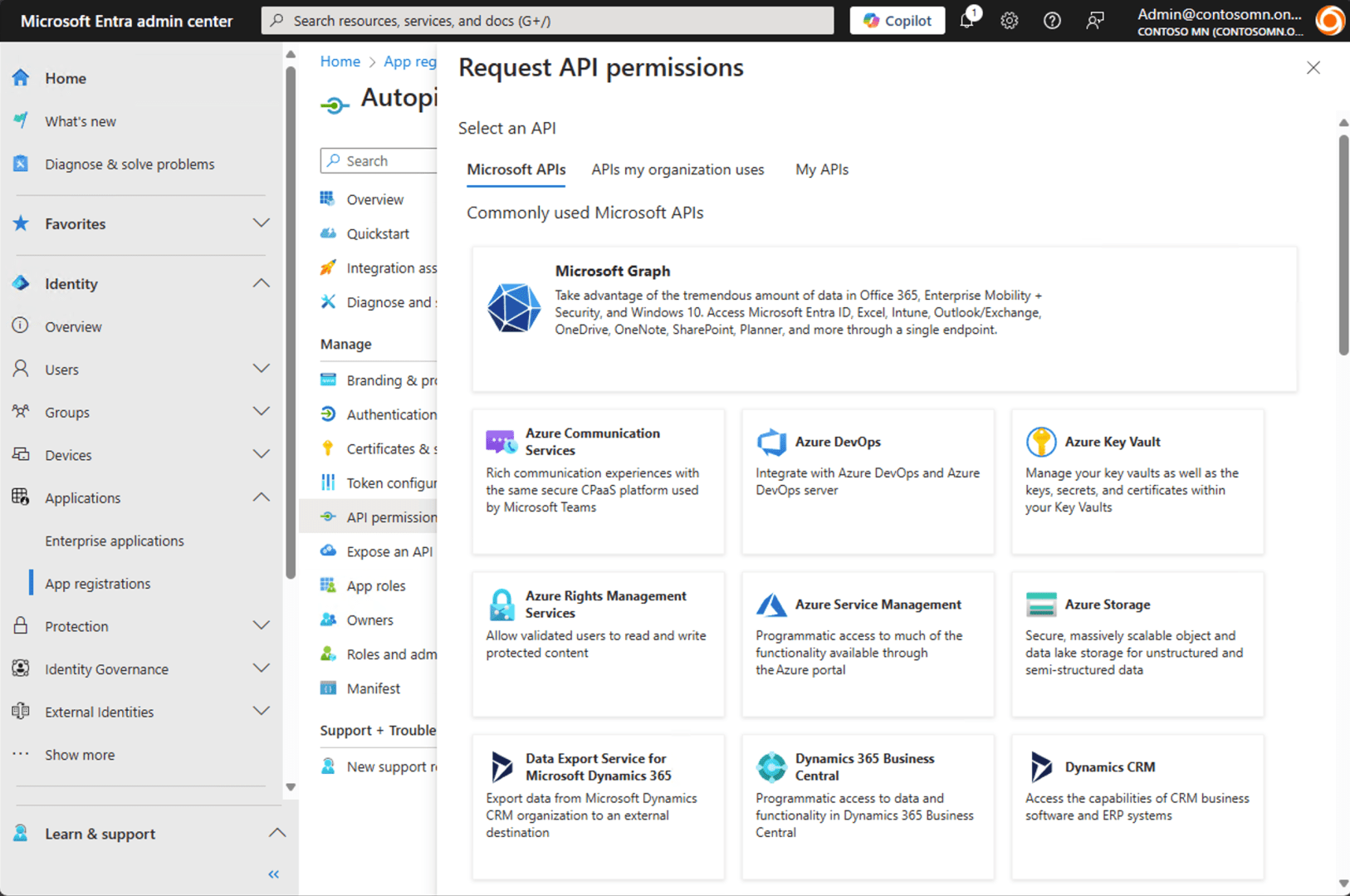
You can easily use one app to do either (since one is a superset of the other). Click “+ Add a permission” and click on “Microsoft Graph” at the top. (Don’t choose “Intune” further down.)
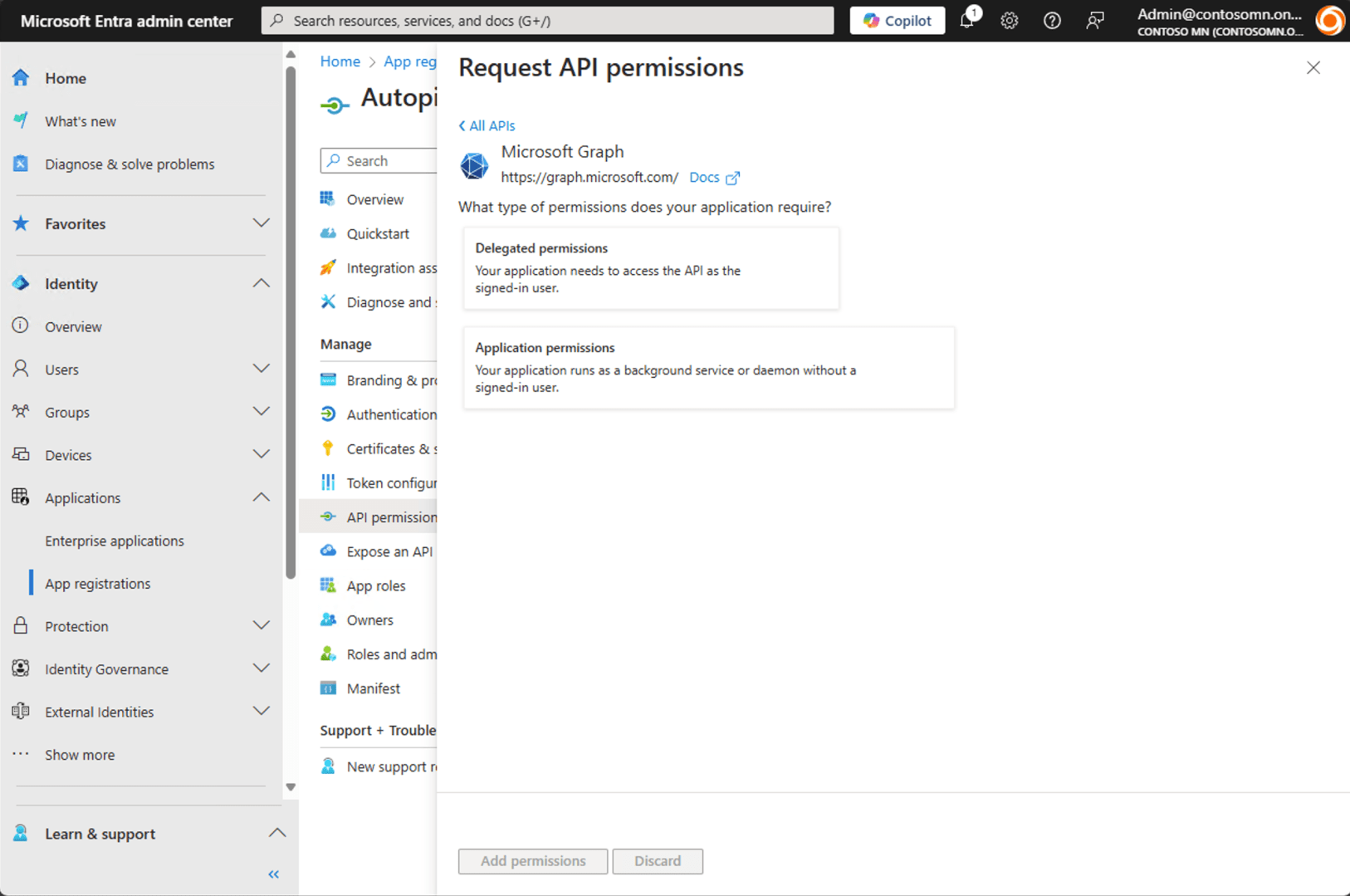
Then choose “Application permissions”:
Find the two that we need in the long list and check them, then click “Add permissions”:
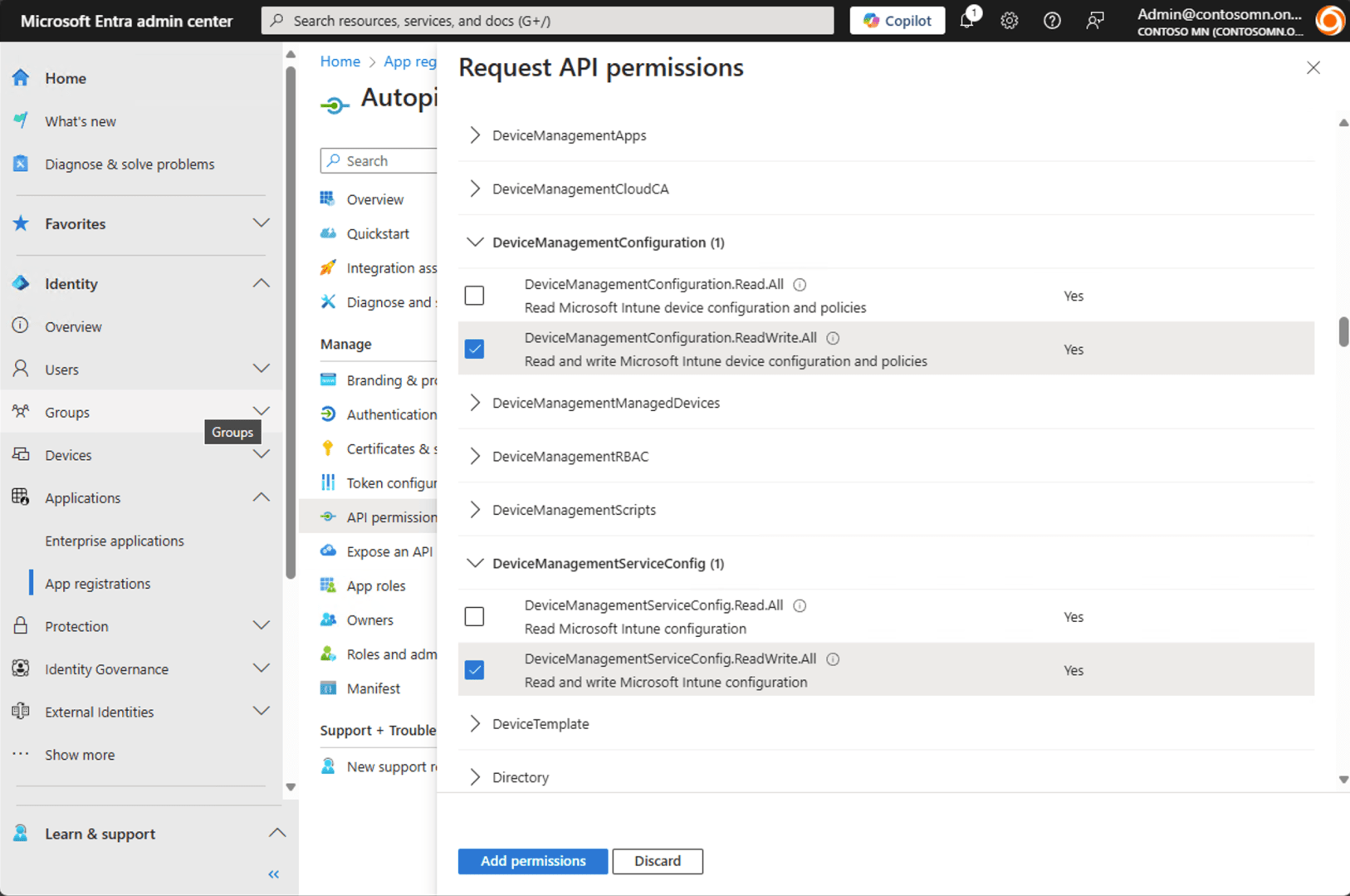
After adding, you need to grant admin consent — if you don’t have the rights to do that, find an administrator that can. Fortunately, I’m the Global Administrator of my tenant, so I can click the “Grant admin consent for Contoso MN” button:
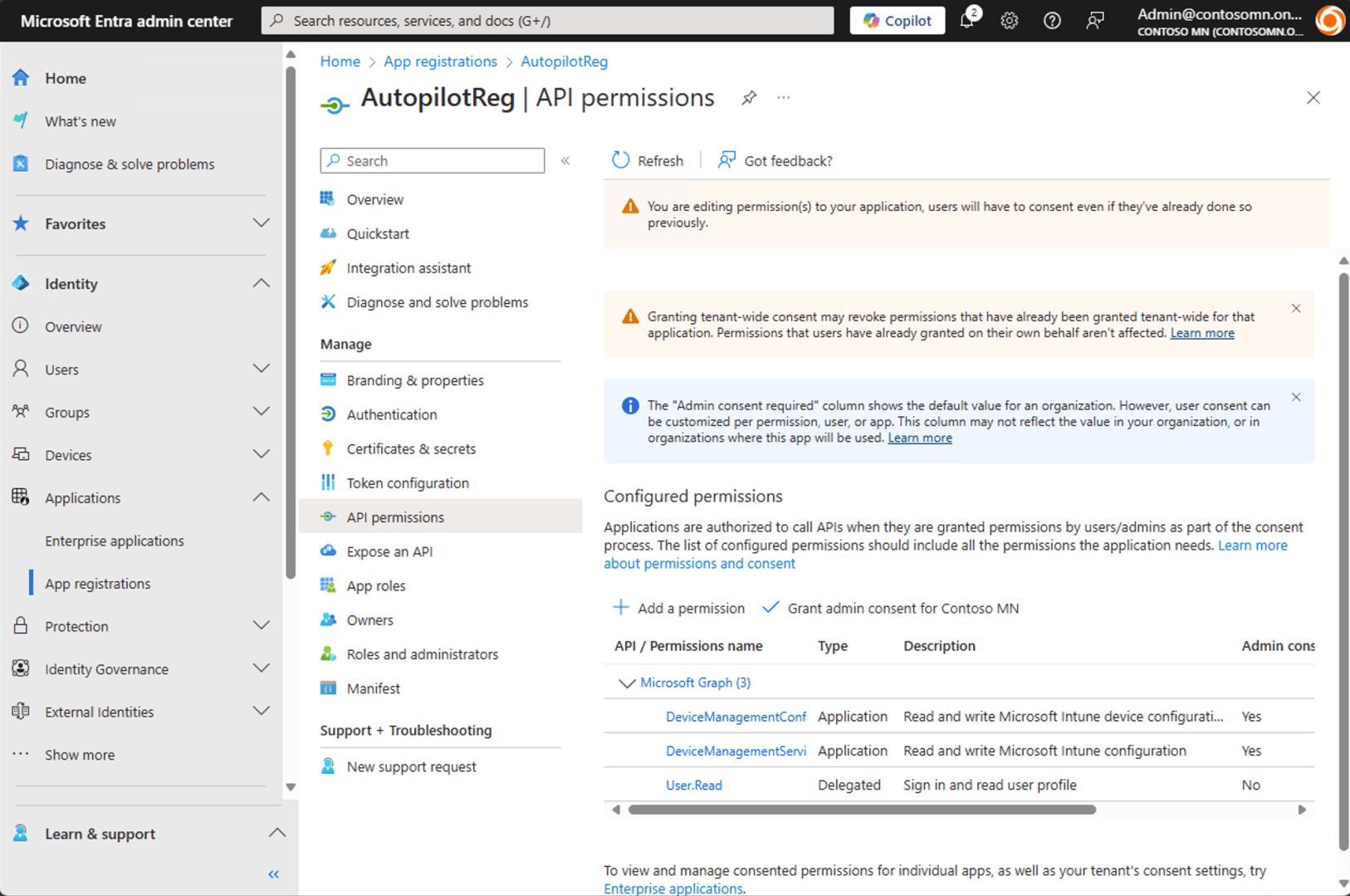
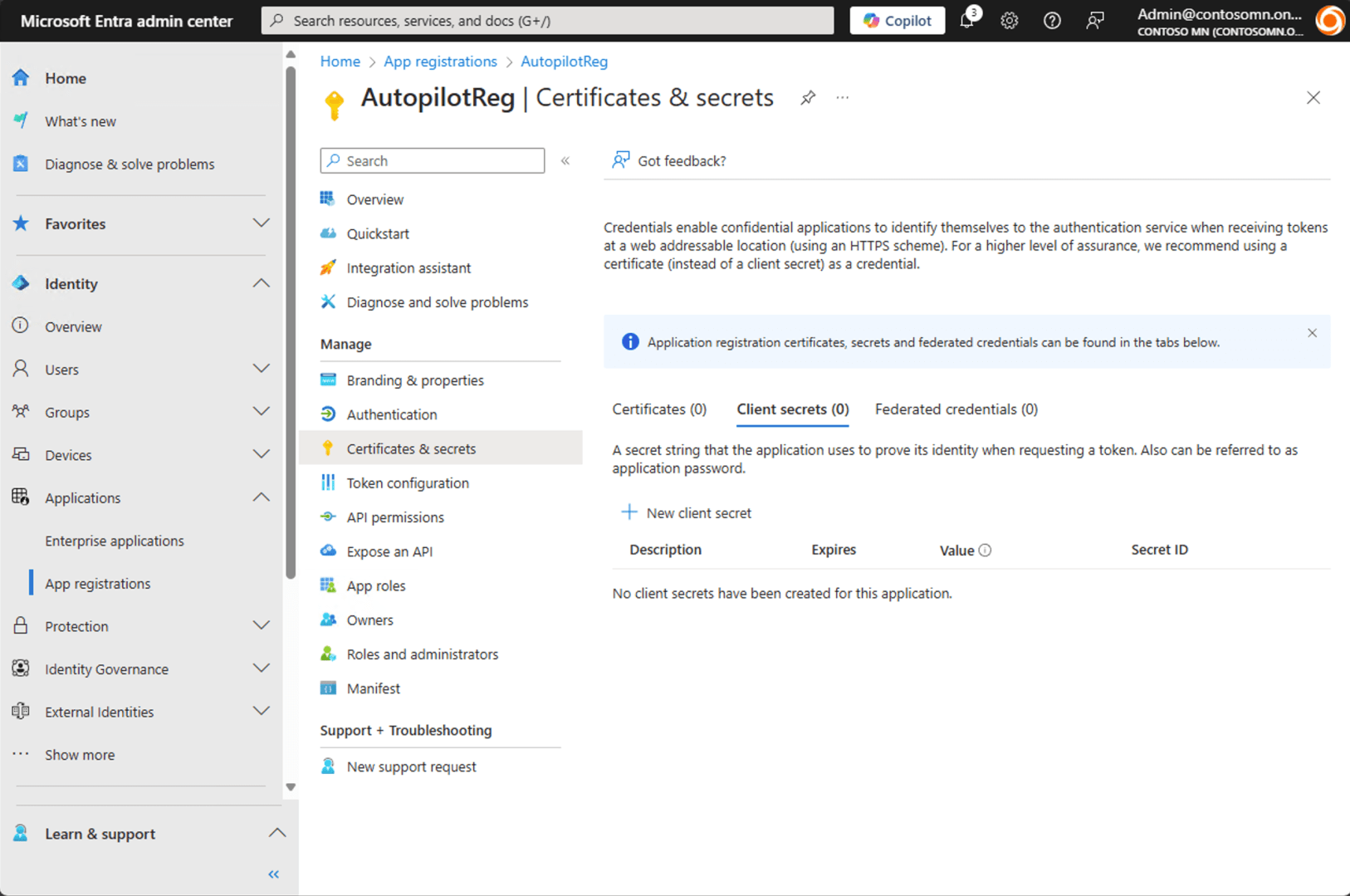
Now we have an app and it has the necessary rights. How do we use that app? You can either use a certificate (upload one of your choosing) or an app secret. It seems most people prefer app secrets, so let’s create one. Click on “Client secrets” and then “+ New client secret.”
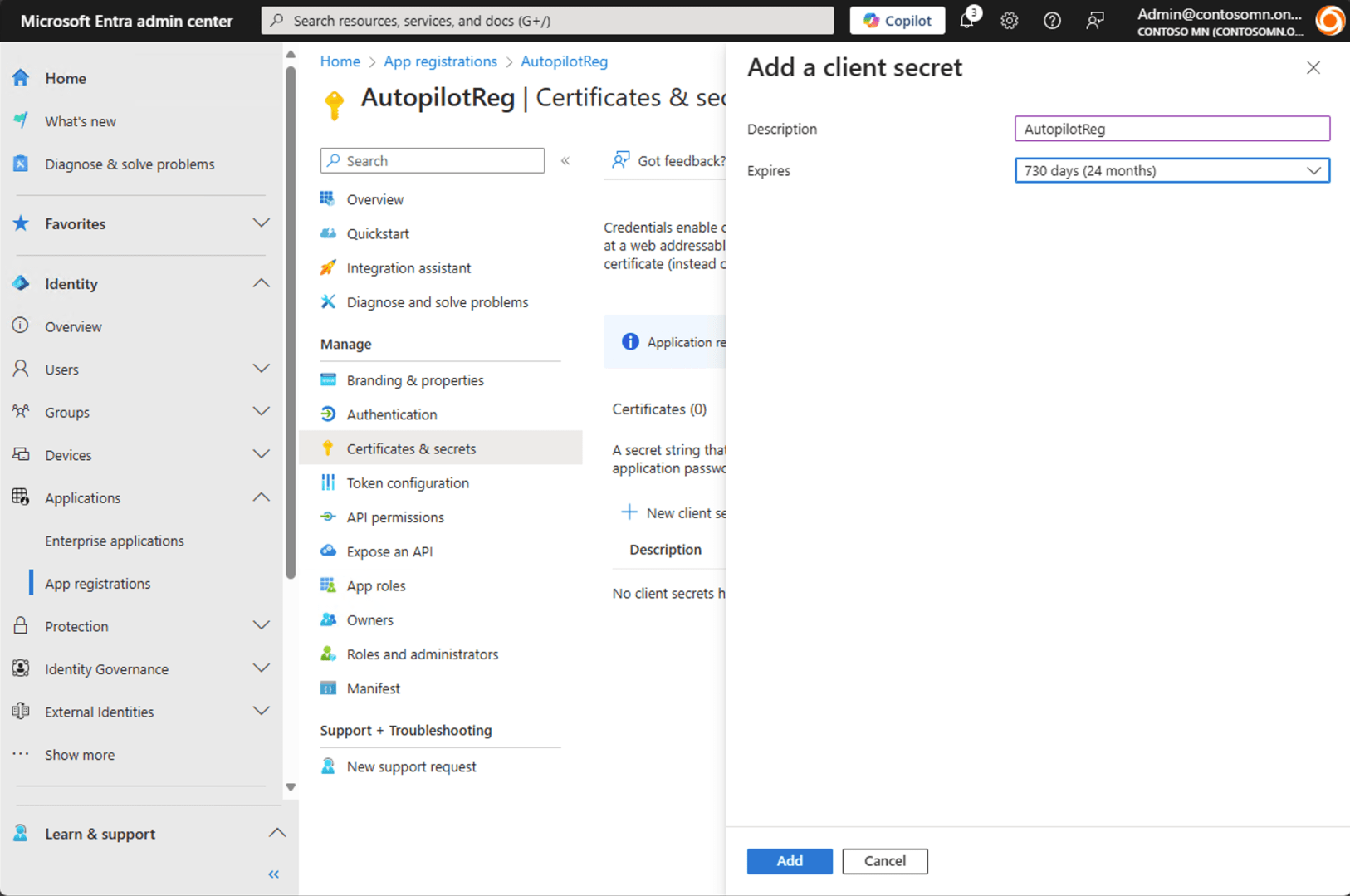
Give it a name and specify how long that secret (which is effectively a password) should remain valid; two years is the maximum, and since this is just a lab environment where I don’t really care about security, I’ll choose that.
After clicking “Add” I can see the secret (OK, I care a little about security, blanked out the values even though you couldn’t see the complete strings).

Copy the “Value” off somewhere safe. Once you refresh or close the page, you won’t be able to get that value again — it’s a secret after all.
To use the secret, you will need three pieces of information:
- The tenant ID, which you can get from the “Overview” page:

- The app ID, which you can copy from the application’s overview page:
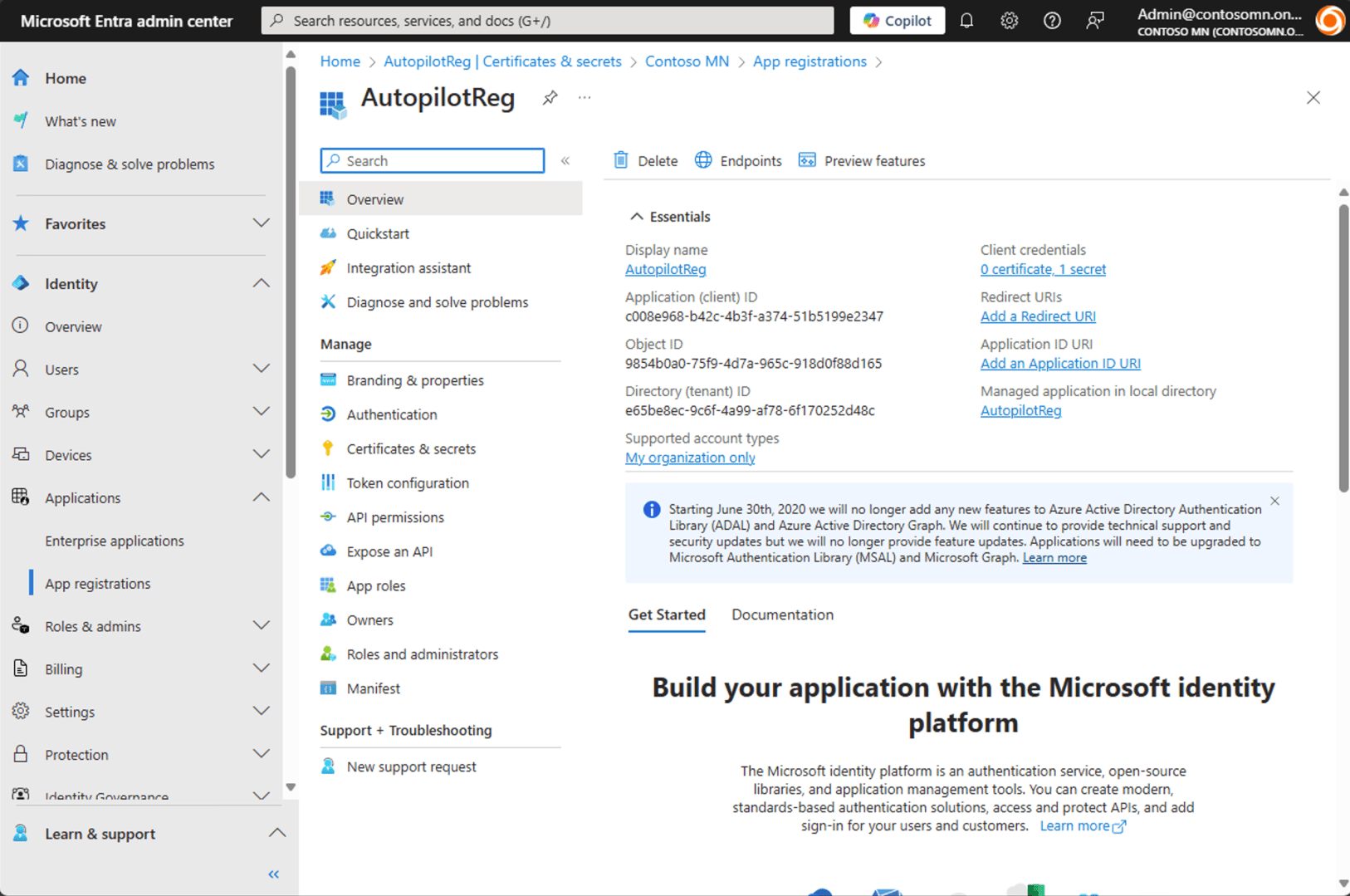
- The “Value” (app secret) from the secret that you previously created and copied off somewhere safe.
It’s worth mentioning that you might need to grant additional permissions to the app too, depending on what you plan on doing with the registration. For example, the Get-WindowsAutopilotInfoCommunity script queries Entra ID to see if the device is already registered; that would require additional rights. You can also specify to add the device to an Entra ID group, which would need more rights. You get the picture. Since I didn’t want error messages, I added “DeviceManagementManagedDevices.Read.All” to the list of permissions for my app.
Autopilot v1: Hardware hash registration
So now you’re ready to register a device using the app registration you just created. Let’s try it out. Start a PowerShell session and install the “Get-WindowsAutopilotInfoCommunity” script, then run it with a few parameters:
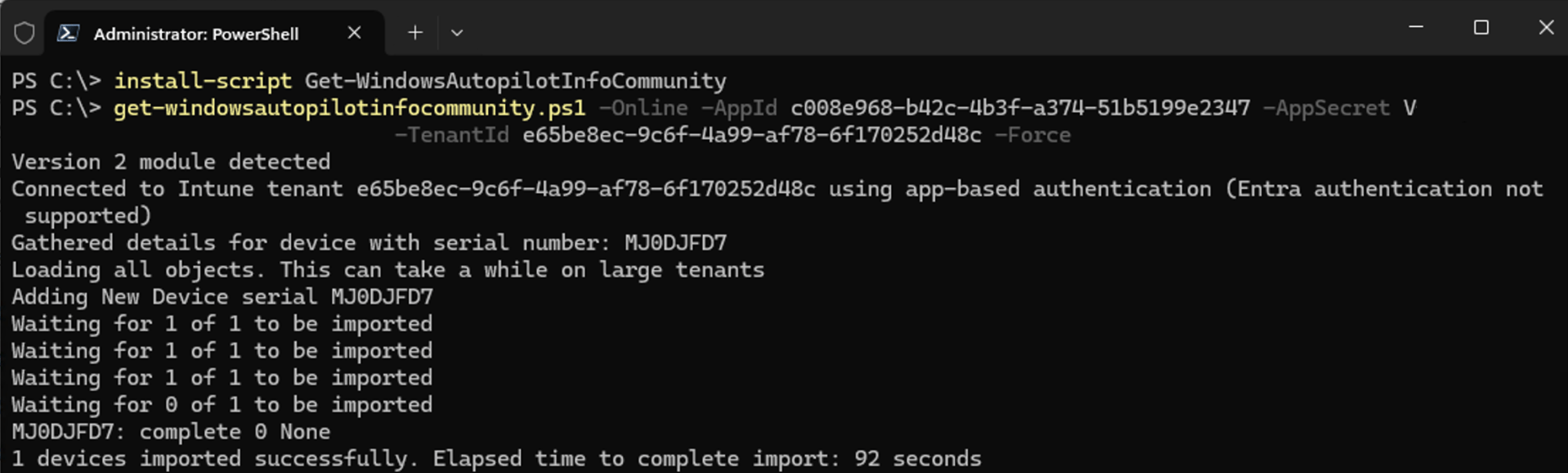
Presto.
Autopilot v2: Corporate device identifier registration
Same basic process, just one extra “-identifier” parameter to specify that you want to create a corporate device identifier.
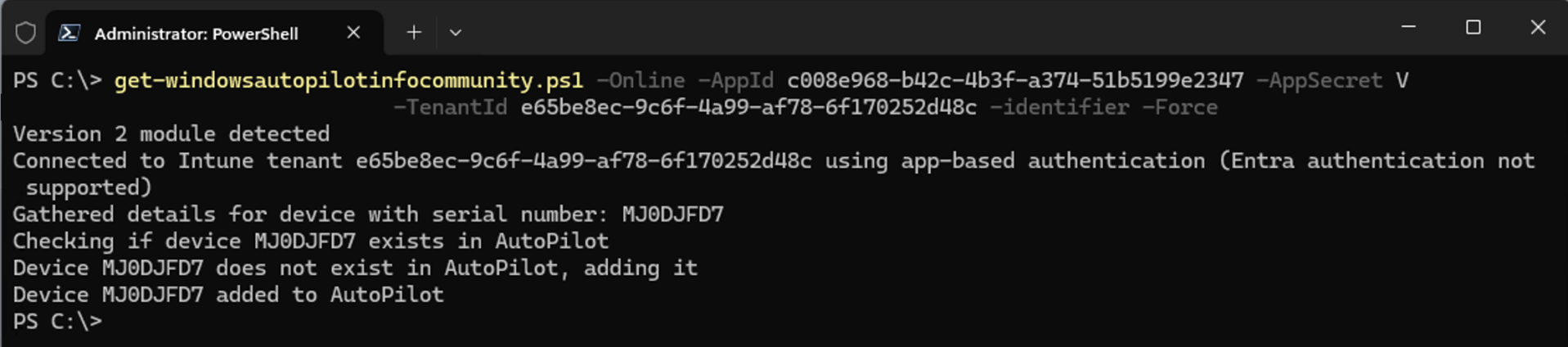
This is a super-fast process in comparison to registering a device with a hardware hash, since this process doesn’t involve Intune and the Autopilot service talking to one another. In this case, it just creates a new corporate device identifier in your Intune tenant:
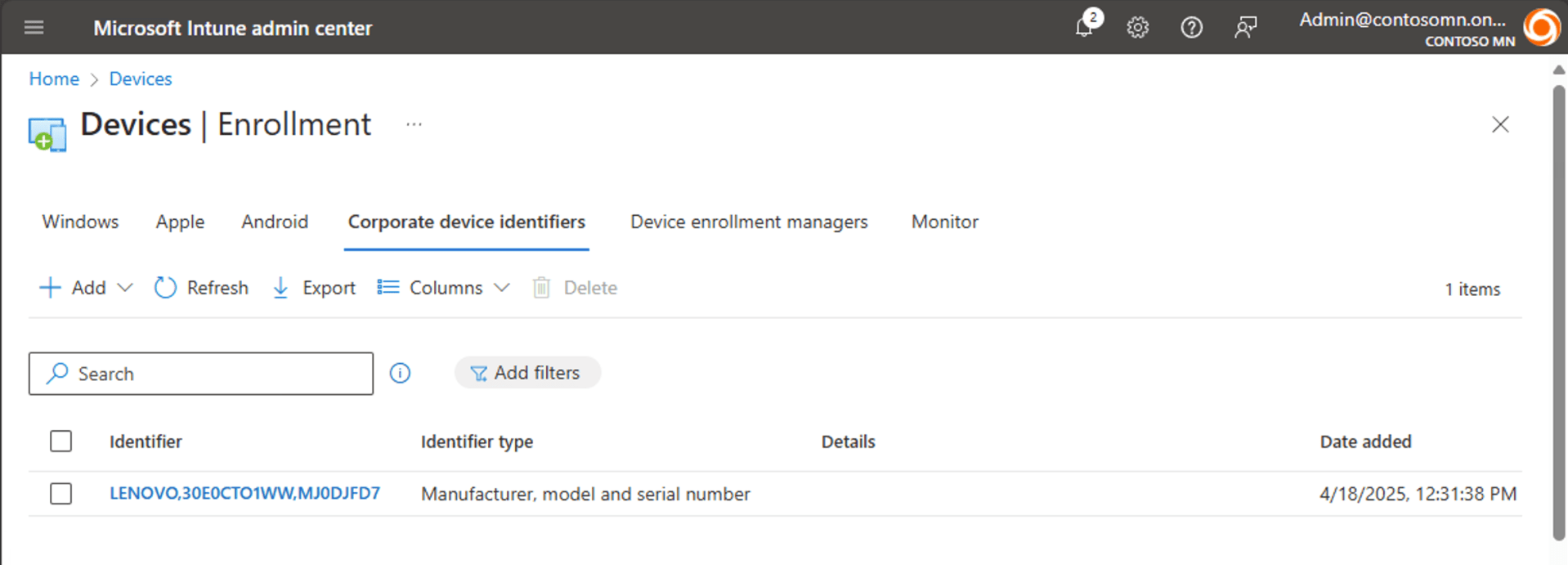
Remember, if there is a registered hardware hash that will always take precedence over APv2. Doubly-registering a device with Autopilot and via a corporate device identifier causes no harm though, since both will end up telling Intune “this is a corporate device.”
Is this a good practice?
You can certainly register devices “just in time” for APv1 or APv2. The real question should be “is this secure.” You are granting an app a lot of permissions. For example, if you have rights to add devices to Autopilot, you also:
- Add and remove iOS devices, VPP tokens
- Add and remove connectors
- Add and remove users from your Entra ID tenant
- You can change enrollment restrictions
- You can change device compliance policies
- Etc.
Want to see all the different things each of these permissions can do? Check out Merill Fernando’s https://graphpermissions.merill.net/ site to see just how bad:
- https://graphpermissions.merill.net/permission/DeviceManagementConfiguration.ReadWrite.All
- https://graphpermissions.merill.net/permission/DeviceManagementServiceConfig.ReadWrite.All
- https://graphpermissions.merill.net/permission/DeviceManagementManagedDevices.Read.All (the extra one I added to eliminate errors from the Get-WindowsAutopilotInfoCommunity script)
So that app ID and app secret should be protected. But if you’re sending it to every device you set up, that’s pretty hard to do — that means it’s in clear text somewhere. (Maybe you embed a PowerShell script into an executable — that doesn’t really help.)
It would be much better to “proxy” access to Graph, since these Graph app permissions are not very granular. Perhaps something like Power Automate, where you grant the Power Automate flow the rights to perform the task; then you just need a way to invoke that flow from a client; that client then only needs the rights to do that.
But that’s a more advanced scenario, for another time…


 Out of Office Hours
5 responses to “Automatically registering Autopilot devices with Intune”
Wait. Isn’t this what Amazon is doing with Workspaces, using an app registration for EntraID native join?
LikeLike
Hi, If I want to use the -Delete parameter, what kind of permission I should grant
LikeLike
What would be the benefit of Double registering, if APv1 takes precedence, do you loose all the advantages of APv2?
LikeLike
APv1 registration always wins, so there’s no advantage to doing both — you’ll never go down the APv2 route with an APv1-registered device.
LikeLike
It’s astounding that MS does not have this functionality built into the system. Shenanigans!
LikeLike