
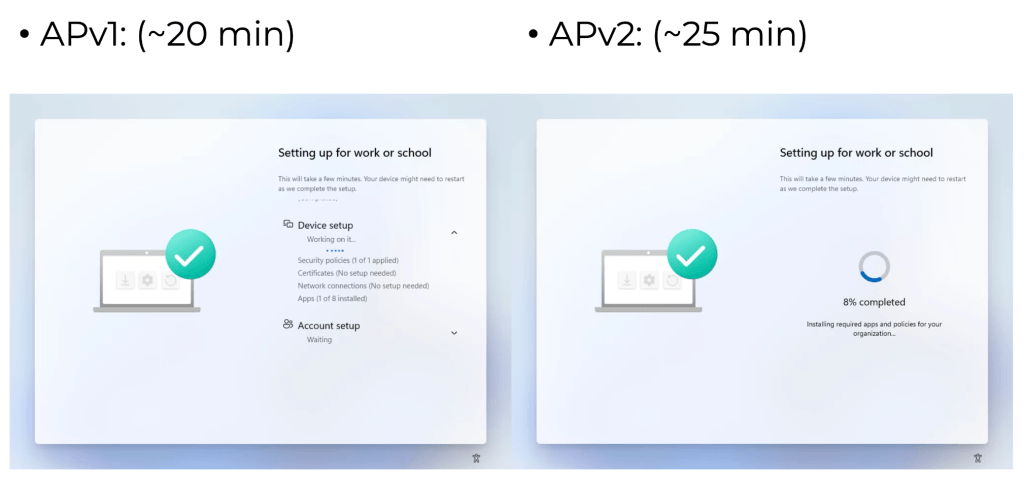
Back when Autopilot v2 was announced, and carried over into the documentation, is a claim:
[Windows Autopilot device preparation, a.k.a. Autopilot v2] reduces the time IT spends on deploying devices.
OK, but what exactly does that mean? How does it reduce the time? I will assume that’s talking about the time per device (since one-time admin activities don’t really matter overall — who cares how many clicks it takes to do the initial config). To understand the flow on each device, let’s walk through the process in a little more detail. In the first phase of the process, after the device has been enrolled in Intune, you’ll see that it is trying to figure out what needs to be done. The user experience is different between Autopilot v1 and v2:
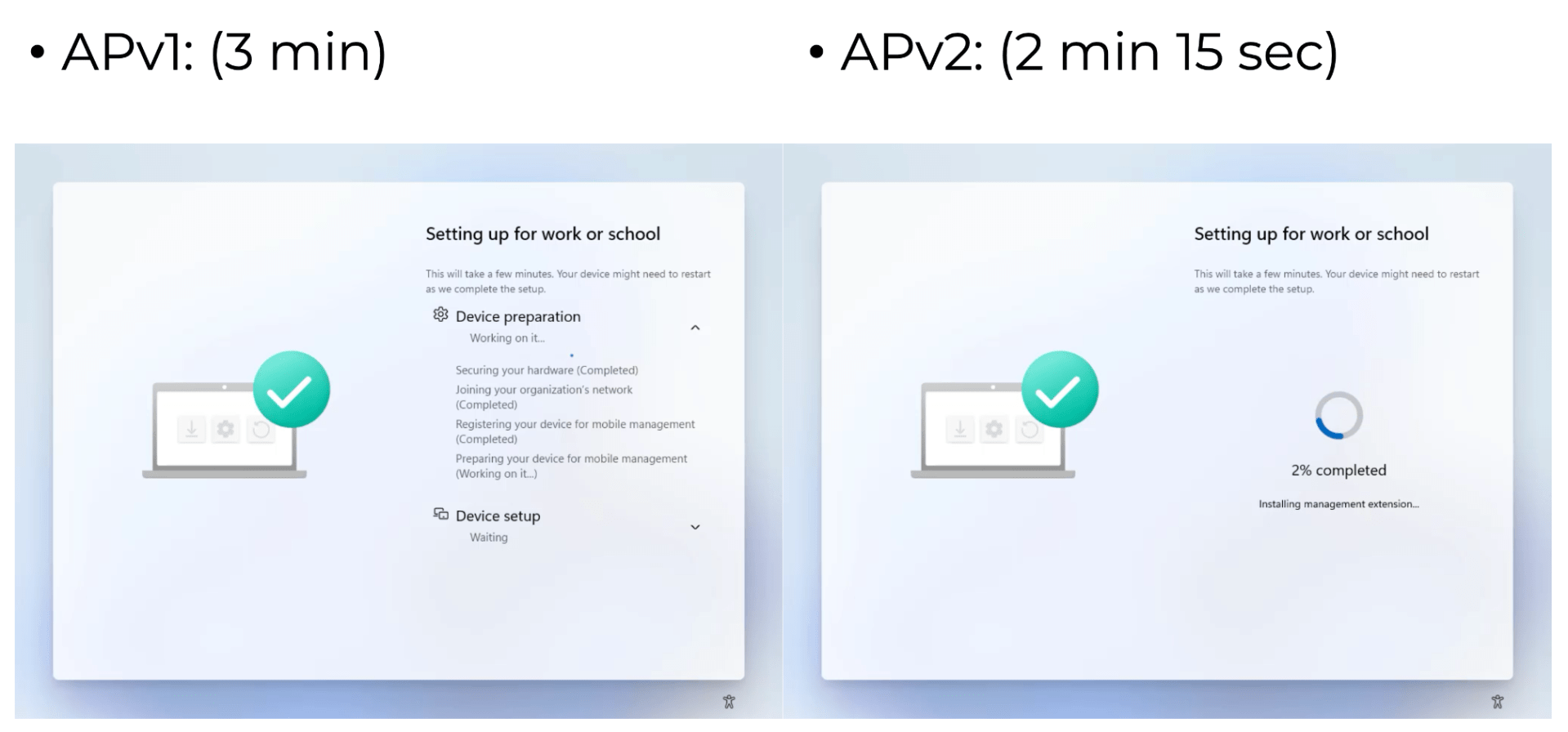
But the activities are the same: The Intune Management Extension (IME) MSI is downloaded and installed, and then IME has to figure out what apps (and in the v2 case, PowerShell scripts as well) need to be installed. From the image above, you can see that APv2 is about 45 seconds faster. Why is that? That’s the benefit of enrollment time grouping, an Intune feature that allows pre-calculation of what policies are going to be needed. That’s why there is a device group associated with the APv2 device preparation profile: when the device is added to that group after the APv2 enrollment, Intune already knows what is needed.
OK, so we saved about 45 seconds. (Your results may vary.) After that process completes, the next step is to install apps, and in the APv2 case, to run PowerShell scripts as well. This is usually where all the time is consumed. In my case, I’m installing 8 apps (not that you can tell that with APv2 — and that progress percentage isn’t useful either).
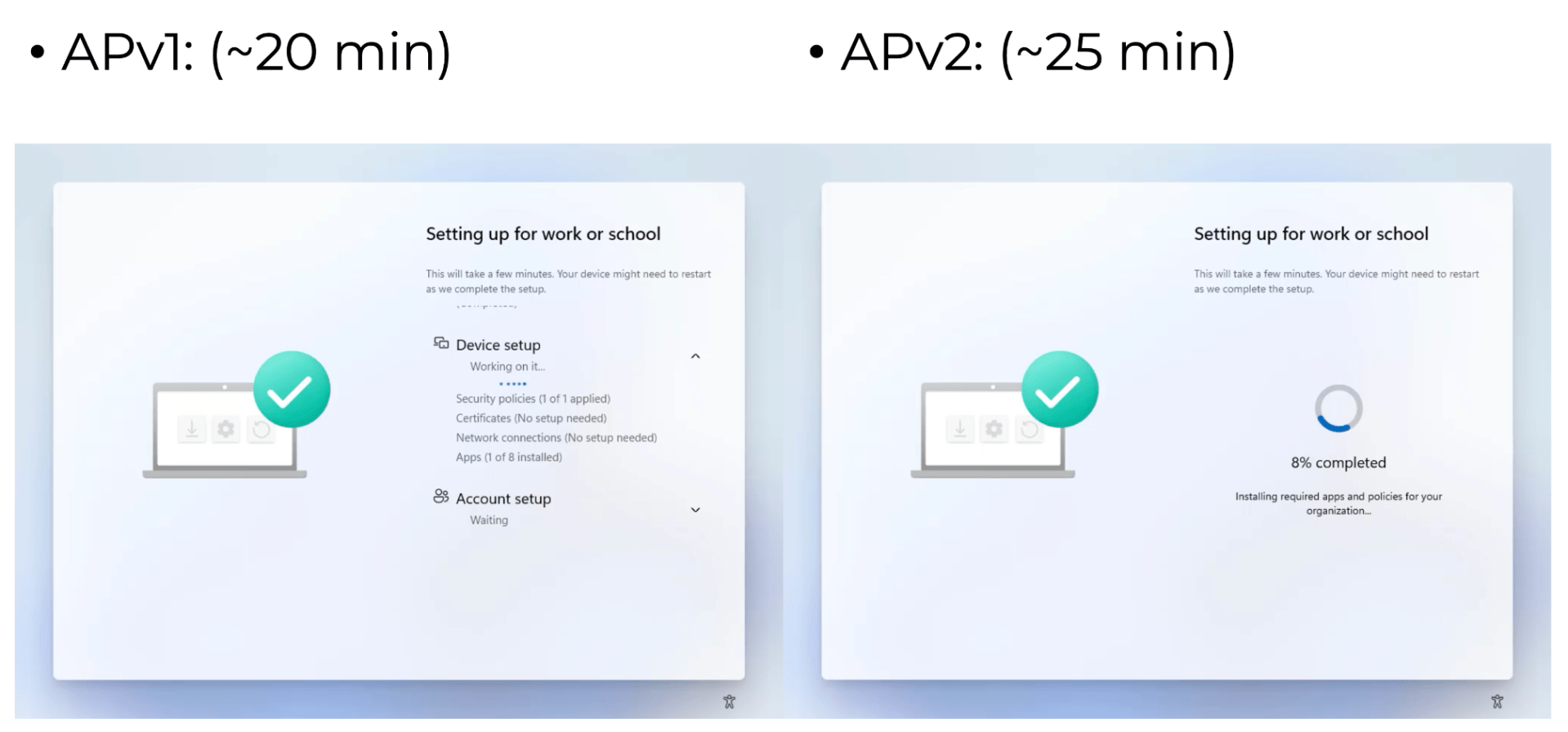
Logically, you might think that this would be a tie between the two: you still need to download and install each of the blocking apps, so you would expect the time to be the same. But in my particular case, APv2 was five minutes slower. So what’s going on there? Pretty simple: One of my apps requires a reboot (it returns an exit code of 3010, which causes a deferred/coalesced reboot once all of the apps have installed), and after that reboot it took APv2 five minutes to figure out that it was actually already done. Why? Not clear, but it appears to just be particularly bad at reinitializing after the reboot. With any luck, Microsoft will fix this (it’s been like this from the initial availability of APv2).
Without that, it would have been a tie. But there is an improvement in APv2 that can indeed make it faster. With APv1, you could specify a list of blocking apps in the ESP profile; in APv2, that list is part of the APv2 device preparation profile. But with APv1, it didn’t prevent other apps (those that were targeted to the device but not in the blocking list) from installing at the same time as the blocking apps. And since you can’t control the order of apps installs (still, ugh), you really have no control over how this behaves unless you go through extra steps to defer those apps (e.g. a requirements script that returns “not applicable” until after OOBE has completed). So if you targeted 15 apps and only had 8 in the blocking list, you might still end up waiting on all 15.
With APv2, the behavior is more logical: apps (and PowerShell scripts too) in the blocking list will install, but those not on the list will be deferred until after the process completes, which is when this screen appears:

If you sat on that screen long enough, all the non-blocking apps/scripts would install in the background. Even if the user clicks next to dismiss the screen, the installs continue in the background.
So APv1 could be significantly slower just because you accidentally installed more apps that what you intended to block on; APv2 prevents that. (In an ideal world, that same change would come to APv1 as well, as it should have always worked like that. But don’t hold your breath on that, not sure it will ever happen.)
So let’s summarize:
- APv2 will be slightly faster (due to enrollment time grouping), maybe by a minute or so
- …unless you have a reboot in the process, where each reboot adds minutes
- APv2 could be significantly faster if you have a number of device-targeted but non-blocking apps targeted (and not filtered using requirement scripts)
- APv2 could be slower if you run PowerShell scripts that take a while (since APv1 didn’t block on PowerShell scripts, deferring those until after APv1 completed)


 Out of Office Hours
3 responses to “Windows Autopilot v2: Is it faster? It depends…”
Hi Michael, regarding your comment that ‘APv2 could be slower if you run PowerShell scripts that take a while (since APv1 didn’t block on PowerShell scripts, deferring those until after APv1 completed)’.We run a number of PowerShell scripts with APv1, and they always run before any of the Win32 apps start to install. So having only 10 with APv2, I could see how that may speed up APv2 compared to APv1.
LikeLiked by 1 person
Dear Michael,
Thank you for your recent article. As always, your work is exceptional, and I greatly appreciate the insights you provide. I eagerly look forward to your future articles.
LikeLike
also Interessed for PatchMyPc Users, APV 2 skips the Update Packages that are assigned at required! In apv1 every updatepackage that was required assigned will be evaluated, this takes at our point with 120 Apps more than 15 min. In apv it takes 0 minutes because all will be skipped and evaluated in Windows after first logon
LikeLike