
I have one big Hyper-V server, currenting running Windows Server 2022 Datacenter, that I use for lots of things (with 12 cores, 272GB RAM, 8TB of disk space). Upgrading it to Windows Server 2025 should be a straight-forward process, right? Insert the media (mounted, downloaded ISO), run SETUP.EXE, do the upgrade. But it took a few attempts before it worked:
Upgrade #1: Insufficient disk space
When upgrading a server, you do need to have sufficient disk space on the C: drive. (The other volumes don’t matter because there’s nothing really to migrate on them.) I checked before I started, and having 80GB free on a 256GB volume sounded like it would be enough. But even though the Setup process itself does some “needed free space” calculations itself and allowed the upgrade to continue, it eventually rolled back with an 80070070 error logged, not enough space on the disk. OK, time to do some more cleanup.
A useful first step is to run the “Disk Cleanup Wizard” elevated and tell it to clean up everything. That freed up about 10GB, but I wanted to check for more so I used WinDirStat to analyze the drive to tell me where the significant chunks of storage were being consumed. There were two areas that stood out:
- The C:\ProgramData\Microsoft\Windows\Hyper-V folder had over 30GB of space consumed. This was primarily in the “Planned Virtual Machines” and “Planned Snapshots” folders. From online searches, it appears these folders are used when importing or migrating a virtual machine. Looking in WMI (root\virtualization\v2), I could see an instance of Msvm_PlannedComputerSystem that was around the same date/time as the timestamps on the files (back in early 2024), linked to a VM that I had probably tried to move to a different drive. I guess it failed and didn’t clean itself up? There was no obvious way to clean it up (removing the WMI instance didn’t do anything, it just came right back), so I stopped the Hyper-V VM Management Service, deleted the files, and then restarted the service.
- The C:\ProgramData\Microsoft\Crypto\RSA\MachineKeys folder had gigabytes worth of files — over 2.3 million files altogether. Yikes. It seems like the OS wasn’t cleaning these up for some reason. I found this blog which provided a mechanism for cleaning up older files (a low-risk thing for me to do on the box because it was a workgroup device just being used for Hyper-V, although since IIS was installed for a previous failed attempt at Windows Admin Center I did take care to retain the specified files — even though I probably didn’t need to since I later removed IIS).
After cleaning those up, and a variety of other no longer needed downloads and older log files, the drive now had 160GB free. Surely that’s enough…
Upgrade #2: RDWeb error
My second attempt was fine with the available free disk space, but this time it failed on something new: an error related to the migration of RDWeb settings. RDWeb? That’s for Remote Desktop Web Access. Not sure what’s its issue was, but since I wasn’t actively using RDWeb (I moved to Tailscale and use the Windows App to access the machine remotely), I figured the simplest answer was to remove it. While I was at it, I also removed IIS (and ASP.NET) since I wasn’t using that either.
Upgrade #3: Checking for updates hang
Sometimes it seems like the world is against you. My third attempt didn’t really ever get anywhere. Immediately after starting SETUP.EXE, it checks for updates to itself. That process hung for over an hour before I killed it, rebooted, and cleaned up the $WINDOWS.~BT folder that it left behind.
Upgrade #4: Success
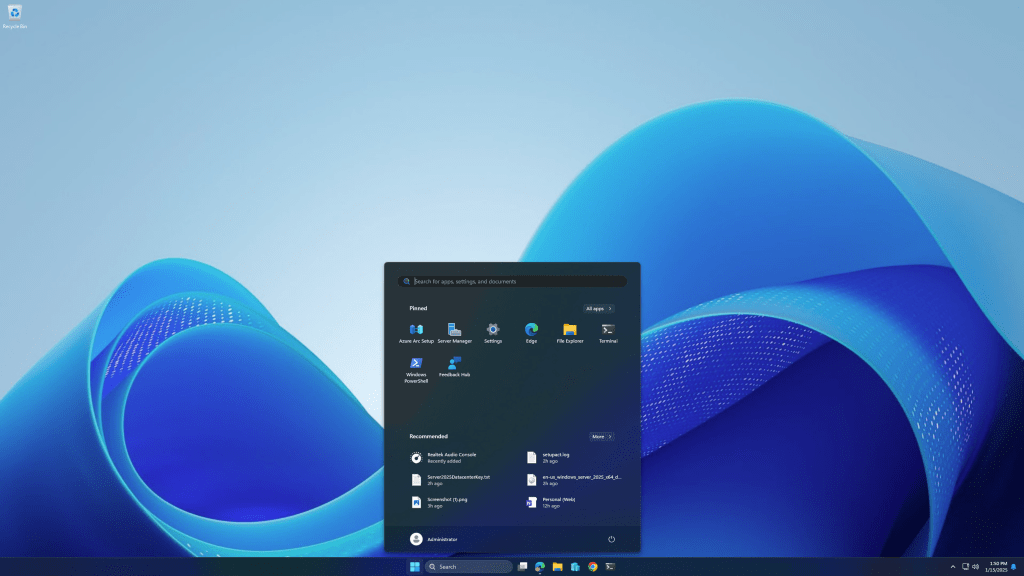
What else could possibly go wrong? Fortunately, nothing; the upgrade completed on the fourth try and all is good. I now have a very Windows 11-looking OS:

And yes, it has the Azure Arc Setup tray icon and installer, the same one that was delivered to earlier Windows Server releases, but it’s just as easy to remove via “Optional features”:

And VBScript and WMIC are still installed, but like with Windows 11 24H2 they are both removable, as is the (also obsolete) PowerShell ISE.
As for Hyper-V itself, there is a new Hyper-V VM configuration version 12 that I can upgrade my VMs to (not sure what improvements this provides as the Windows Server doc page doesn’t describe versions 11 or 12 yet), once I get around to it — the VMs need to be shut down and there are impacts to checkpoints and saved state. And eventually I’ll need to upgrade my Windows Server VMs too. Let’s hope that process goes more smoothly — not that this process was particularly bad, it just took longer than I had expected. Now it’s time to get back to work…


 Out of Office Hours
One response to “Upgrading Hyper-V to Windows Server 2025”
Greetings Michael
Your blog has helped me greatly in managing Intune/SCCM/leveraging powershell in my career. Thanks for your content and blog
Thanks again
LikeLike