

If you are using Windows 10 or 11 (i.e. everyone), you are using Delivery Optimization (DO) to download all sorts of things — see Phil Wilcock’s post for a good overview of where DO is used. In an ideal world, everything would be downloaded once from the internet and then pulled from peers in the same location, but we’re not in an ideal world. There are plenty of things that can be done to improve peering. But in those cases where there are no peers, you might want another tool to help. That’s where the Microsoft Connected Cache (abbreviated to MCC) comes in. This has been included with SCCM for some time, so you could check a box to add it to a ConfigMgr distribution point, but if you weren’t using SCCM you were out of luck.
Now, with the release of the preview version of a standalone version of MCC, you don’t need SCCM anymore. That said, it’s also no longer as simple as just a checkbox. The full details are in the preview documentation. Let’s start with the high-level requirements:
You must be licensed for Windows 10/11 E3/E5/F3/A3/A5 (or Microsoft 365 E3/E5/F3/A3/A5) in order to use it. That follows a trend (e.g. AutoPatch) of linking cloud-based services to Windows/M365 subscriptions.
You need an Azure subscription (and someone who has access to it) to register your MCC hosts. You can’t just install it and point clients to it; you have to register it, and configure it to be tied to that registration. There will be no charges to that Azure subscription (there is no Azure consumption and no cost to register MCC devices).
You can run it on Windows 11 or Windows Server 2022 (or higher), or on Linux. On Windows, it will use the Windows Subsystem for Linux (WSL), running inside an Ubuntu container. If you haven’t used WSL yet, no big deal, because you don’t have to interact with that container yourself. If using Windows on Hyper-V, you’ll need to enable nested virtualization for WSL to work.
Port 80 must not be in use on the machines this is installed on — so don’t put it on an SCCM server or anything else running with a web server on port 80.
I’ll leave it to the documentation for the details of “how” to install it. Issues I found on my first try:
- Not reading all the docs first. That was especially true for the port 80 requirement: I tried to install MCC on my existing SCCM server and failed miserably. This was also true for specifying a local service account: one parameter specifies the account name (e.g. “COMPUTERNAME\MCCAccount”) while the other specifies a PowerShell credential with the same account details and the account’s password — if you don’t specify those correctly, you’ll get some head-scratching errors.
- Running the installation PowerShell script using PowerShell 7. This didn’t work right because the scheduled tasks that the installation creates weren’t created with the proper paths to the PowerShell executable. (Microsoft may have already fixed this, but just in case, it’s easy enough to run the script from PowerShell 5.1.)
- Guessing what rights were needed for a local service account. The docs didn’t explicitly state what rights were needed, so I didn’t give it any. That failed (not surprisingly). Instead of trying to figure out the “proper” rights, I just added the account into the local Administrators group and called it a day — obviously not a best practice, but it suffices until the Microsoft docs can be more prescriptive on that.
Once you have it installed, be sure to check back into the Azure portal since you can use it to monitor the activity through your MCC device(s). Not a lot of activity through mine yet (not surprising since no clients are point to it); that’s a task for a later date.
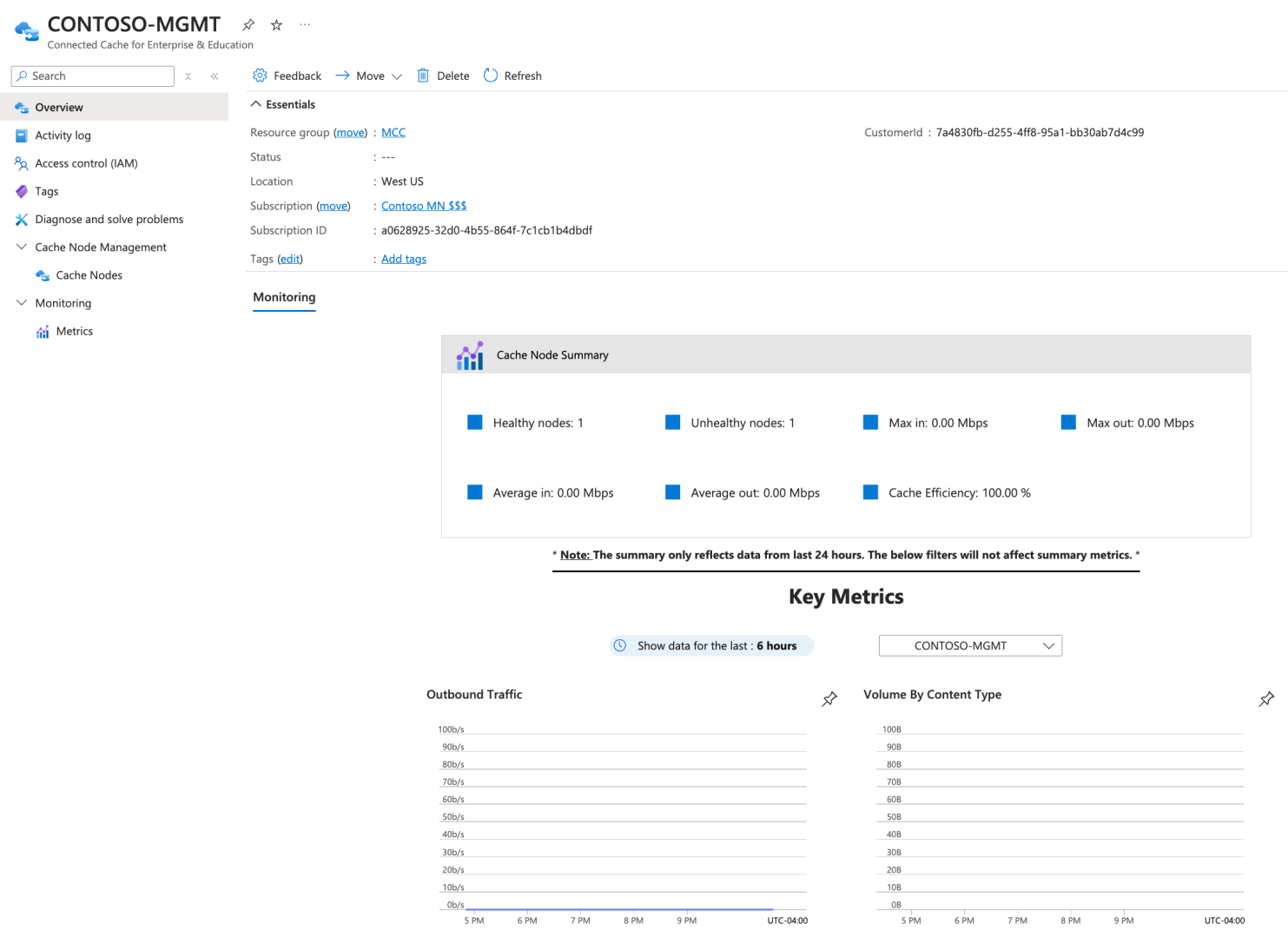
At the end of the day, MCC is a DO-specific proxy server that caches any downloaded peerable content (so it doesn’t help with the non-peerable/HTTPS issues). It’s worth checking out the preview.

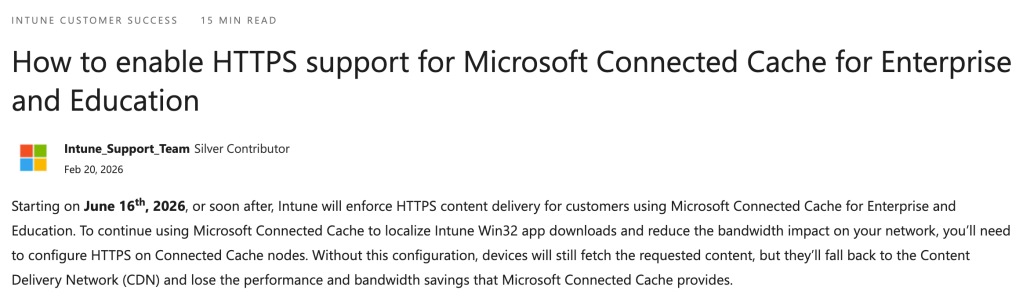

 Out of Office Hours
13 responses to “Finally, a standalone version of Connected Cache for Delivery Optimization”
Hi Michael,
How large a cahce drive size would be recommended?
The larger the better?
LikeLiked by 1 person
For MCC, I initially set up a 50GB cache for my lab environment. For production environments, it’s going to depend on your Intune app usage. The WU, store, and Office content is reasonably predictable.
LikeLike
When installing MCC on a SCCM DP the MS default is 100 GB. I increase that to 500 GB
LikeLike
Fortunately, the space isn’t preallocated — it’s an expanding VHDX file. But it will expand over time.
LikeLike
Who’s Phil?
That’s a very labored way of saying “you can only run it on Linux (WSL is supported).”
Microsoft releasing a Linux-only app is disturbing.
LikeLike
Oops, I was editing this on an airplane and the lack of connectivity caused me to have to copy and paste the entire blog post back into the editor. In the process, it lost all of the links. I’ve re-added those, and explicitly mentioned Phil Wilcock’s name.
It is certainly interesting that this is a Linux app, but if you look at the original reason it was created (ISPs, hosters, etc.), it makes some sense — they don’t want to host a Windows app. That said, then trying to use that same app for Windows-based orgs is going to be foreign to most.
LikeLike
Hey,
I don’t understand the benefits of MCC. If we use DO and device downloads a content from Intune doesn’t device become automatically as peer cache source?
LikeLike
It’s a fallback: If you can’t find any peers with the content, ask the MCC before going directly to the source. Given that DO routinely only manages to deliver 20-80% of the content (depending on how well you’ve tuned it), MCC is meant to catch the other 20-80%. That’s a longer, more involved conversation…
LikeLike
Let’s imagine we have a location with 100 devices and we deploy monthly patches. First device will download a patch from WUfB, because there are no devices with such content.
If we use DO other devices should download a content from this peer cache source. If we use MCC this device that act as MCC source will provide a content in the same way.
What is the difference than? Sorry, I really don’t understand.
And one more: should we go with batches like we use for SCCM peer cache when we need to patch peer cache sources first and only after that we can patch peer clients? What will happen if we use MCC in 100 devices location and patch them together? Will 99 devices wait till MCC host is patched?
LikeLike
As a big fan of Podman, this is disappointing:
I guess that means the container relies on Docker and if running Linux on bare metal, the most optimal distro choice would be Ubuntu 22.04 based on the prerequisites. I was hoping we would see the option to install Azure Linux or a container focused distro such as Fedora CoreOS.
LikeLike
the data plane container can use other runtimes, I’ve run it on containerd via k8s. but that’s definitely not a supported scenario, and excludes some other MCC components like monitoring/updates
LikeLike
I was able to create an MCC4EE instance on a Windows Server 2022, but not without running into some issues as well. But here’s what i did and what i learned along the way in case someone wants to use a standard local account to run MCC4EE Distribution on WSL.
First and foremost, a cautionary tail, do not proceed with WSL instalation before the server is fully patched. While the server was Updating (I had a 2 year old Windows Server 2022 ISO) I attempted to install WSL. Not sure if this was the root cause but, I ran into an issue where WSL was installed but it was under C:WindowsSystem32wsl.exe and not under C:Program Fileswslwsl.exe (sorry typing from memory). The script constantly said that wsl was not installed, but i was able to run all wsl commands, plus even use a distribution without issues. Ended up downloading an iso with all the patches and everything just worked.
Now 2 EXTREMELY IMPORTANT notes: First of all extract the content of the zip to a location that your standard user has access to (example C:MCC-WSL-Installer), do not unzip it and run the powershell from the Administrator profile. This is because at a certain point during the setup, the script will log on with the user you will specify in the powershell $User variable (this is why you had add the user to the Log on as a batch job under the User Rights Assignment). As you might have realized by now, this user will not have access to the content inside of the Administrator profile (C:UsersAdministrator*), so if you do attempt to run it, you will get an error and only digging through the installation logs you will find the reasons why.
Second: Assign Modify permission to the user you created on the installation folder. Reason for this is that during the setup process, one of the PowerShell scripts will download some bash scripts into in order to install MCC inside the WSL distribution. This download will be executed from within the WSL distribution, which at this point is already running that the local user. So if the it cannot write the scripts to the installation folder, the instalation will fail..
cd c:MCC-WSL-Installer
Set-ExecutionPolicy Bypass -Scope Process
$user = “$env:computernameWSL-MCC4EE”
$myLocalAccountCredential = Get-Credential -Message “Insert $User’s Password” -UserName $User
The process should take between 15~30 minutes, so be patient. It seems that I already wrote the entire bible in this commend .. but since i’m at it there’s 1 more i noticed: running the command wsl -l as administrator will give you the following message: Windows Subsystem for Linux has no Installed Distributions. This is because the WSL MCC Distribution is running under the user you created. To access it, you will need to open an command line or powershell as the user you created.
I havent tested this with a Standard Domain account of gMSA, but i suspect that it will basically be the same steps with out the need to set up $myLocalAccountCredential variable in powershell.
Hope this helps and Happy Caching.
LikeLike
Thanks for the great write up Ricardo. You highlighted one big gotcha in the WSL pre-req on the unpatched OS. We’re updating the docs to include paths you can’t run the install from; SharePoint or anything under user as you shared. Is there anything else that you think we should document that would be helpful to others.
LikeLike