
Back in 2023, I posted a Media Tool app (which uses PowerShell behind the scenes) to download Windows 10 or 11 media, for both x64 and ARM64 architectures. I’ve now uploaded a new version of that with a few tweaks:
- It now understands Windows 11 23H2 and 24H2. The script had logic to fall back to using the build number, e.g. “Windows (22631)” but there was a bug in that logic so it ended up just displaying “Windows (” instead. That’s fixed too, so even if the scripts aren’t updated right away for 25H2 they should work fine now.
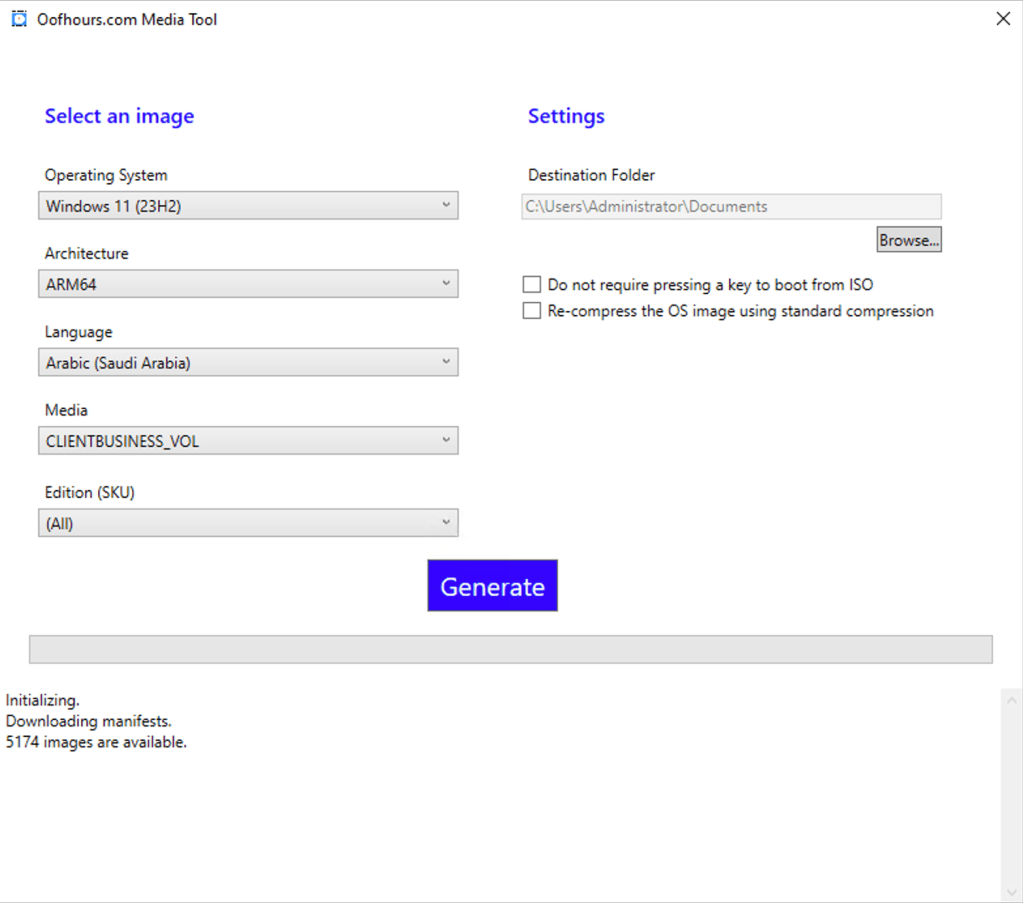
- It now is more aware of media types. With the previous release, you could choose a Windows version, architecture, language, and edition; with the new release, you can choose version, architecture, language, and media type, with the edition being optional.
You can get the latest version directly from GitHub at this link:
The new version looks slightly different than the old version with the addition of the media type selection:

You will generally see two different types of media:
- CLIENTBUSINESS_VOL, for Enterprise (volume license) SKUs.
- CLIENTCONSUMER_RET, for retail SKUs.
Notice that the default for “Edition (SKU)” is now “(All)”. Each of these media types can contain multiple OS images; if you choose the default of “All” editions, the resulting WIM and ISO will contain all the images that were in the original ESD file. For the “business” media, this would typically be just “Enterprise” but for the consumer media it would include Home, Pro, and various other editions.
If you want just one specific edition, you can choose that as well, but be aware that you might choose an edition that isn’t actually in the ESD file. This happens because the Microsoft manifest files specify a “use for this edition” value instead of the specific edition that is contained in the image. So if you were to choose “EnterpriseN” as an edition, it will likely fail because that image is no longer available; you would need to choose “Enterprise” instead. (And the “Enterprise” image can be used to upgrade either Enterprise or EnterpriseN to the new release.)
One of the other challenges is that you could see an error like this:

The app isn’t very good at detecting the cause for download errors (it is using the PowerShell Start-BitsTransfer cmdlet to do the download), so it will just report that there was a failure without telling you what the failure was. The most common reason: insufficient disk space. You can find the details in the Bits event log, e.g.:
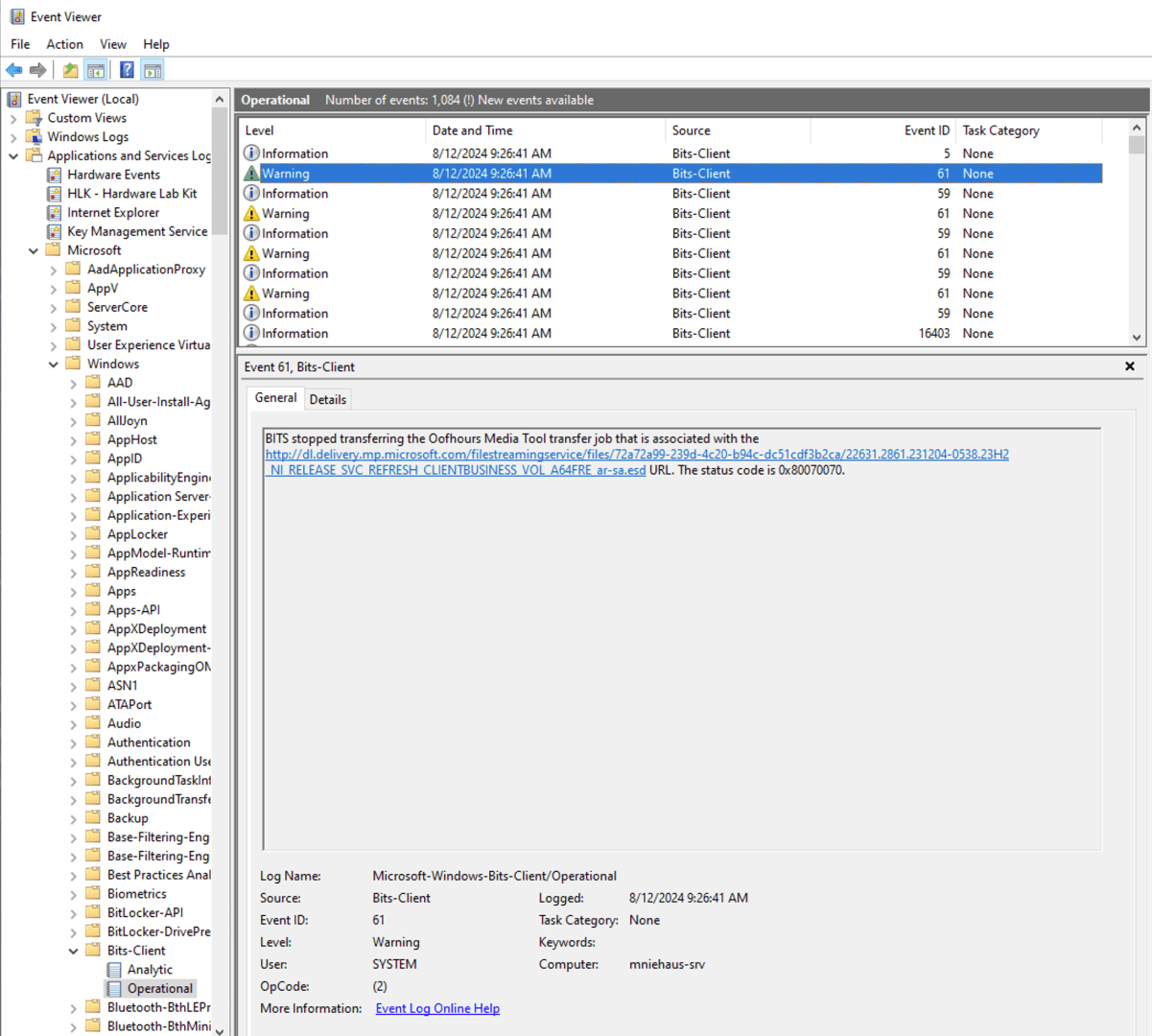
In this case, the 0x80070070 status code means “insufficient disk space.”
If you run into any other issues, or if you have any suggestions or feedback, feel free to submit issues via the GitHub repository.


 Out of Office Hours
4 responses to “Updated Media Tool available”
Hi Michael,
Your tool would not split downloaded ESDs like Windows Media Creation Tool would do if you target USB drive to make it fit on FAT32 bootable partition, right?
LikeLike
Not at this point, it only creates ISOs and doesn’t need to split the ESD/WIM for that.
LikeLike
Just noticed it no longer offers 24H2, do you know what happened?
LikeLike
I didn’t think it ever offered 24H2 — it’s using a FWLink for the Windows 11 catalog that won’t be updated until 24H2 is fully released; right now, that points to a 23H2 catalog. (It would be possible to update the script to include a 24H2 URL, but I don’t know what the 24H2 URL is.)
LikeLike