

In the first part, I set up Workspace ONE and integrated it into my existing Entra ID (Azure AD) tenant. In part 2, I set up apps and policies that should be deployed to my devices. That prepares me for the next step, provisioning new devices with Windows Autopilot.
Configuring ESP
Deep in the Workspace ONE settings is an option to enable the Enrollment Status Page (ESP). You can find that in Settings -> Devices & Users -> General -> Enrollment -> Optional Prompt. Scrolling down to the Windows section, you’ll see the option to enable it:
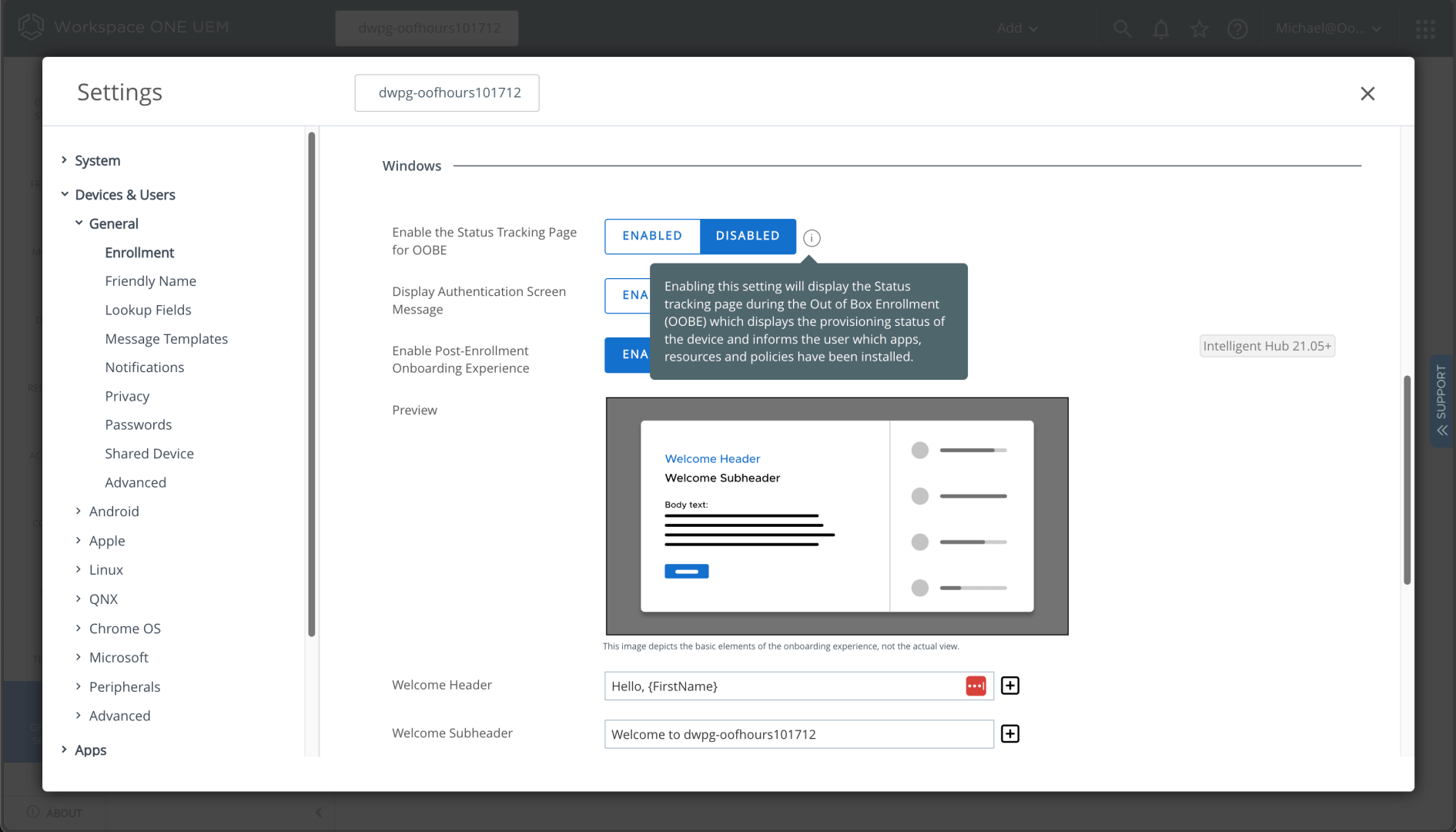
Once you click “Enabled,” additional settings appear:
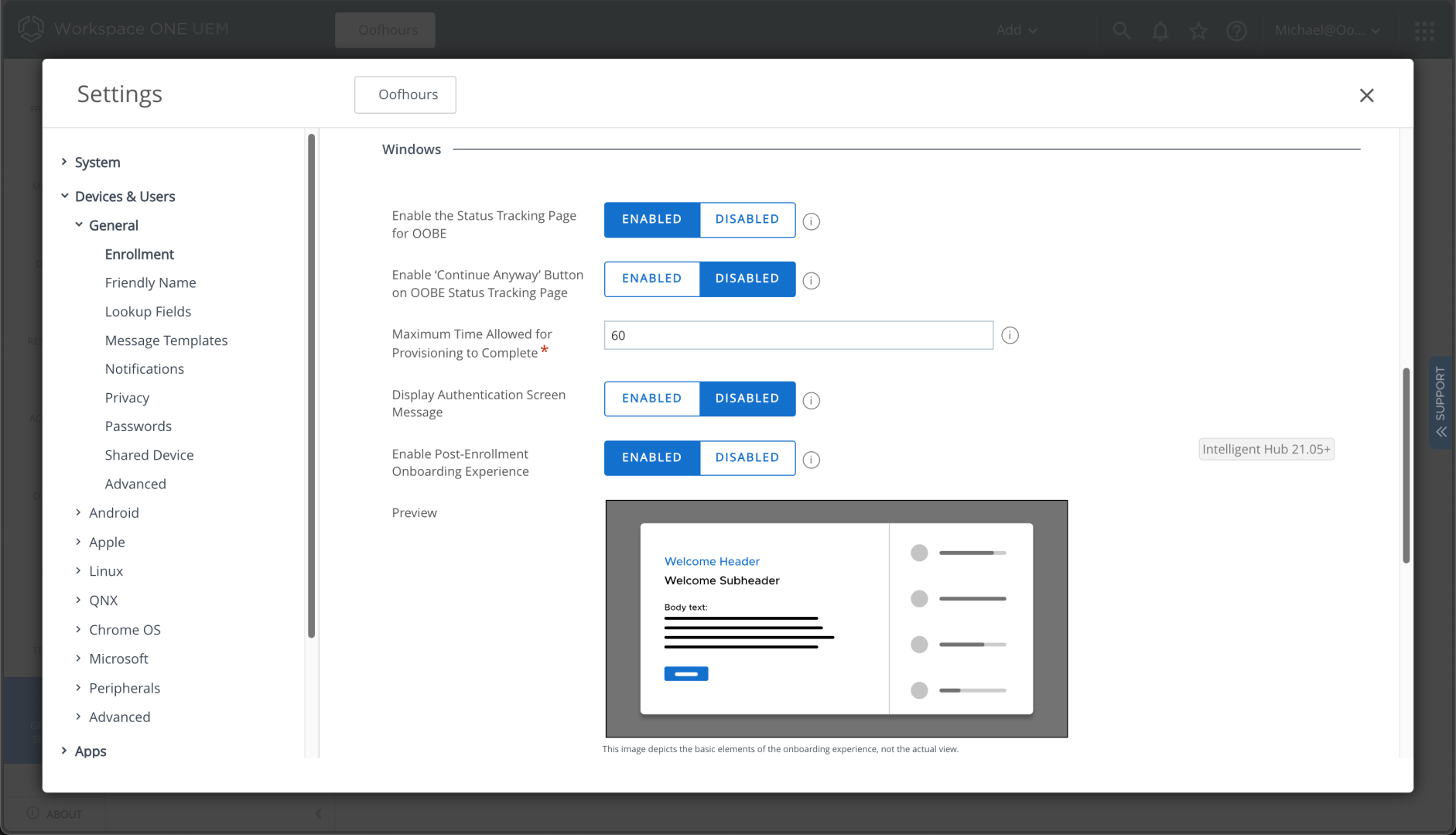
I disabled the “Continue anyway” button to make sure user-related settings (e.g. disabling Windows Hello for Business) are applied before continuing.
While I was at it, I configured one additional setting, this time using the “Windows (Beta)” profile type. I added an option to skip user ESP, since it doesn’t really offer much benefit for Entra ID (Azure AD) and causes issues with Hybrid Azure AD Join in some situations. (I have no idea what “MGM” stands for in the description.)
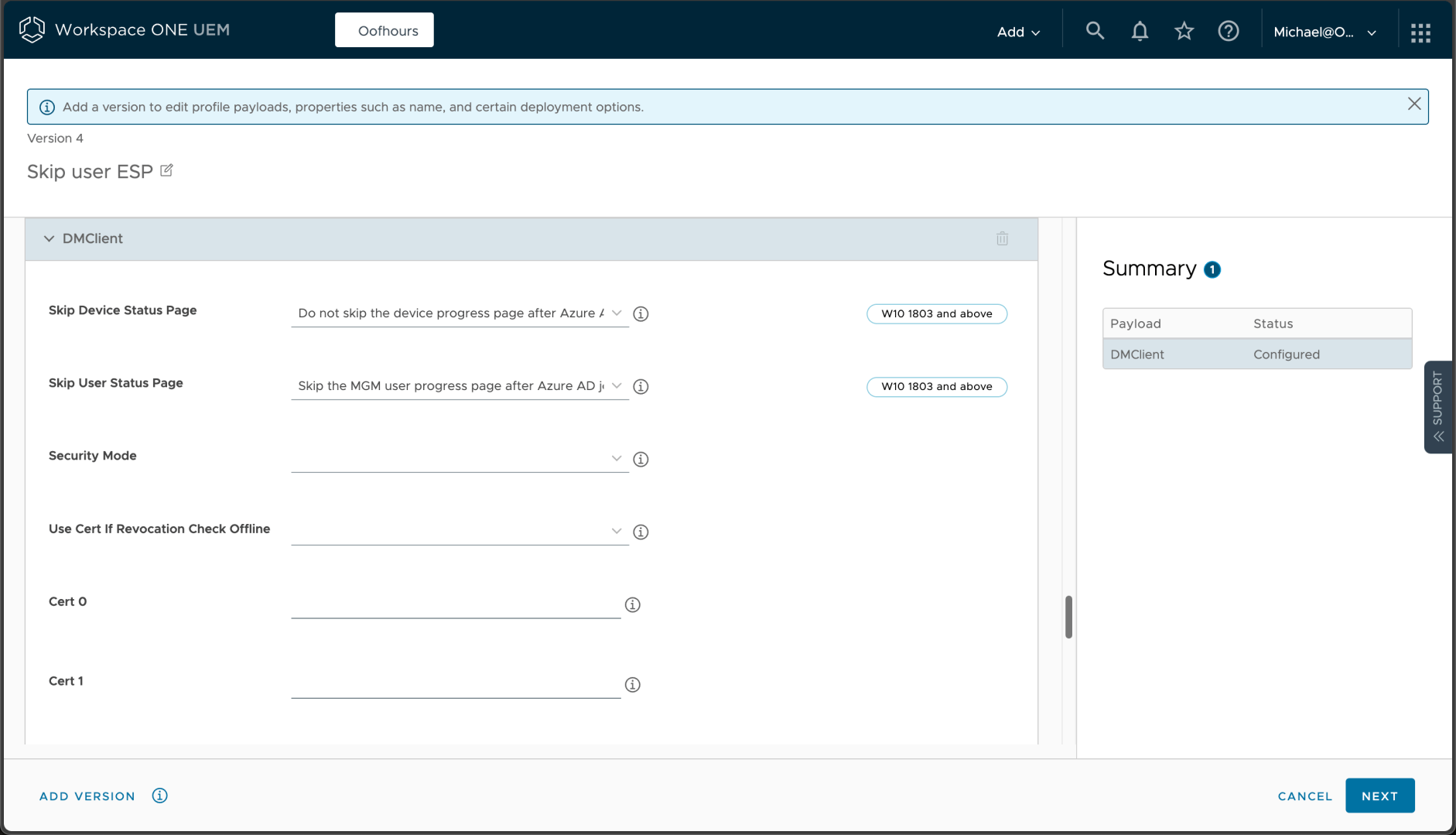
OK, ESP is set up, and since it doesn’t require an Autopilot-registered device, it could be used without doing anything else. On to the next step.
Registering Autopilot devices
Now I want to try out the whole scenario, so I need registered device with different types of Autopilot profiles assigned. Unfortunately, the only mechanism available for doing this is via the Intune portal. (The Microsoft Store for Business can no longer do this, and the Microsoft 365 portal, https://admin.microsoft.com, is stuck in 2018. Only Intune exposes all the available options and scenarios.) Awkwardly, even if you aren’t using Intune, you still need Intune to do this. You don’t need user licenses, but you do need an Intune tenant. Well, you do need one user license to keep the tenant from being deleted, but that license doesn’t need to be applied to a user. You’ll only be doing some administration through Intune; your devices will be fully managed by Workspace ONE.
So you do need to register devices through the Intune portal:
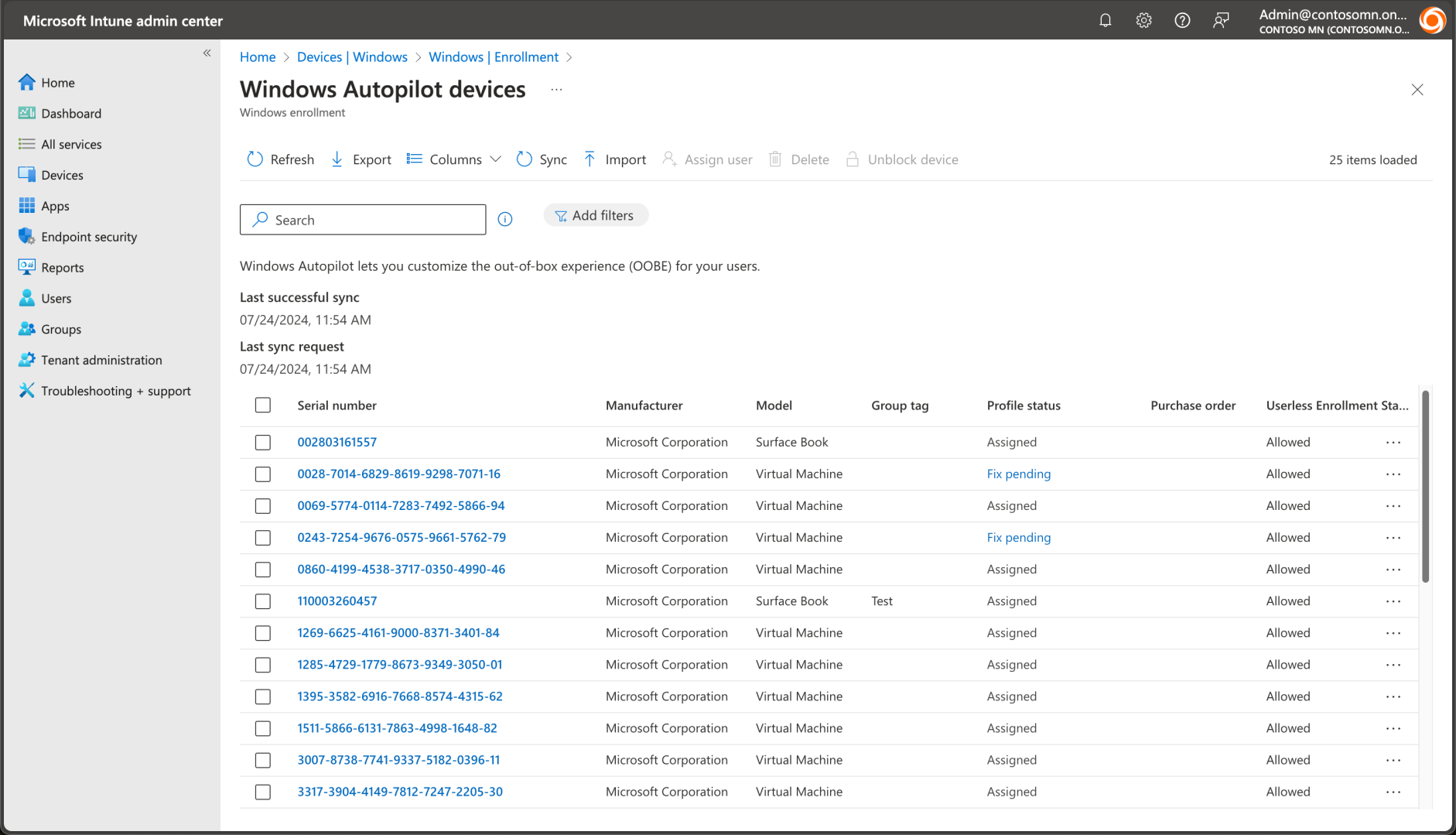
You can upload hardware hashes using the “Import” button, or alternatively you could directly register devices the Get-WindowsAutopilotInfoCommunity.ps1 script, which uses the available Graph API to do the same thing. Once the hardware hash has been uploaded, you need to put the device into an Entra ID group; that group will be used to target an Autopilot profile to the devices. I typically use a group with direct membership, assigning the devices to that group using the same Get-WindowsAutopilotInfoCommunity.ps1 script. You can also do it manually if you prefer.
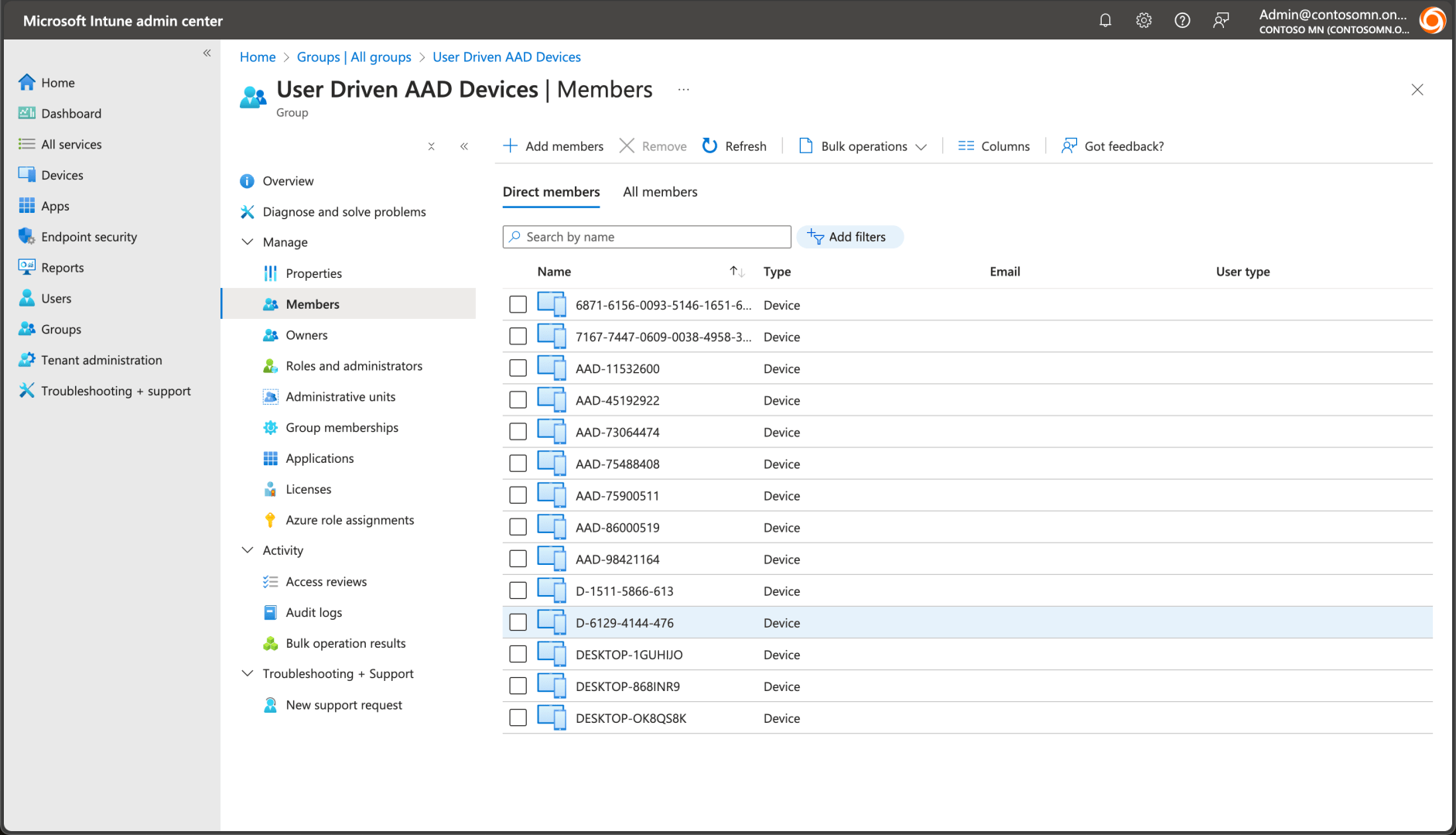
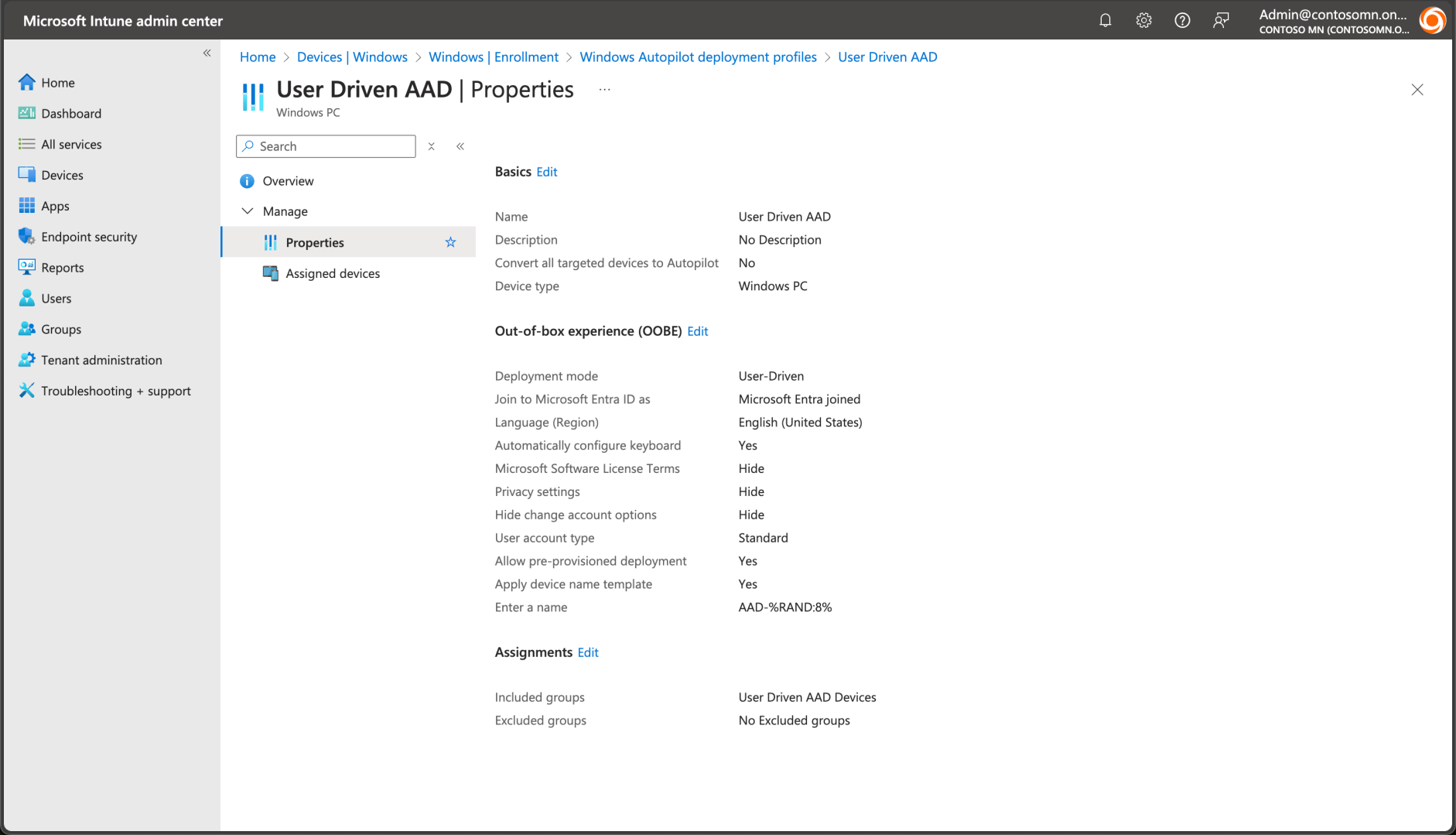
Next, you need an Autopilot profile to control how Autopilot should behave. That profile should be assigned to the appropriate Entra ID group (as mentioned before); Intune will take care of applying the profile to the devices in the group. We can start with user-driven Entra ID (Azure AD) Join:
While we’re at it, we might as well create another profile for user-driven Hybrid Azure AD (Entra ID) Join, a.k.a. Active Directory join, assigned to a different Entra ID group and devices:
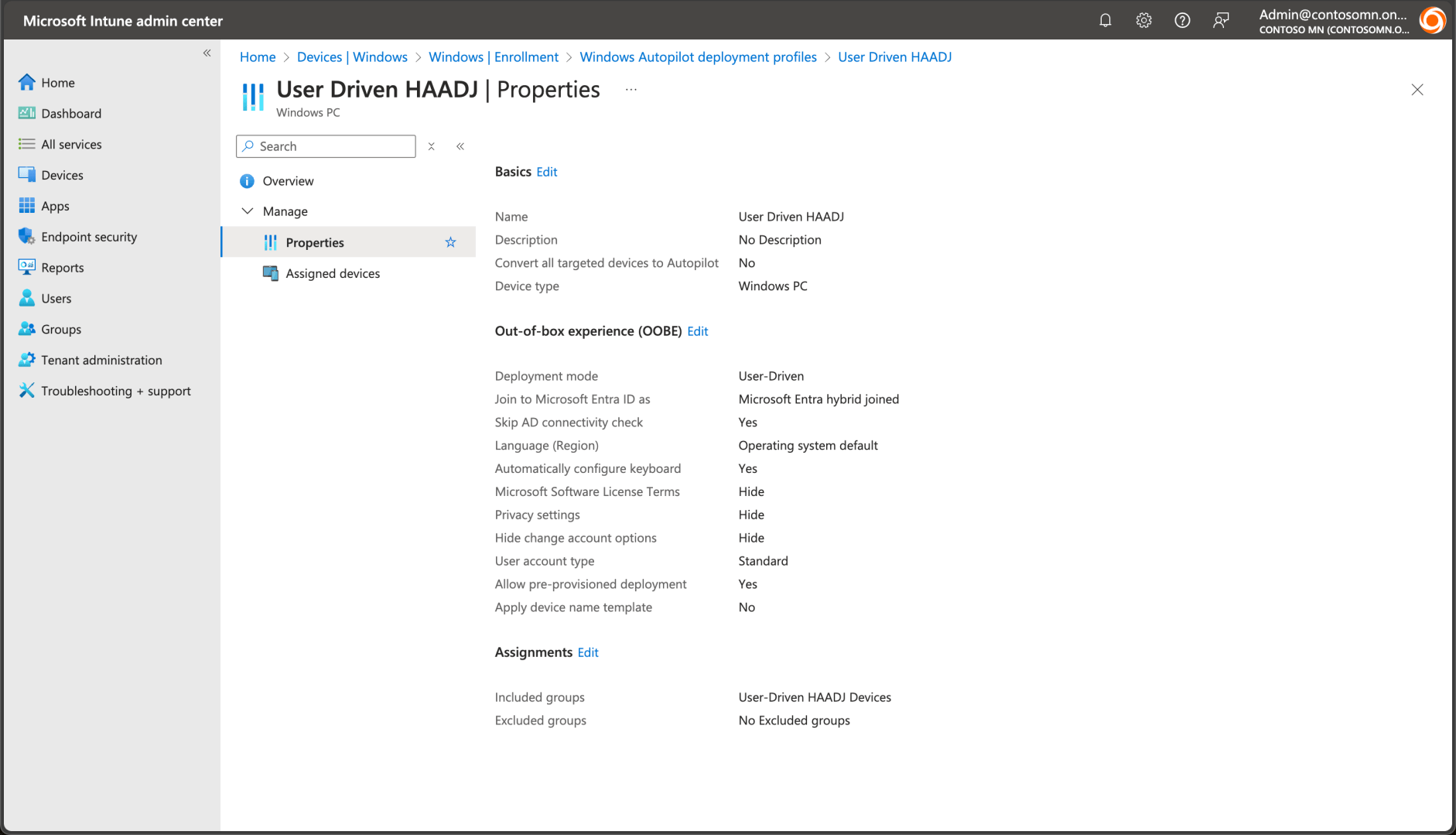
With that, we’re done all we need in the Intune portal.
Trying user-driven Entra ID (Azure AD) join
OK, we’re ready to try it all out. We’ve got automatic enrollment configured, polices and apps created, ESP enabled, devices registered with Windows Autopilot, and profiles assigned. Here’s what it looks like (edited and sped up — total time was about 35 minutes):
Everything worked, but probably not the way you would expect. That requires some explanation:
- (01:06) Device ESP. This goes by very quickly because all that is being tracked are the policies that I configured. Apps are not being tracked by ESP.
- (01:24) Workplace ONE Intelligent Hub. As soon as the user is signed in, the Workspace ONE Intelligent Hub app is automatically launched to track the installation of all the configured apps. This user experience, which is essentially the same on all the platforms that Workspace ONE supports, takes the place of ESP.
- (03:15) Now that we’re at the desktop, a few items worth calling out:
- The start menu and background theme configuration, done by the Autopilot Branding app, weren’t applied. This is because the app didn’t install until *after* the user signed in. So it would end up applying to subsequence users that sign into the device, but not to the first one. There’s no simple way to fix this that I can see.
- The OOBE Entertain app didn’t do anything. That’s because by the time it installed, it saw that it was no longer in OOBE, so it just exited. No big deal on that one.
- The MDT task sequence executed (installing a couple of additional apps, 7-Zip and MDT, which are indeed installed) but it didn’t show the task sequence progress. That’s because the logic to bring the TS progress UI to the foreground didn’t bring it to the right desktop.
- The Update OS app didn’t trigger a reboot after installing updates. That one was my fault: I didn’t configure the app with the right options to reboot. That would be easily adjusted, either by requiring a reboot or configuring the reboot exit code to 3010:
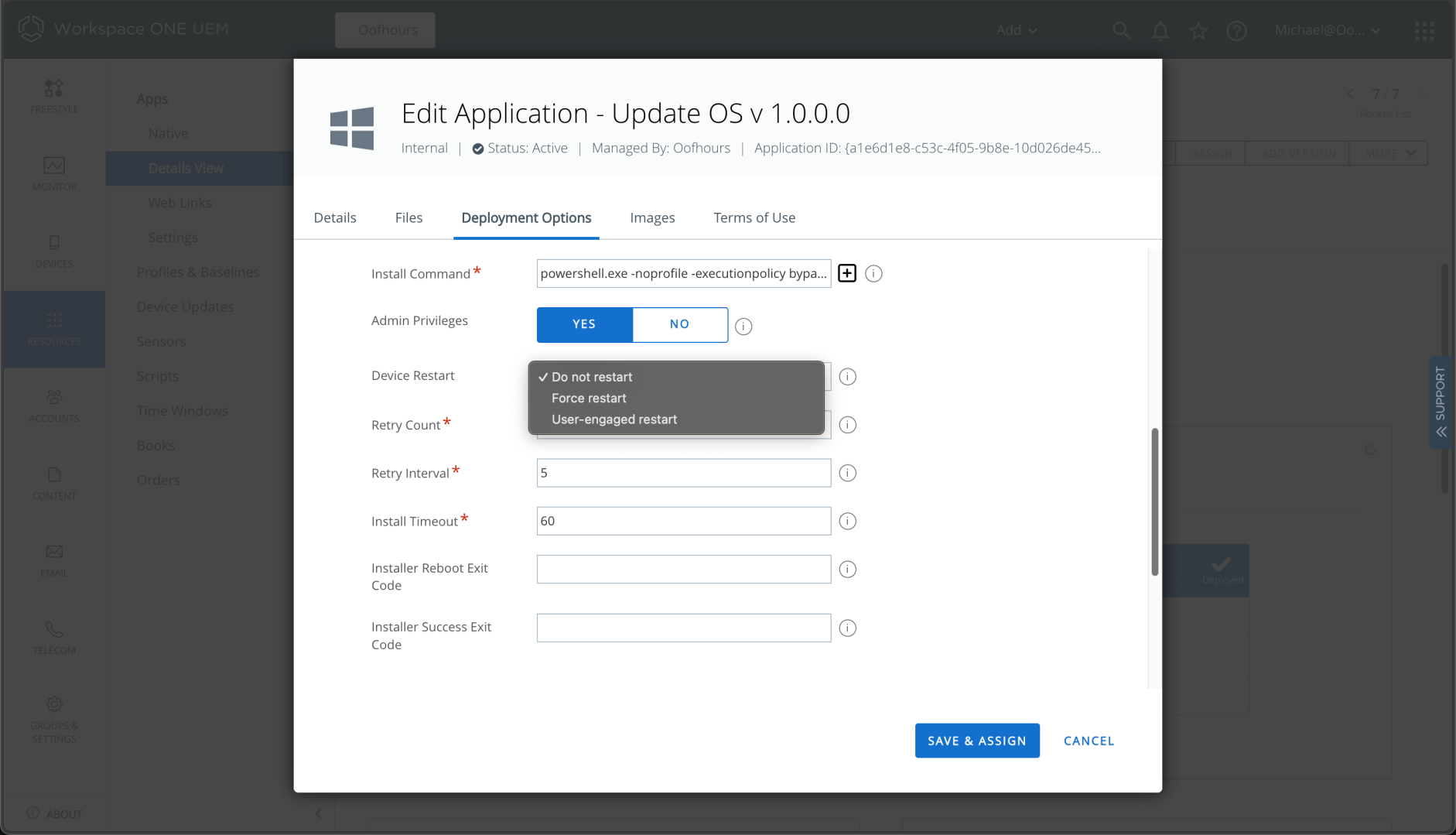
Overall, it’s a different experience, but it achieves roughly the same result — except for the tasks that need to be done before the user signs in. I’ll have to think about those some to see what tweaks might be possible to get those to work.
Trying user-driven HAADJ join
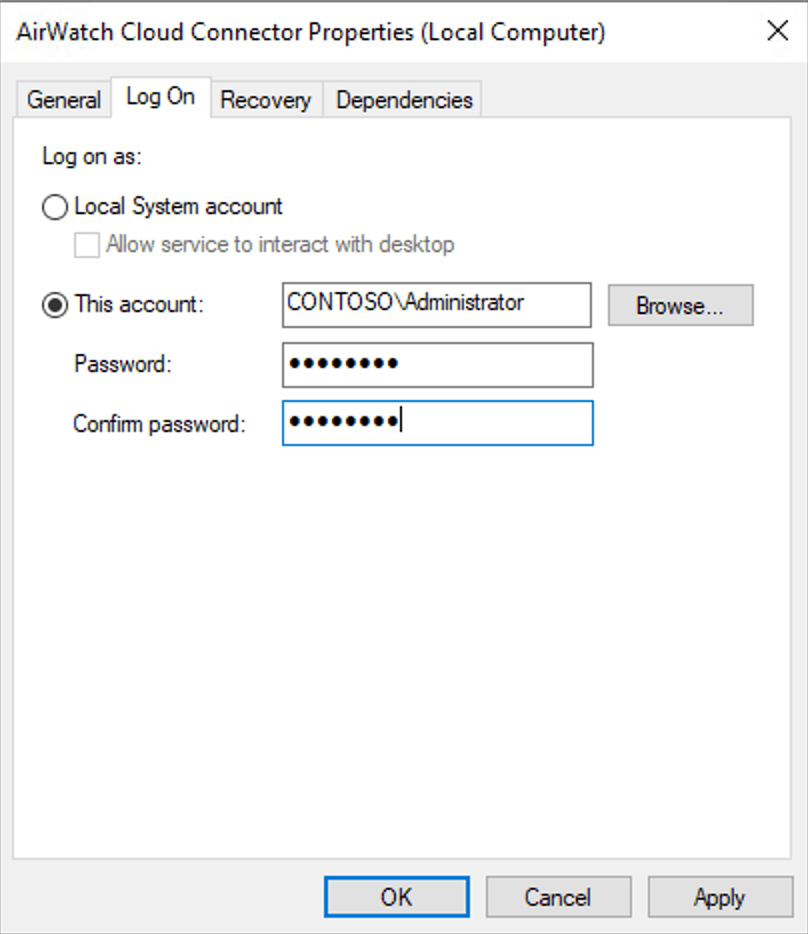
There’s some additional work that needs to be done before Workspace ONE can use Autopilot for Hybrid AADJ deployments. The documentation explains the steps, but I’m lazy and contrarian, so I’ll go my own route. First, I have the AirWatch Cloud Connector already installed (done as part of the initial setup in part 1). It is running as LocalSystem on my server, CONTOSO-MGMT. It needs rights to create computer objects on my CONTOSO domain. I can either delegate rights to that computer object, or I can change the service account to one that already has those rights. Changing the service account is easiest, and “lab laziness” rules apply:
Next I need to configure the domain join settings from Groups & Settings -> Configurations:

Clicking on “Domain Join” and then “Add” brings me to this screen, where I can fill in the appropriate details:
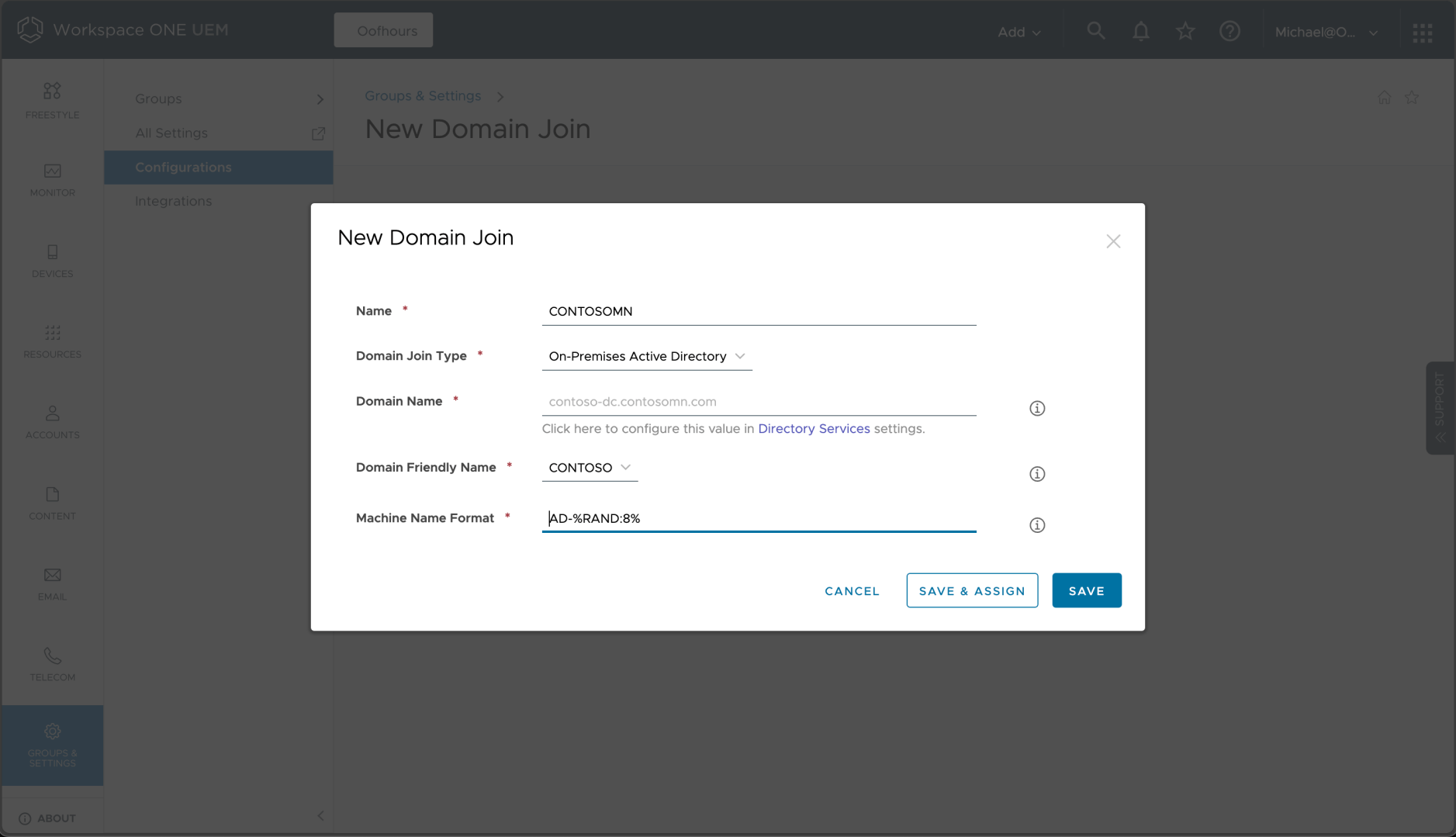
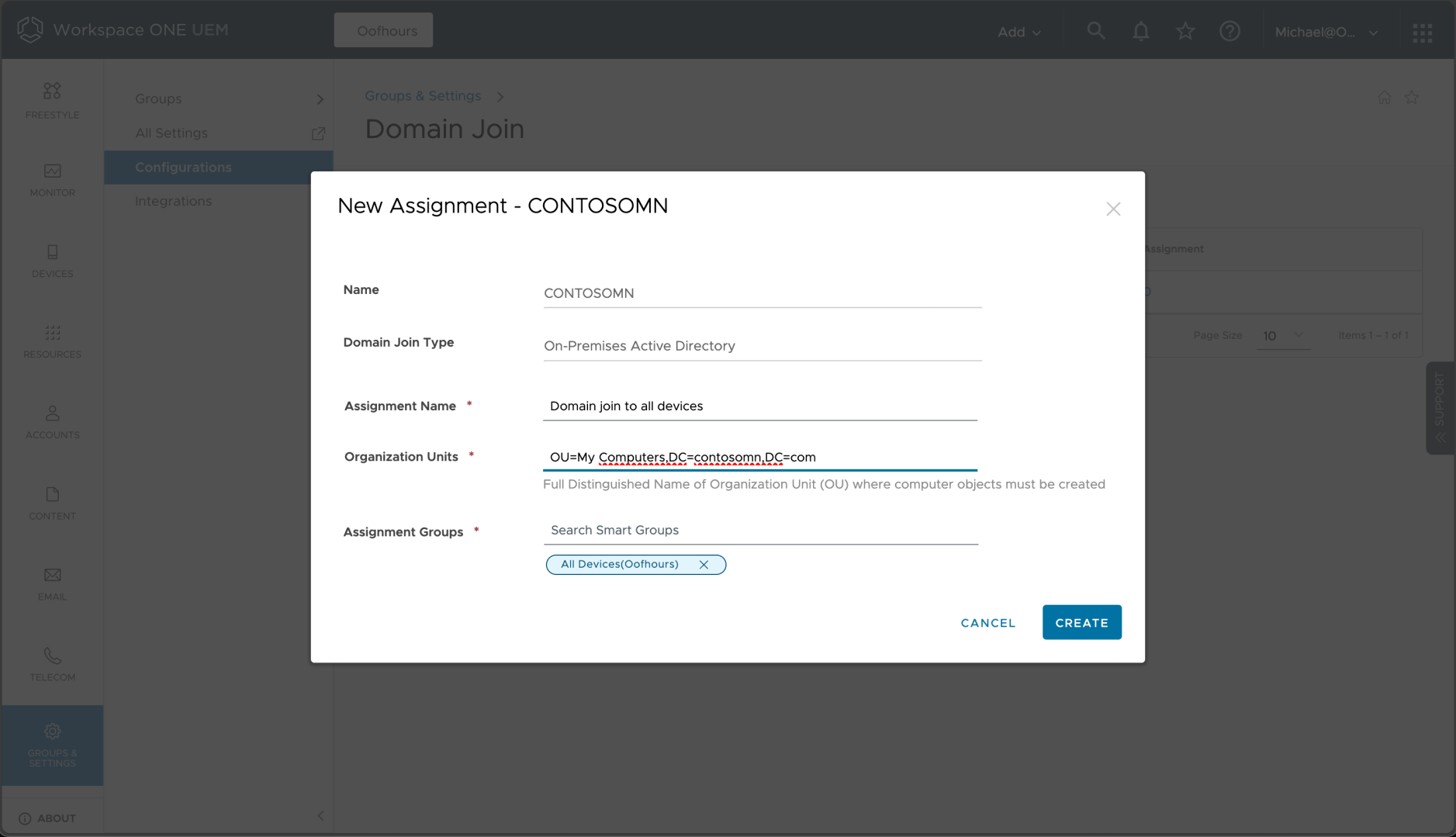
Conveniently, I can use %RAND% and %SERIAL% in the machine name format. I can then click “Save & Assign” and fill in the details:
The most surprising thing in the instructions: You have to turn off ESP for this to work, so back into the enrollment settings:
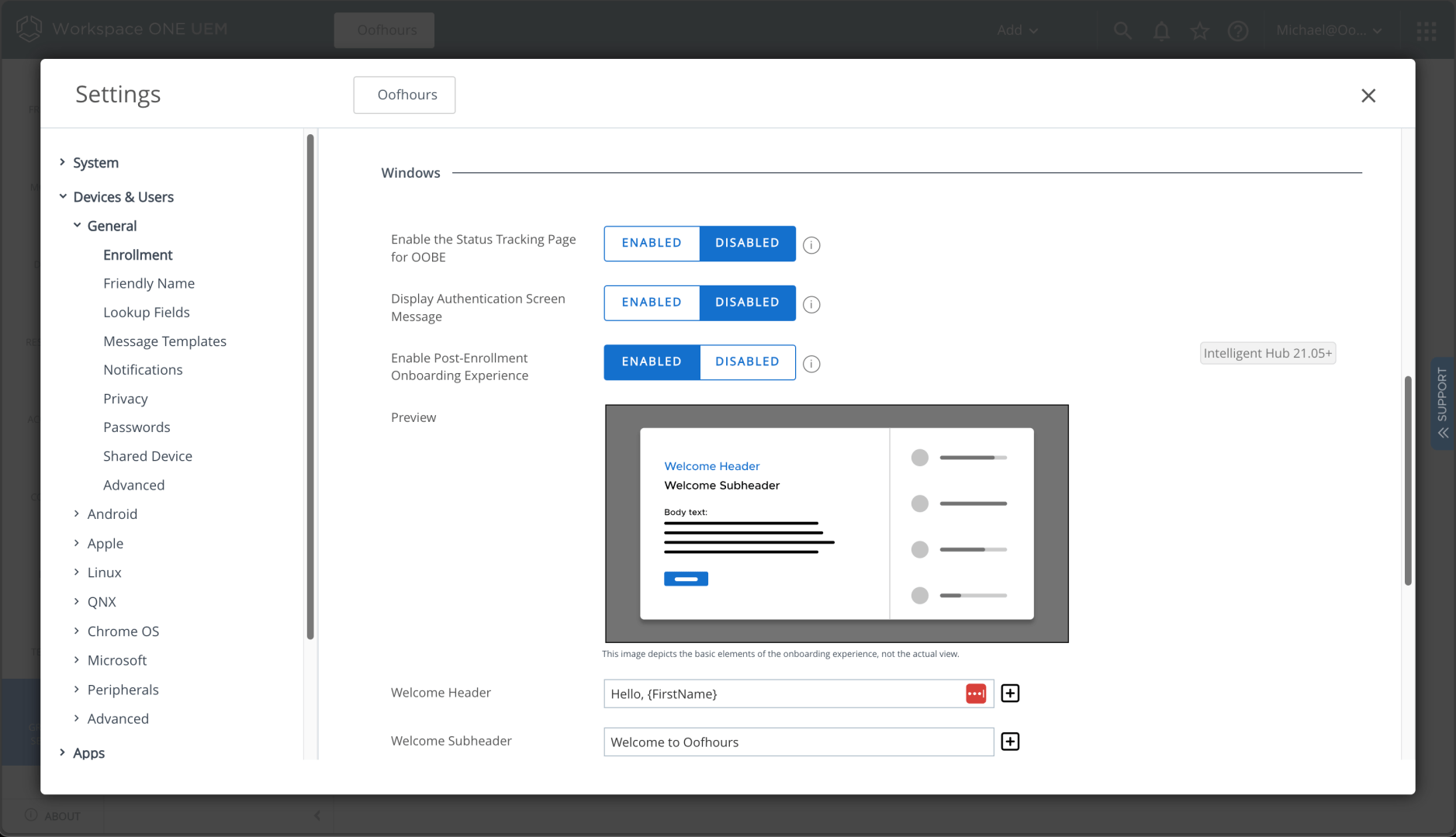
Normally Autopilot HAADJ requires ESP because that’s what waits for the offline domain join blob; obviously Workspace ONE is doing this differently.
With those items done, I was ready to try it, but ran into one issue: If I had a BitLocker encryption policy targeted to the device, the domain join reboot would cause the device to stop at a BitLocker recovery prompt. I don’t know exactly why this was happening, but to work around it I got rid of that policy. Now things worked as expected:
As with user-driven Entra ID (Azure AD) join, some narration is useful:
- (00:48) Rebooting to complete the AD join process.
- (01:08) Workplace ONE Intelligent Hub. As soon as the user signs in and gets to the desktop, the Workspace ONE Intelligent Hub app is automatically launched to track the installation of all the configured apps. This user experience, which is essentially the same on all the platforms that Workspace ONE supports, takes the place of ESP.
- (03:43) As with the AADJ scenario:
- The start menu and background theme configuration, done by the Autopilot Branding app, weren’t applied. This is because the app didn’t install until *after* the user signed in. So it would end up applying to subsequence users that sign into the device, but not to the first one. There’s no simple way to fix this that I can see.
- The OOBE Entertain app didn’t do anything. That’s because by the time it installed, it saw that it was no longer in OOBE, so it just exited. No big deal on that one.
- The MDT task sequence executed (installing a couple of additional apps, 7-Zip and MDT, which are indeed installed) but it didn’t show the task sequence progress. That’s because the logic to bring the TS progress UI to the foreground didn’t bring it to the right desktop.
- The Update OS app didn’t trigger a reboot after installing updates. That one was my fault: I didn’t configure the app with the right options to reboot. That would be easily adjusted, either by requiring a reboot or configuring the reboot exit code to 3010.
What about other Autopilot scenarios?
Can Workspace ONE perform Autopilot self-deploying or pre-provisioning scenarios? I don’t have the hardware available at the moment to try that out (requires physical hardware that I currently have in storage — the joys of home renovations) so I’ll have to try that at a later time. Here’s what I suspect, but need to confirm:
- Autopilot for Existing Devices. This should work just fine, since at the end of the process it will look like a typical user-driven scenario to Workspace ONE (as described above).
- Self-deploying Entra ID (Azure AD) Join. This probably won’t work, since enrolling in Workspace ONE requires a user.
- Pre-provisioning with Entra ID (Azure AD) Join. Since self-deploying likely won’t work, this wouldn’t work either.
- Pre-provisioning with Hybrid Azure AD Join (HAADJ). Same as above.
And what about the new Autopilot v2 (Autopilot device preparation) capabilities announced a few months back? As noted in the Microsoft documentation:
Can Windows Autopilot Device preparation be used by non-Microsoft mobile device management (MDM) providers?
Windows Autopilot device preparation will support non-Microsoft MDMs. In this initial release, configuration is only possible via Intune.
So the answer is currently “not yet,” presumably because Microsoft has not yet provided documentation to ISVs explaining how to do this. But given the extent of the changes needed to support this, it’s unknown when/if Workspace ONE would add support.
In the next post, I want to take a look at other device provisioning scenarios supported by Workspace ONE, since Autopilot isn’t the only option.


 Out of Office Hours