
One of the things that is not currently included in the APv2 device preparation policy is an option to configure the computer name, so as a result the devices end up being given a random name like “DESKTOP-1GY5FL7”. Initially, I thought that would be easy enough to work around using a custom OMA-URI policy that sets the computer name using the Accounts CSP. This post from Peter van der Woude discusses how.
- Name: Provide a valid name;
- Description: (Optional) Provide a description;
- OMA-URI: ./Device/Vendor/MSFT/Accounts/Domain/ComputerName;
- Data type: Select String;
- Value: CLDCLN%SERIAL% (or use the other example of CLDCLN%RAND:6%).
But there’s a very important note in there as well:
Note: The random number macro can create pretty bizarre behavior when targeted at devices (or users). It will keep on renaming the device. In that case make sure to use a Dynamic Device group filtered on disaplayName (for example filtered on Starts With DESKTOP). That will prevent constant renaming of the devices, as the devices will eventually lose the membership of the group.
So there’s a little bit of danger in that one, so be careful. I also found this one entertaining:
Note: At some point in time this configuration will probably become available in the Azure portal without the requirement of creating a custom OMA-URI.
OK, this blog post was from 2018. It’s now 2024, and it’s still not there — probably because of the challenge that Peter noted.
So what other mechanism can you use? Well, you can now run a PowerShell script during the provisioning process, so that’s a workable solution. I’ve got a sample script, described at https://oofhours.com/2023/10/26/renaming-autopilot-deployed-devices/, that shows how to do it. The renaming itself is trivial, so you just have to decide what naming pattern you want to use. Since the computer name for Entra ID/AAD-joined devices is just an attribute, the rename is easy to do — you don’t even need to reboot right away; the name will take effect with the next reboot (e.g. when OS updates are installed and the device reboots anyway).
Since the script doesn’t need to take into account any of the complexities of HAADJ, I created a simplified version of it, with some added logic to say “don’t do this if we aren’t in OOBE”:
# Bail out if we aren't in OOBE
$TypeDef = @"
using System;
using System.Text;
using System.Collections.Generic;
using System.Runtime.InteropServices;

namespace Api
{
 public class Kernel32
 {
   [DllImport("kernel32.dll", CharSet = CharSet.Auto, SetLastError = true)]
   public static extern int OOBEComplete(ref int bIsOOBEComplete);
 }
}
"@
Add-Type -TypeDefinition $TypeDef -Language CSharp

$IsOOBEComplete = $false
$hr = [Api.Kernel32]::OOBEComplete([ref] $IsOOBEComplete)
if ($IsOOBEComplete) {
  Write-Host "Not in OOBE, nothing to do."
  exit 0
}

# Get device information
$systemEnclosure = Get-CimInstance -ClassName Win32_SystemEnclosure
$details = Get-ComputerInfo

# Get the new computer name: use the asset tag (maximum of 13 characters), or the
# serial number if no asset tag is available (replace this logic if you want)
if (($null -eq $systemEnclosure.SMBIOSAssetTag) -or ($systemEnclosure.SMBIOSAssetTag -eq "")) {
    # Stupid PowerShell 5.1 bug
    if ($null -ne $details.BiosSerialNumber) {
        $assetTag = $details.BiosSerialNumber
    } else {
        $assetTag = $details.BiosSeralNumber
    }
} else {
    $assetTag = $systemEnclosure.SMBIOSAssetTag
}
if ($assetTag.Length -gt 13) {
    $assetTag = $assetTag.Substring(0, 13)
}
if ($details.CsPCSystemTypeEx -eq 1) {
    $newName = "D-$assetTag"
} else {
    $newName = "L-$assetTag"
}

# Is the computer name already set?  If so, bail out
if ($newName -ieq $details.CsName) {
    Write-Host "No need to rename computer, name is already set to $newName"
    Exit 0
}

# Set the computer name
Write-Host "Renaming computer to $($newName)"
Rename-Computer -NewName $newName -Force
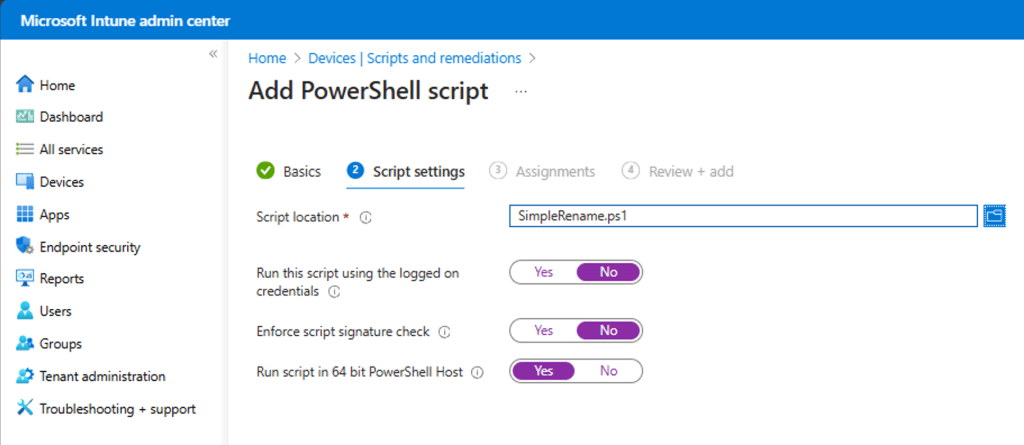
And then I added that to Intune and deployed the script to the same device group I am using for APv2:
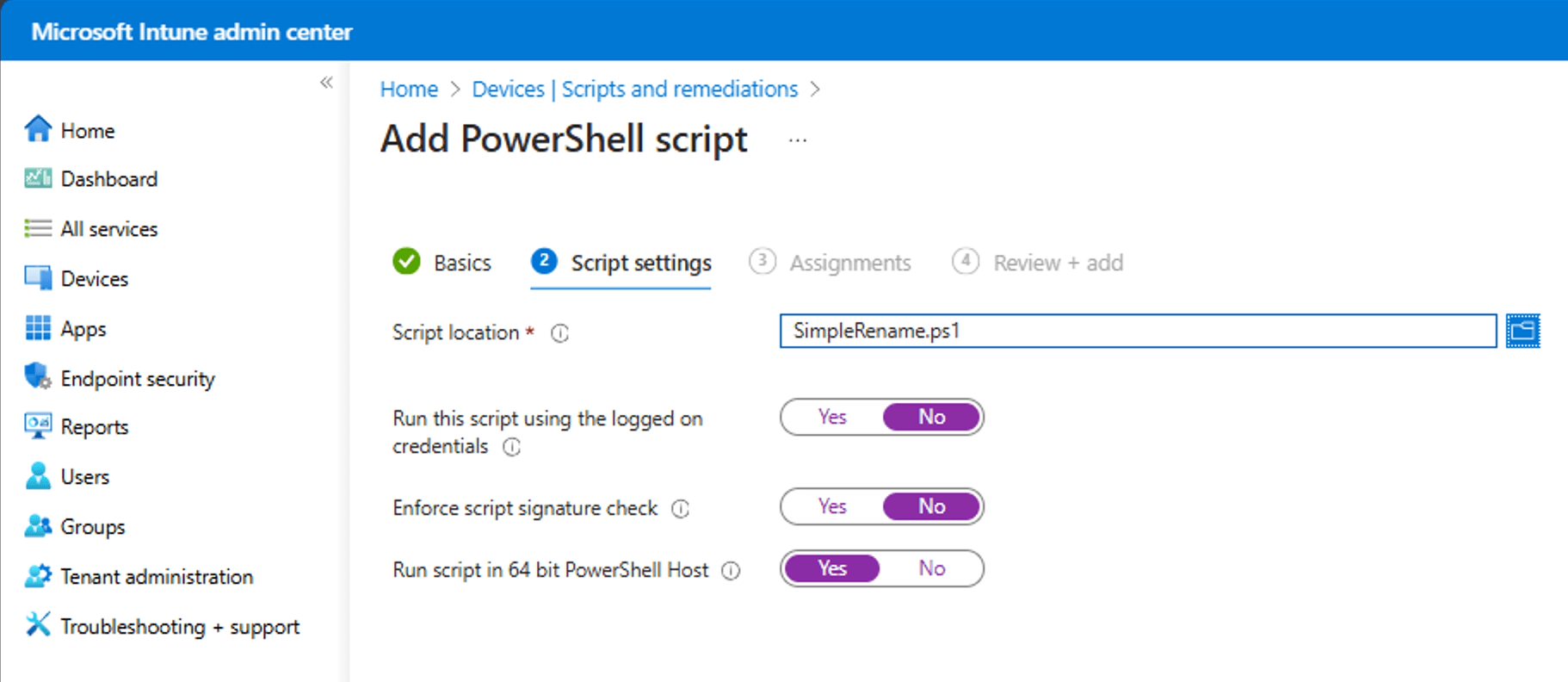
After rebooting the machine (manually in this case, my 24H2 machine doesn’t have any pending updates) the new computer name is in place.




 Out of Office Hours
4 responses to “Setting the computer name with APv2”
I just have mine use Graph and rename it to the Autopilot Device Name. That way if I use Fresh Start it will always go back to that name. Thanks for your blog by the way. As someone fairly new to Intune and Autopilot it has been a great help!
LikeLike
We use SnipeIT for internal Asset inventory. I fetch the Asset Name using API methods of a device using the serial number and use your script to rename it. It works perfectly every single time.
LikeLike
I just learned the . trick! After 30 years of NT and beyond never knew that.
LikeLike
Yeah, using graph and calculating the name based on country attributes of the user works, and we can do it offline.
LikeLike