
It’s a question that’s come up a number of times: How can I take a device running Windows 11 Home, upgrade it to Windows 11 Education, and provision it via Windows Autopilot? I suppose we should start off with a more basic question: Why?
For devices that ship with Windows 11 Pro, they are all set to use Windows Autopilot. Maybe you want to change them over to Windows 11 Enterprise, but that can be done using subscription activation, or after the fact by pushing out a new product key; the SKU change is immediate due to the behavior of virtual SKUs (or virtual editions, if you prefer that term). You can’t go from Windows 11 Home to Windows 11 Enterprise directly because Windows 11 Home is not a qualifying OS per the Enterprise licensing terms, so you’d have to do it in two hops: Windows 11 Home to Pro using a retail product key (e.g. buy a key online or from a reseller, use a different key per device), then Pro to Enterprise via subscription activation. But for the pain and cost of it, it’s easier to just buy a device with Pro preinstalled.
But things are different in the case of Education: Windows 11 Home is a qualifying OS per the Education SKU license terms. So education customers can save money by buying a device with Home preinstalled, knowing that they are within their rights (assuming they have an appropriate Windows or Microsoft 365 subscription, e.g. Windows Education A3) to upgrade that device to the Education SKU. But how can they do that? The Home SKU is not a virtual edition, so you can’t just inject a new product key and have it instantly change. There are other options, e.g.:
- In-place upgrade from Windows 11 Home to Windows 11 Education using media. Easy enough to do, but takes a long time.
- Wipe-and-load with a new Windows 11 Education image. Not as easy to do as you have to worry about drivers, OS settings, etc.
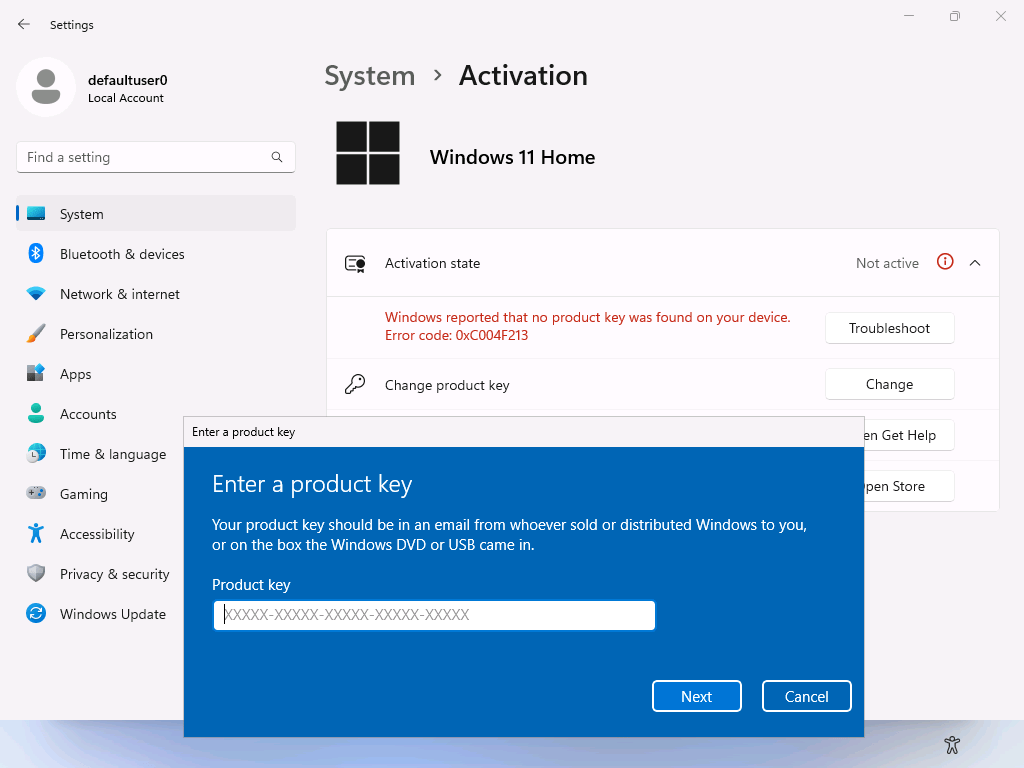
- Entering a new Windows 11 Education product key in the Settings app. This is probably the easiest, since you can just use the generic key for the Education SKU (documented here), NW6C2-QMPVW-D7KKK-3GKT6-VCFB2.
If you want to try the “change product key option”, you can go into Settings (which you can launch from a Shift-F10 command prompt by running the “start ms-settings:” command) and search for “change product key” (or navigate to System -> About -> Product key and activation):
But what if you wanted to streamline and automate the process? Fortunately, the underlying “changepk.exe” utility that Settings uses has some undocumented switches to run it without any user input. A simple “changepk.exe /ProductKey NW6C2-QMPVW-D7KKK-3GKT6-VCFB2 /NoUI” command will make the change. Weirdly, the automatic reboot fails (even though you will see an event log entry that says the reboot was initiated), so we can add the “/NoReboot” switch (also undocumented) and then initiate the reboot ourselves. If we integrate that into the Get-WindowsAutopilotInfoCommunity.ps1 script, we can do all of that as part of the device registration process. Starting off with Home:
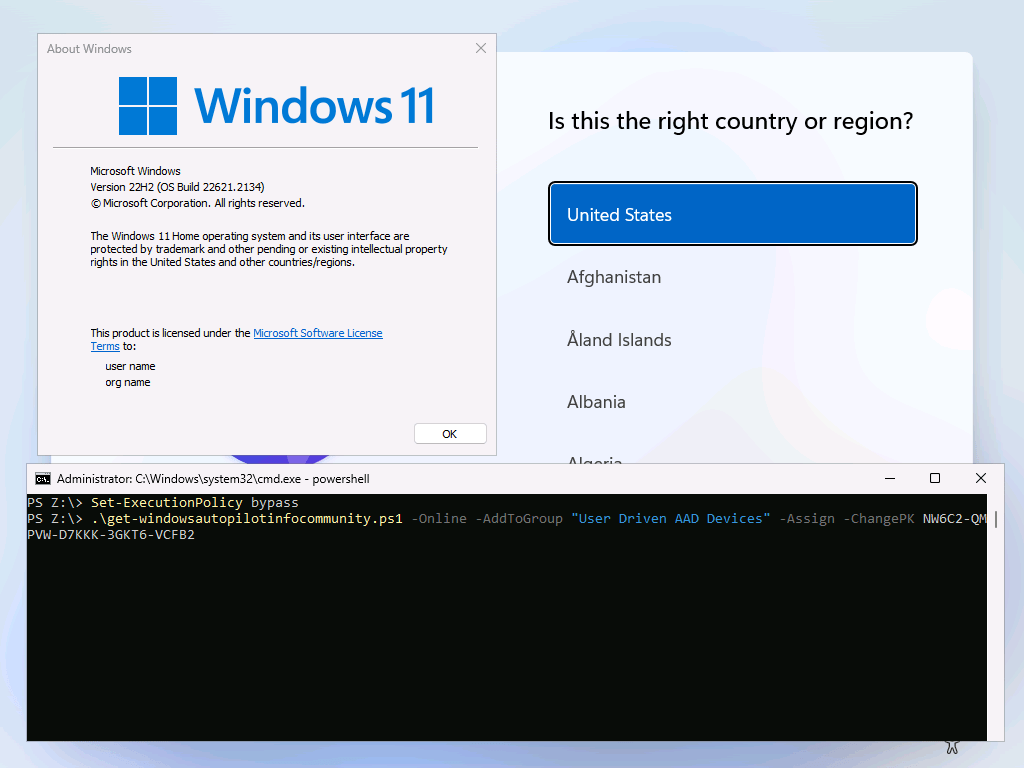
After the reboot, we see that we are indeed now running Education. (It still needs to be activated, so you would either need to push out a MAK key to the device or set up a KMS server for the device to activate against.)

Can you use other product keys to go to other Windows editions? Sure, but make sure you are properly licensed for that.
The Get-WindowsAutopilotInfoCommunity script has been updated on the PowerShell Gallery to include this logic. (Thanks again to Andrew Taylor for quickly approving my PR and updating the PowerShell Gallery.)


 Out of Office Hours
3 responses to “Convert Windows 11 Home to Education for Autopilot”
For the last batch of devices, we made sure to order with the ProEducation SKU, but good to know this is an option. Thanks!
LikeLike
Thank you for this blog post. Do you have any insight on where a school with Microsoft 365 A3 licenses should get their Windows 11 Education MAK from?
## Background
We are a Microsoft partner and we’re helping a client (K-12 school) upgrade some Windows 11 Home laptops to Windows 11 Education. The service description for Microsoft 365 A3 states that the upgrade is included but I haven’t been able to determine exactly _how_ to perform that upgrade. We opened a support ticket with Microsoft, one of their representatives said the MAK should be obtained from the partner. We are the partner and the only MAK’s we have are from our Action Pack subscription and our MSPLA agreement. The school doesn’t have any license keys available in their Microsoft 365 Admin Portal.
LikeLike
A really good question, but not one I know the answer to. Normally you would find a MAK key in the admin.microsoft.com portal, but the exact rules vary based on customer agreement type. (I was used to EA/Select+/VLSC, but things have changed in the years since.)
LikeLike