
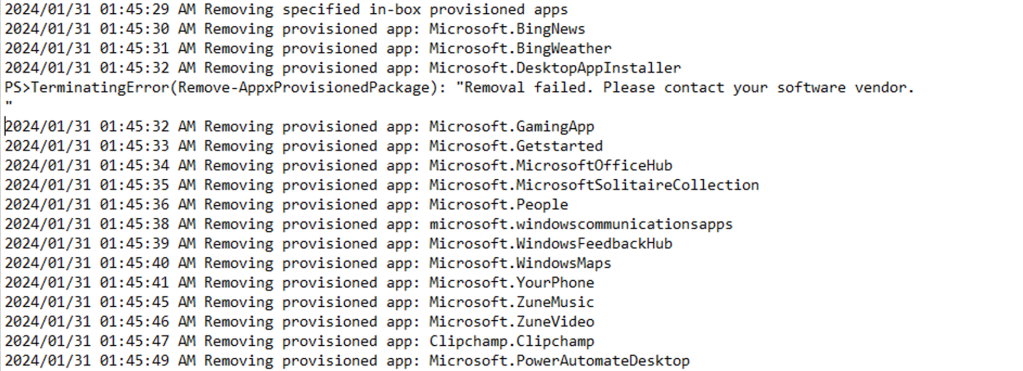
Since I had been testing out the UpdateOS script to see how it performed based on the number of CPU cores, I figured I should try the same thing with the Autopilot Branding package as I had noticed that it too was fairly slow, taking close to 10 minutes to complete in a VM. The first change needed for that was better logging, so you could more easily see after the fact where most of the time was spent. Each log line will now show a timestamp:

Interestingly, almost all of the time was spent on one simple task: Installing .NET Framework 3.5. As with the UpdateOS script, this is a servicing operation that requires installing an optional component that is downloaded from Windows Update. But if I make a similar change to the VM configuration, moving from two vCPUs to four vCPUs, the time is reduced from 10 minutes to 6. While I didn’t test more vCPUs, I wouldn’t expect much better performance with more.
Since I don’t really need .NET Framework 3.5 for my testing (the built-in 4.8 is sufficient), I commented that out in the Autopilot Branding script. (You can put it back if you need it.) I wanted to still install something, so I specified WMIC, even though it’s (presently) still installed by default — it will at least finish quickly.

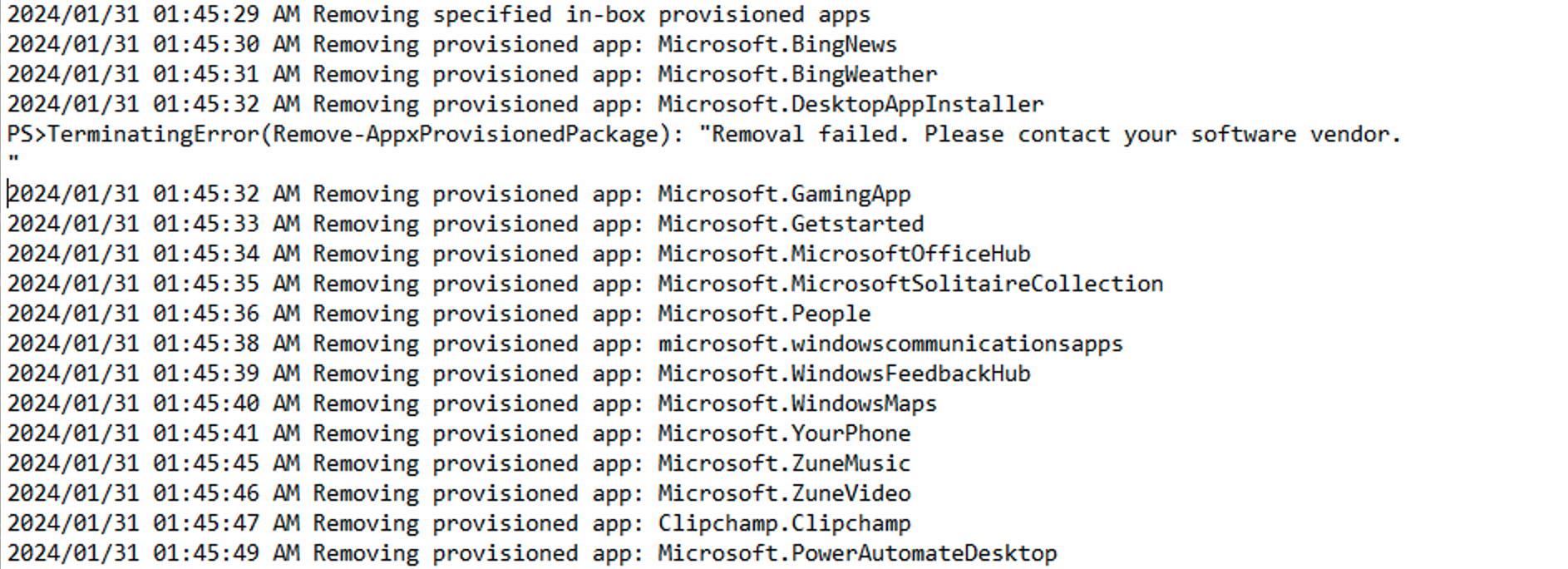
Since I was making changes anyway, I added a few more apps to the list to be removed (Microsoft.BingNews, Microsoft.GamingApp, Microsoft.People, Microsoft.WindowsMaps), not that I would expect anyone to really miss them. I also cleaned up the logging for app removal errors:
As always, you can get the latest from GitHub at https://github.com/mtniehaus/AutopilotBranding. Make whatever tweaks you need to the configuration XML or the script itself, generate a new .intunewin file using the makeapp.cmd file, upload it to Intune, and configure the command lines and detection rule. (See GitHub for more details on that setup.)


 Out of Office Hours
9 responses to “Autopilot branding app improvements”
Hi Michael,
I am wondering why you remove Microsoft.DesktopAppInstaller. This app is bringing winget, including the option to manage MS Store apps via Intune. Or am I overseeing something?
LikeLike
That was a historical one from before WinGet. That said, you’ll see in the log output that the removal failed — you can’t actually remove it. So it was a test case to make sure that I got the logging for failed removals right.
LikeLike
Gotcha, thanks!
LikeLike
Hi Michael, how do you make sure that the script only runs in Autopilot?
I do not want it to run for already deployed computers.
LikeLike
Two basic options:
1. A script like this to detect when you are in OOBE, run as a requirement rule on the app.
2. A similar script that checks to see if the current user is like “DefaultUser*”, also run as a requirement rule on the app. (Normally this would be “DefaultUser0”, but there are some situations where you could end up with “DefaultUser1” or higher numbers.)
LikeLike
Thank you Michael.
LikeLike
Just to add – sometimes IME kicks in after reboot before defaulltuser0 is logged in, here is the additional requirements rule that will work all the time. It basically checks if the DefaultUser0 is in AutoLogon
REQUIREMENTS RULE for AUTOPILOT APPS
Select Registry
HKEY_LOCAL_MACHINE\SOFTWARE\Microsoft\Windows NT\CurrentVersion\Winlogon
DefaultUserName
Select String comparison
Select Equals
DefaultUser0
LikeLike
Hi Michael,
Fantastic script thank you for putting this together. I have had issues with removing the Lenovo theme and applying “light bloom” (img0) as default. Heck I’d be happy if I could just get a background to apply other than Lenovo. This used to be so easy back in the day. Yes, I could apply with Intune, but I want to allow users to change it afterwards.
Have you run into any issues with desktop background and themes?
Thank you again,
David
LikeLike
The method I use in the branding package is successful about 75% of the time in my tests — sometimes the new background doesn’t show up until after a log off/logon, or occasionally not at all. I blame Windows 🙂
LikeLike