
Updated 2023-10-23: See this post for more information around this.
This one might sound a little strange, but hear me out. What if you wanted to run a task sequence during an Autopilot provisioning process, but you didn’t want to mess with Configuration Manager? Well, MDT can run task sequences too, so why not take one of those, package it up, and run that from an Intune Win32 app?
First, you need a custom task sequence that does something. In this case, I put together a simple one:

It runs three apps. The first one just gets the task sequence progress UI to show up (see this blog), and the other two are simple apps. But this could be more involved, with steps to run PowerShell scripts, install Windows features, or anything else that MDT supports.
Because you might have other things in your MDT deployment share, I’ve set this up to consume a media deployment share. So you have to create one of those and specify the folders that you want to include in that (likely a subset of the total deployment share). You can check the MDT docs for details on how to do that. To save some time and disk space, you can turn off x86 support (leaving only x64) and disable the ISO generation:
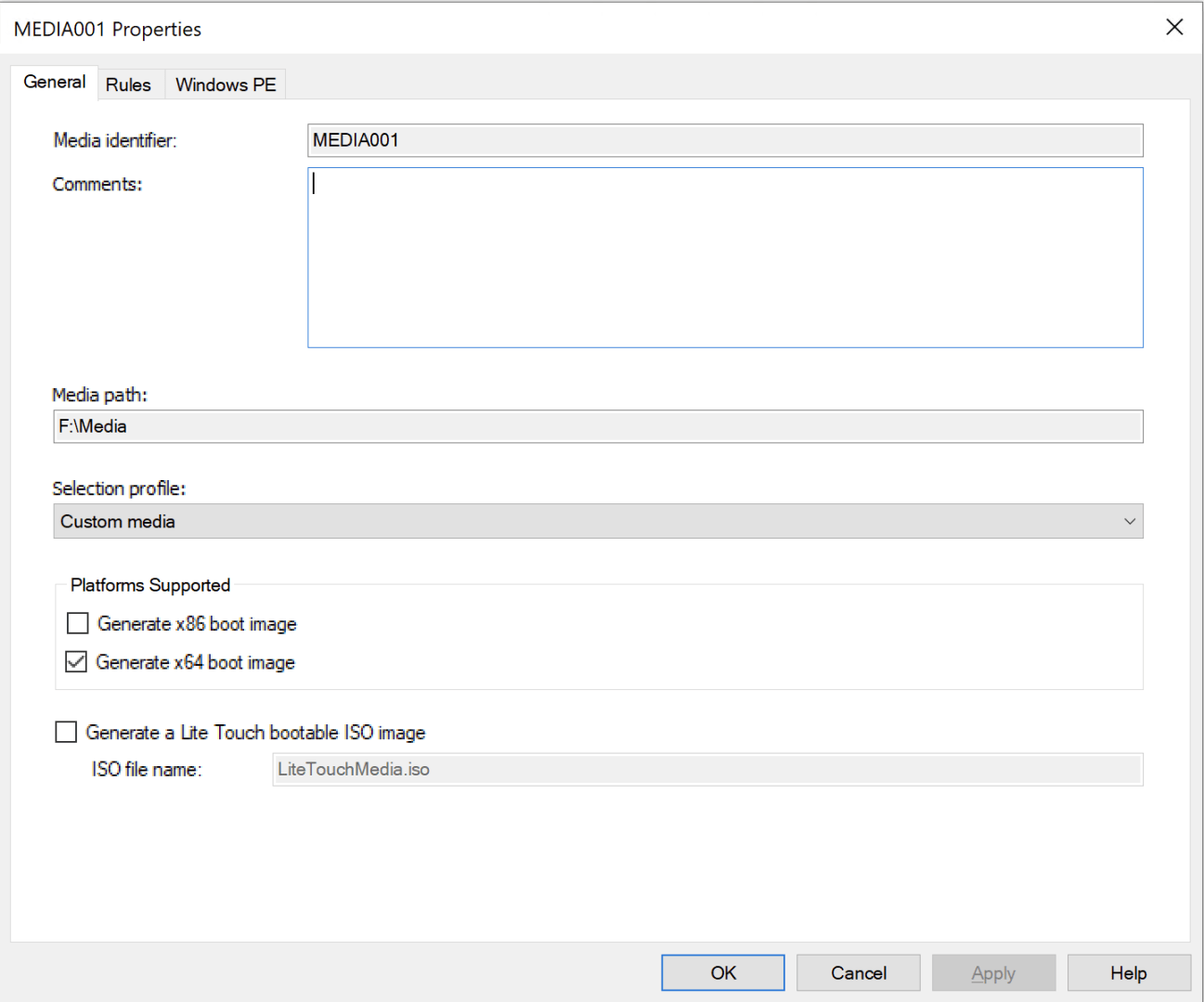
Once you’ve created that (specifying a destination path and an appropriate selection profile), you can then run the MDTIntune.ps1 script, which you can get from GitHub at https://github.com/mtniehaus/MDTIntune. You can run that with parameters that specify the media path, the task sequence ID, and the destination folder for the resulting MDTIntune.intunewin file. (The script assumes that IntuneWinAppUtil.exe is in the same folder as the script, so make sure you’ve downloaded a copy into the same place, or add the parameter that tells the script where to find it.)
The script puts a compressed WIM file containing the media content and a PowerShell script into the MDTIntune.intunewin file. You can then upload that to Intune as a new Win32 app. Here are the command line details you need to specify:

And the detection rule:

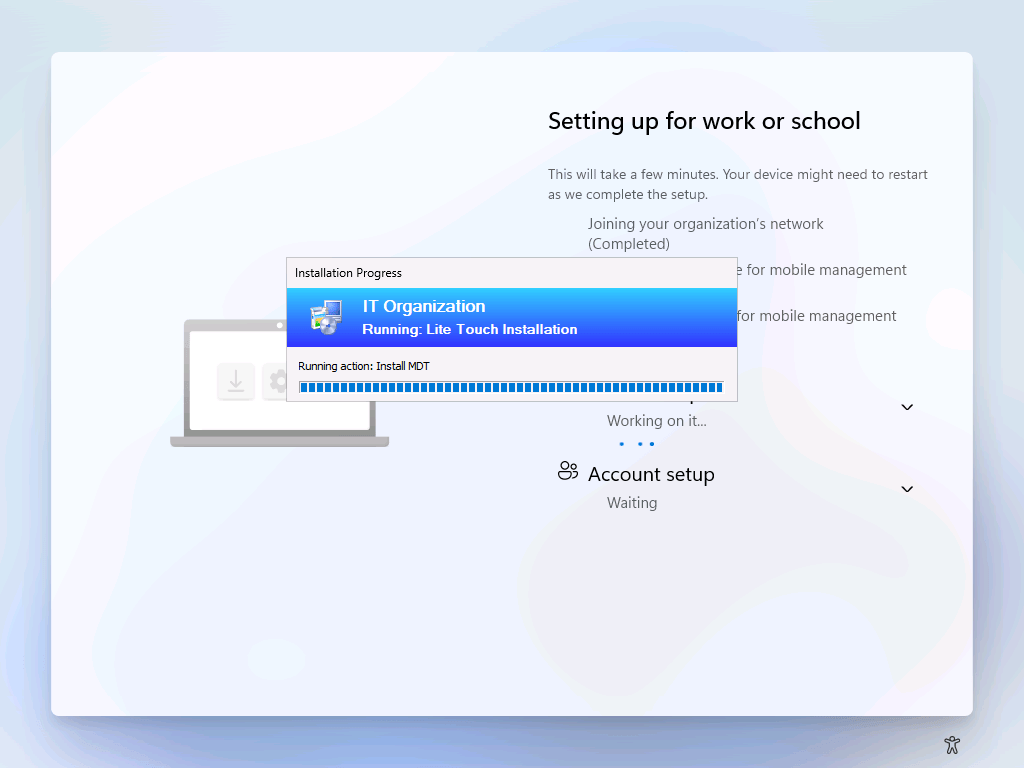
Deploy that app to an appropriate group of devices (perhaps with a custom requirement rule that specifies that it should only run in OOBE) and you’re set to go. When you deploy a device, you’ll see the task sequence progress UI show up as the task sequence executes:
Here’s a video showing the whole process (edited to take out the time spent waiting for Intune to figure out what it needs to install on the device):
The total execution time from typing in credentials to getting to the desktop was 8 minutes and 45 seconds, before editing (somewhat variable as Intune seems to be unpredictable when it comes to figuring out what apps are needed for a device — about five minutes of the time was waiting for Intune to calculate the list of apps).
While this might sound strange, this was actually an approach used before Windows Autopilot existed, with some variations: the customer downloaded an ISO from Azure blob storage, mounted that, and then ran the task sequence from that, using their existing (non-Microsoft) management tool to drive the process.


 Out of Office Hours
9 responses to “Run an MDT task sequence during Autopilot”
Hello!
I gotta say, I’m a huge fan of your blog! Super helpful and packed with awesome info, so big thanks from me and everyone else who’s learning from it!
So, I read about the idea of having a custom requirement rule to only run in the OOBE phase, and it’s got me thinking and tinkering around. I’ve been on the hunt for ways to find out if a device is in OOBE or not, but no luck yet.
I was wondering, do you have any cool tips or tricks on how to make something like this work? Any advice or suggestions would be super appreciated!
LikeLike
Thank you for your interesting blog, as always. Tried running an MDT task sequence based on your article, but every time when the device reboots after the device preparation phase, I am confronted with a logon screen with defaultuser0 profile.
LikeLike
Don’t do reboots during the task sequence, ESP doesn’t like that.
LikeLike
I saw the same result with the UpdateOS script/app in a more recent blog post.
LikeLike
It is actually not rebooting during the TS. Monitoring smsts.log it finishes just fine, continues with some other ‘esp blocking apps’, then reboots once the device setup phase is completely done.
LikeLike
I assume because something returned a 3010-type return code? I can’t explain why that causes the issue you are seeing (and that I am seeing too), but even these “soft reboot” requests/return codes cause issues.
LikeLike
Hello Michael, got a lot further. A couple of scripts are clearing entries in HKLM\SOFTWARE\Microsoft\Windows NT\CurrentVersion\Winlogon
E.g. AutoAdminLogon, DefaultUserName
Partially figured out that Lticleanup.wsf is causing this, but there appears to be another script configuring AutoAdminLogon to 0 (instead of 1).
However, commenting out the entries in Lticleanup.wsf and making sure that AutoAdminLogon = 1 and DefaultUserName = defaultuser0, makes sure that the Autopilot process is not ending up in a logon screen with defaultuser0.
Any idea what other script is resetting the AutoAdminLogon to 0 ?
LikeLike
Good investigative work, that’s probably what caused my issues too (I had an MDT task sequence running before the Update OS app that was trying to initiate a reboot via a return code). I believe it’s probably the logic in LiteTouch.wsf itself that is doing this.
LikeLike
Thank you for your rapid response Michael, I will continue investigating. Will update here when I’ve a better understanding of what’s going on.
LikeLike