
People have asked in the past what the best way to detect when you are using Windows Autopilot to deploy a device, so that some apps and potentially even settings are deferred until a later point in time. When you boil this down, it’s a little more general than that. All you really need to know is when you are in OOBE, at least for device-targeted stuff with ESP enabled. (If you aren’t using ESP, then it’s likely that very little will try to install while in OOBE.)
Fortunately, there is a documented API call for you to check. The OOBEComplete function will return a boolean that tells you if OOBE is done (true) or not (false). You can wrap that into a simple PowerShell script:
$TypeDef = @"

using System;
using System.Text;
using System.Collections.Generic;
using System.Runtime.InteropServices;

namespace Api
{
 public class Kernel32
 {
   [DllImport("kernel32.dll", CharSet = CharSet.Auto, SetLastError = true)]
   public static extern int OOBEComplete(ref int bIsOOBEComplete);
 }
}
"@

Add-Type -TypeDefinition $TypeDef -Language CSharp

$IsOOBEComplete = $false
$hr = [Api.Kernel32]::OOBEComplete([ref] $IsOOBEComplete)

$IsOOBEComplete
Save that as IsOOBEComplete.ps1 and you can use it as needed. It returns 1 if OOBE is complete and 0 otherwise..ps1
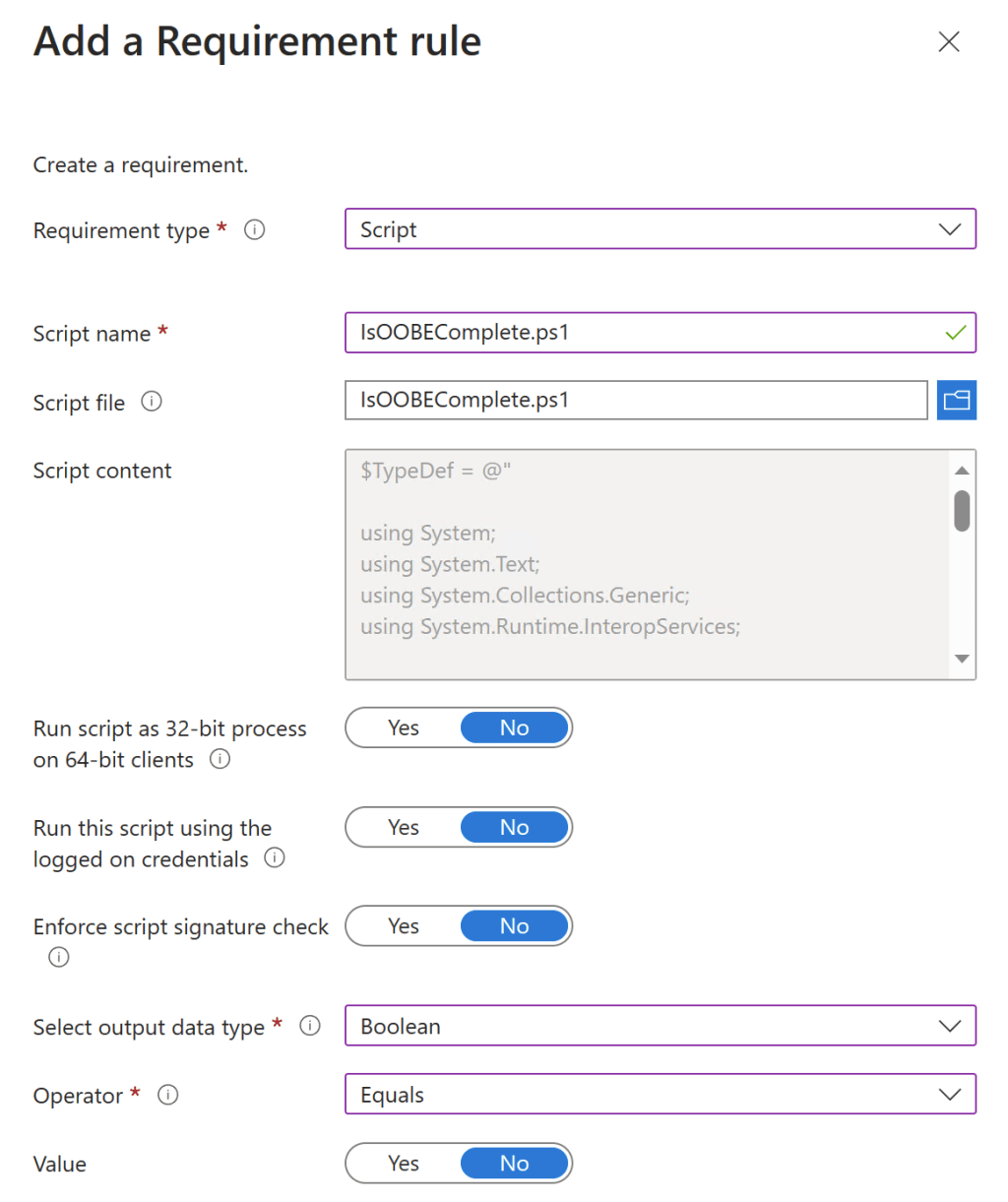
Regardless of the tool you are using (Tanium, Configuration Manager, Intune, etc.), you can use a script like that determine whether the app should be considered applicable/required for the machine. In the Intune Win32 app case, it would look something like this:


 Out of Office Hours
14 responses to “Detecting when you are in OOBE”
Hi Michael, please ask you a question.
Shift+F10 can be used in the OOBE phase, and while useful for IT deployments, it is also a security concern, especially when implementing Windows Autopilot, where IT-capable users may use Shift+F10 to invoke System account permissions. Because OEM systems can’t be customized to deny the Shift+F10. Do you have a better suggestion?
LikeLike
You could ask the OEM to disable it. They just need to create a file in the right place. https://oofhours.com/2020/08/04/disable-shift-f10-in-oobe/
LikeLiked by 1 person
Thanks! Nice and simple way to detect running OOBE. For my OOBE detection, I’ve been using a simple PowerShell script to check if “defaultuser0” is the currently logged-in user. If it is, then I’m assuming we are running in OOBE.
How about the User ESP? It has been trickier to detect, and I’ve personally not seen any good ways. Some have used the check if the “Windows Security notification icon” is loaded, and if it is, assume User ESP is done.
LikeLike
Not sure about that one yet — it’s on the list of things to check 🙂
LikeLiked by 2 people
Hi Dan, we came across an issue that IME kicks in earlier than DefaultUser0 is logged on. Hence, the simple Autologon registry check under requirements worked better for us
REQUIREMENTS RULE
Select Registry
HKEY_LOCAL_MACHINE\SOFTWARE\Microsoft\Windows NT\CurrentVersion\Winlogon
DefaultUserName
Select String comparison
Select Equals
DefaultUser0
LikeLike
Hey michael,
Would this work when doing pre provisioning, ie would it run again when the user receives the device and does the device 2nd pass.
LikeLike
Hey Michael,
Would this work to during pre provisioning on the user side, when the device does the second pass of the device phase? Just want some apps to install after that user logs in
LikeLike
I believe so, but I haven’t actually tried it (been working in VMs).
LikeLike
Not working with preprovisioning? tried to install software with boolean value false within preprovisioning phase, not working.
LikeLike
Not sure why this would be the case, but good to know.
LikeLike
Thanks Micheal, that’s a great another method. I did try and have the same experience what Janne might have seen. After looking into the Intunemanagement extension logs, I found that the SideCarScript engine fails to convert that number into Boolean expression. “[Win32App] Output value of running SideCarScriptRequirement failed to convert to 6 where the value is 1” and fails at that point. So I added another line to return true or false based on the IsOOBEComplete value and it worked like a charm. Thanks again for this great method again. Modified the last line to if ($IsOOBEComplete -eq ‘1’){return $true}
else {return $false}.
LikeLike
Can you show the script with the modification?
I tired replacing the last line, adding below the last line, etc…
All fail. Thanks!
LikeLike
Good another method!
We’ve been doing this with simple Autologon check set to DefaultUser0 for years
REQUIREMENTS RULE
Select Registry
HKEY_LOCAL_MACHINE\SOFTWARE\Microsoft\Windows NT\CurrentVersion\Winlogon
DefaultUserName
Select String comparison
Select Equals
DefaultUser0
LikeLike
I was testing this and my observation is the following:
The script returns 0 when the device is in or finished preprovision phase. When user signs in the value turns to 1 even when there is still the ESP page ongoing on screen. So I assume all the apps assigned will install asap because OOBE already finished..
LikeLike