
Note: See the bottom of the log for the change history and latest version.
Since the initial Windows 10 release, Microsoft has made available the Media Creation Tool (MCT). Now there is a Windows 10 version and a Windows 11 version. But there are some limitations, like being architecture-dependent and only presenting a limited list of Windows editions. But as we saw a while back, the mechanism being used behind the scenes is actually reasonably straightforward: there are manifests published by Microsoft that point to images (ESD files — more on those here), and those images can be turned into ISOs with a few ADK-driven tweaks.
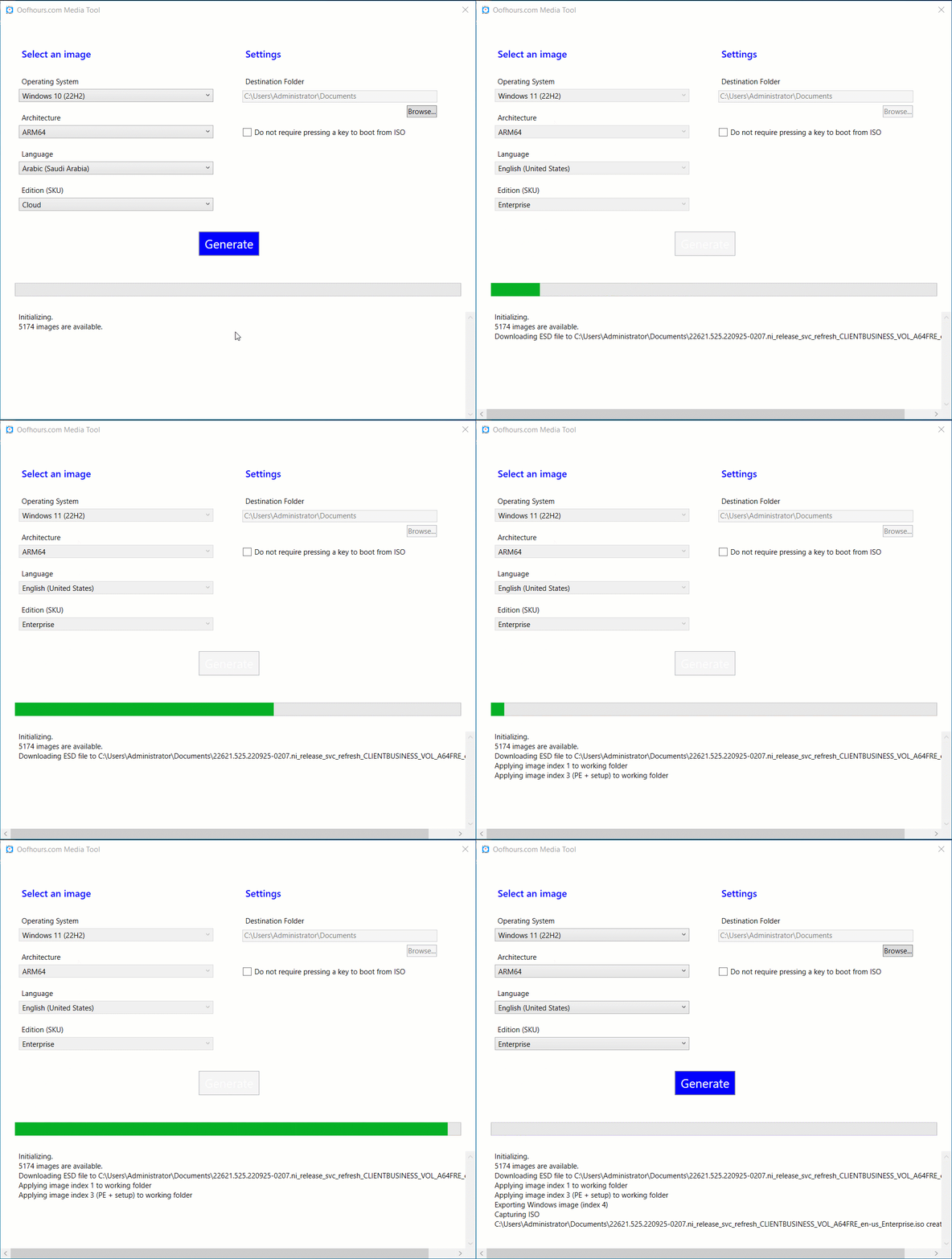
So I created my own app to do the whole process. After downloading both the Windows 10 and Windows 11 manifests, it will let you choose between OSes (Windows 10 22H2 and Windows 11 22H2), architectures (x64, ARM64, x86 [Windows 10 only]), languages (lots of them), and Windows editions (lots of them too). All total, there are 5174 combinations (although some of those don’t actually exist, more on that later). After choosing which one you want, the app will download the referenced ESD file, export the selected image from it, and create an ISO file that can be used to install the OS. Here’s an animated GIF that shows the whole process:
I had initially thought about creating an installer (probably an MSIX) and publishing this to the app store, but there weren’t enough “airplane hours” (this is “vacation-ware”) to go through that (overly-complicated) process, so for now you can try out the app by downloading the zip file at the end of this blog post.
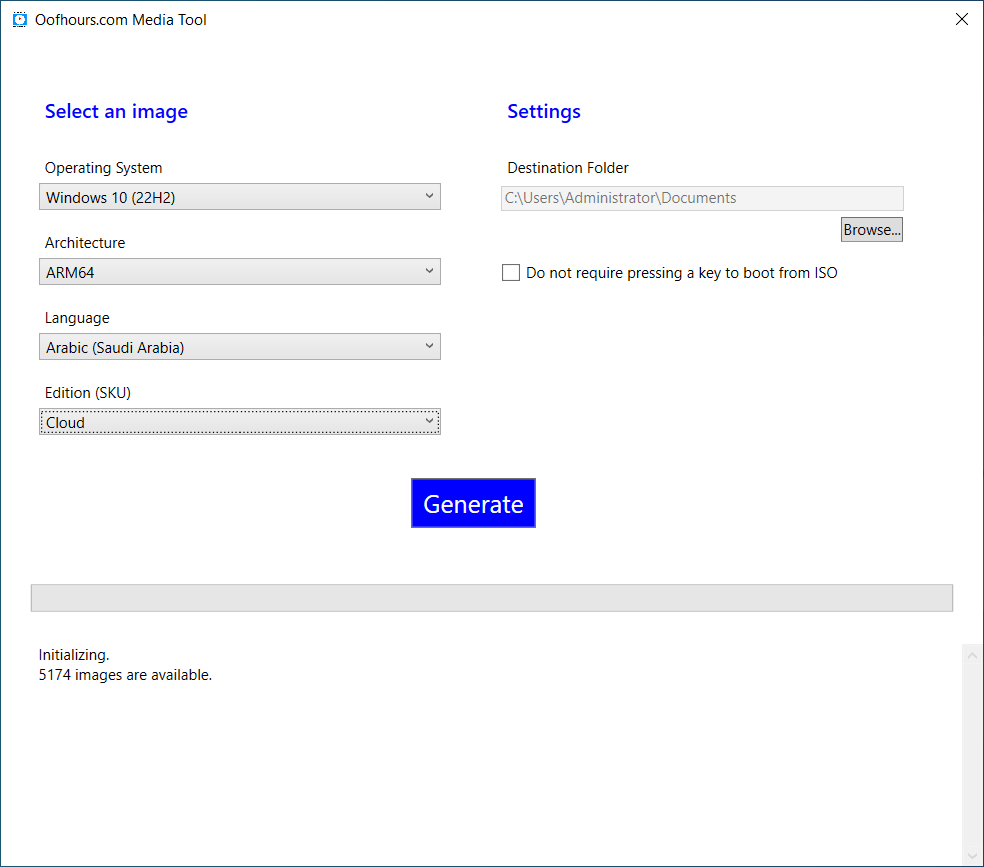
Even though the manifests list 5174 unique OS images, there are a lot less ESD files published, since each of these ESD files can contain multiple editions. Interestingly, for Windows 10 you’ll see some editions that don’t actually exist in the ESD file reference, e.g. the “Cloud” edition. If you happen to choose one of those, you’ll see it download the ESD file and then report an error when it can’t find the edition in the ESD file. But that’s not the end of the world.
So why only ISOs and not USB keys as well? It’s not hard to turn an ISO into a USB key: Mount the ISO, copy its contents to a FAT32-formatted USB key. You can do that yourself without the assistance of an app.
To use the app, download the attached zip file and extract the contents somewhere, then run the MediaToolApp.exe executable. It does require the ADK (for the OSCDIMG tool used to create ISOs), so make sure you’ve installed that too.
If by chance you want to use the INSTALL.WIM file from any of these ISOs, note that they are compressed using solid compression (see the ESD link above), so they may not be compatible with your favorite deployment tool. You can export the image from them and change the compression to something that is compatible.
Updated 2023-03-29 15:40: Uploaded a new zip file with a modified app. This version includes a manifest that causes it to prompt for elevation when run, and a new checkbox to specify that the image should be compressed using normal (maximum) compression. I also fixed a bug in the “no prompt” setting that causes the generation process to fail if checked.
Updated 2023-03-30 00:50: Uploaded another new zip with a modified app that addresses a problem running on OSes running multi-byte charactersets (e.g. Korean). PowerShell wasn’t reading the XML content properly so it could not get the list of images. StackExchange to the rescue.
Updated 2023-03-30 11:00: Uploaded another new zip with a modified app that adds logic to make the “Browse” button actually do something.
Updated 2023-03-31 11:00: Uploaded another new zip with a modified app that attempts to get Microsoft’s CDN to make a particular ESD file available for downloading. With any luck, this will solve issues where some ESD files fail to download in some locations of the world.
Updated 2024-08-12 09:00: Updated logic to properly handled 23H2 and to be more aware of different media types. The link below now points to the latest GitHub release:
Attachment: OofhoursMediaTool.zip

 Out of Office Hours
24 responses to “Another Windows media creation tool? Sure, why not.”
I downloaded the .ESD but don’t know how do i create ISO and bootable USB can you help.
LikeLike
The MediaToolApp.exe will do both: it downloads the .ESD file and creates the ISO for you.
LikeLike
I had something similar happen to me. You need to run the tools with admin privileges so the DISM commands can run properly. Hope that helps! : )
LikeLike
Good point, admin is required.
LikeLike
it replies ADK is not installed
LikeLike
The ADK is required. You can install that first from https://learn.microsoft.com/en-us/windows-hardware/get-started/adk-install. Only the “Deployment tools” component is needed for this (to get OSCDIMG.EXE to create the ISO).
LikeLike
The unique OS images represent the supported edition to upgrade from (via MCT), not the editions available in the ESD
why do you export index 3 only to boot.wim, and not both index 2 (PE) and 3 (Setup)?
thanks 🙂
LikeLike
Ah, that makes sense. So it’s saying “something in this ESD can be used to upgrade from Cloud” but it doesn’t say that the WIM contains “Cloud”. In most “normal” cases, there’s a 1:1 match between what you want to upgrade from/to, but not in the case of “orphaned” SKUs.
As for index 2 vs. 3, best I can tell is that image 1 is the media contents, #2 is the boot.wim without setup (equivalent of winpe.wim index 1 in the ADK), and #3 is the boot.wim with setup (equivalent of the winpe.wim index 2 in the ADK). So I extract that files from index 1 (to make the ISO bootable) and the image from #3 (PE + Setup, needed to install the WIM).
LikeLike
Is there a Github link for this app repository?
LikeLike
It’s presently in a private personal GitHub repo. But the app itself is really just a somewhat-trivial WPF UI over the PowerShell module that you’ll see in the “Modules” folder — that’s what’s doing the real work. I’ll do another blog on that, and likely make the repo public at the same time.
LikeLike
I know that index 3 is enough for boot setup, but the regular boot.wim (official ISOs) always contain both images
i think index “PE” might be needed for in-place upgrades
LikeLike
there’s nothing shown in the “Operation System” drop list.
LikeLike
That issue should be fixed — download the latest zip from the bottom of the blog. The PowerShell script being used had issues on OSes with multi-byte character sets, e.g. Korean, Chinese, etc.
LikeLike
thank you, Michael, it works now! 🙂
LikeLiked by 1 person
Cannot change destination folder, Browse button doesn’t do nothing.
LikeLike
Oh yeah, I forgot I still needed to write that code — will try to get to that sometime today 🙂
LikeLike
Fixed, see the new zip.
LikeLiked by 1 person
Thank you, working now 😉
LikeLiked by 1 person
Can you please add support for Windows Server distributions?
LikeLike
To my knowledge, Microsoft hasn’t published any Windows Server manifests. (If they did, adding it would be easy.)
LikeLike
Hey Michael,
Looking to identify the version of Windows 10 22H2 “Ultimate” via the OofHours MCT. The ESD being downloaded is linked to 21H2: 2022-09-13 19044.2006 but unaware of an ultimate version of windows.
(source:https://learn.microsoft.com/en-us/windows/release-health/release-information && https://pasteboard.co/r7yF3hmTIKqX.png)
Can you clarify the ESD being downloaded through Windows 10 22H2 “ultimate”, please?
Thank you kindly.
Sincerely,
-Dale C.
PS: Thank you very much for the update/fixing the browse button 😃
LikeLike
There isn’t one. I mentioned this in my follow-up blog, and it’s called out in one of the other comments as well. The manifests actually list the edition that the ESD can be used to upgrade from, not the edition that is in the ESD. In most cases, that doesn’t matter, but when there are older SKUs (e.g. from Windows XP/Vista/7/8) that no longer exist, you won’t find a corresponding image in the file.
LikeLike
Mike
Just tried the tool – thanks! However – cannot download any combos of ProWorkstation?
Says the downloaded ESD does not contain an image for ProfessionalWorkstation.
Ideas?
VP
LikeLike
I don’t think ProfessionalWorkstation actually exists as an image. I think you just need to use Professional, which will become ProfessionalWorkstation when you specify a ProfessionalWorkstation product key. (It’s a virtual SKU, changes when the product key is installed.)
LikeLike