
I’ve grown quite attached to using Windows Terminal to run PowerShell, cmd.exe, and various other command-line environments. As it implements a fairly standard console environment and can be customized, it’s pretty easy to add other things to it, e.g. Python.
But what about PSExec? Easy enough to try by editing the configuration by clicking the down arrow. If you don’t have a JSON editor installed, just choose Notepad.

Add entries like what I’ve highlighted below:

And the same, in text form:
,
{
"guid": "{feb5d230-cd74-404d-8abf-d4b8c44acbbe}",
"hidden": false,
"name": "PSExec -s cmd.exe",
"commandline": "c:\pstools\psexec.exe -s cmd.exe"
},
{
"guid": "{beb689c3-9a54-48c5-aa78-12f1f082b4b8}",
"hidden": false,
"name": "PSExec -s powershell.exe",
"commandline": "c:\pstools\psexec.exe -s powershell.exe"
}
I specified the full path to psexec.exe (I saved all the SysInternals tools to that path), substitute your appropriate path.
After saving those changes and going back into Terminal, you’ll see the two new options:
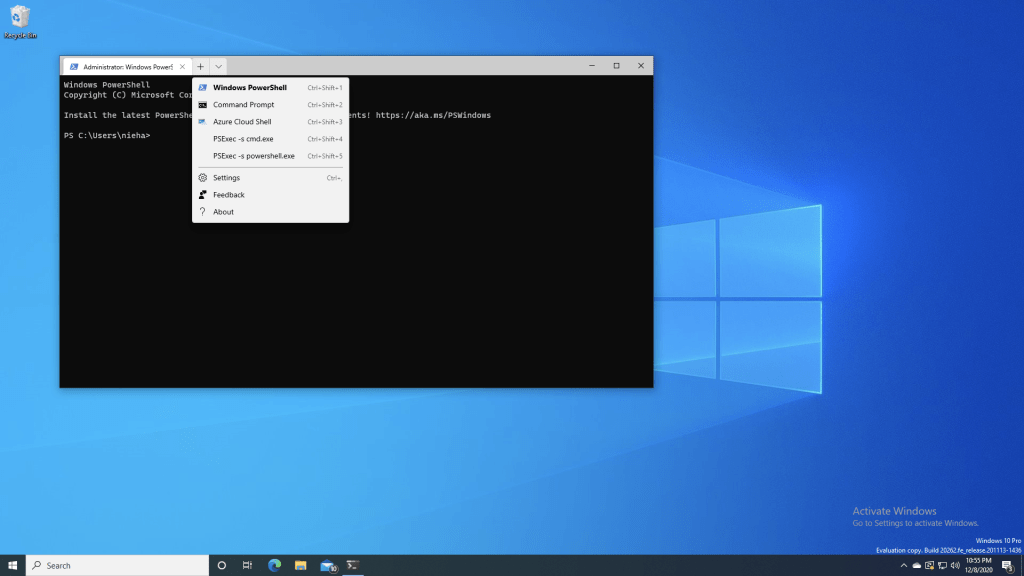
If you look carefully, you’ll see one other change from the previous screenshot to this one: Terminal is now running with admin rights. That’s because PSExec requires admin rights; it will fail with an “access denied” error if you don’t do that.
Choosing the first option displays a command prompt:

After closing that (since you can only have one PSExec session open to the local machine), you can then open a PowerShell session:

In this case, I’m using PSExec to establish a session to my own device (useful to test things in system context), but you could just as easily put a different host name in the profile’s command line. (It would be nice if Terminal would prompt for a name. If it can do that, let me know – got tired of reading through the docs…)


 Out of Office Hours
5 responses to “Using PSExec with Windows Terminal”
I really liked the article, because even though I didn’t follow all the steps in it, it opened my mind.
At the beginning I did the configuration according to the article however it bothered me having to use the Windows terminal elevated.
I looked for a way to raise only one flap of the terminal and ended up finding the gsudo tool, where I made the configuration raising from it, and how it also allows access to the system account, nor did I use psexec.
So I have both powershell and cmd lines, without elevation, with elevation and in system
LikeLike
This is cool! 🙂
For me (maybe I have a different version of Terminal)… I had to double backslash before it’d work otherwise the settings file would error out…
“commandline”: “c:\\pstools\\psexec.exe -s cmd.exe”
LikeLike
You need to escape backslashes ( \\ ) in JavaScript: the JS in JSON.
It looks like you can use an inline script as the target of a Windows Terminal profile. That script can ask for a host name.
Do you have any interest in switching away from psexec to PowerShell remoting, just enough administration, or “get-windowscapability -online -Name openssh*”?
LikeLike
The need for double backslashes makes sense, but it did work for me without them 🙂 As a long-time Windows person, I haven’t been big into SSH, but I’ve been using it pretty heavily over the past couple of months so I see its usage (but it’s different than why I would want to use PSExec here).
LikeLiked by 1 person
Also, the “get PowerShell to prompt via command line” trick is useful.
LikeLiked by 1 person