
As you may know, Windows Autopilot leverages Azure AD company branding to show custom logos and text during the Azure AD authentication/join process. I described how this company branding information was used in a blog from 2017:


And I mentioned that there are three image layouts that you need to use for this:
- A square logo, 240 pixels by 240 pixels, PNG or JPG, 10KB or smaller.
- A banner logo, 280 pixels by 60 pixels, PNG or JPG, 10KB or smaller.
- A background image, 1920 pixels by 1080 pixels, PNG or JPG, 300KB or smaller.
To help out with this, I’ve attached the logos that I use for my “Contoso” sites to this blog post (see below). If you’re really lazy, you can use these as-is, but otherwise, you can edit them in your favorite paint program (and if necessary, use Paint.NET or Gimp to shrink the files through the use of a more limited color pallet).
A few additional notes:
- Windows Autopilot doesn’t use the large background image. That’s used in AAD sign-in web pages (although if you’re using ADFS, I believe all of the images on the ADFS web page come from somewhere other than AAD, e.g. they’re part of the ADFS configuration).
- Windows Autopilot (still) accidentally uses the banner logo (which is rectangular) in the self-deploying scenario. But it scales it into a smaller rectangle, so it will look squished. (Sorry. One of these days, we’ll get that fixed.)
- If you don’t configure the logos, Windows Autopilot will still work, but won’t show a logo – except for the self-deploying mode where it will fail with an OOBEIDPS “Something went wrong” screen. (We’ll fix that one of these days too.)
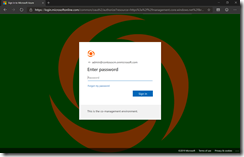
- You can also specify a background color code. For example, #008000 gives you green (see Bing for sites that help with this):

Attachment: Contoso Logos.zip


 Out of Office Hours