
We’re constantly bombarded with “new,” “modern,” “next generation,” and other silliness. So of course, I’ll add another one to the pile for Autopilot Branding. For those that aren’t familiar with this tool, it’s a combination of tweaks that can be made to Windows 11 that you can then deploy as a Win32 app in Intune (or in other ways, which I’ll talk about later).
You can use this to do things that aren’t simple to do via policies, i.e. establish default settings that the user can then change. In a way, it’s a less sophisticated but more flexible equivalent of Group Policy Preferences. (Microsoft has provided a couple of “configure but let the user change” settings, for in-box apps and the Start menu layout, but it’s taken 10 years to get those two, so don’t hold your breath for more.)
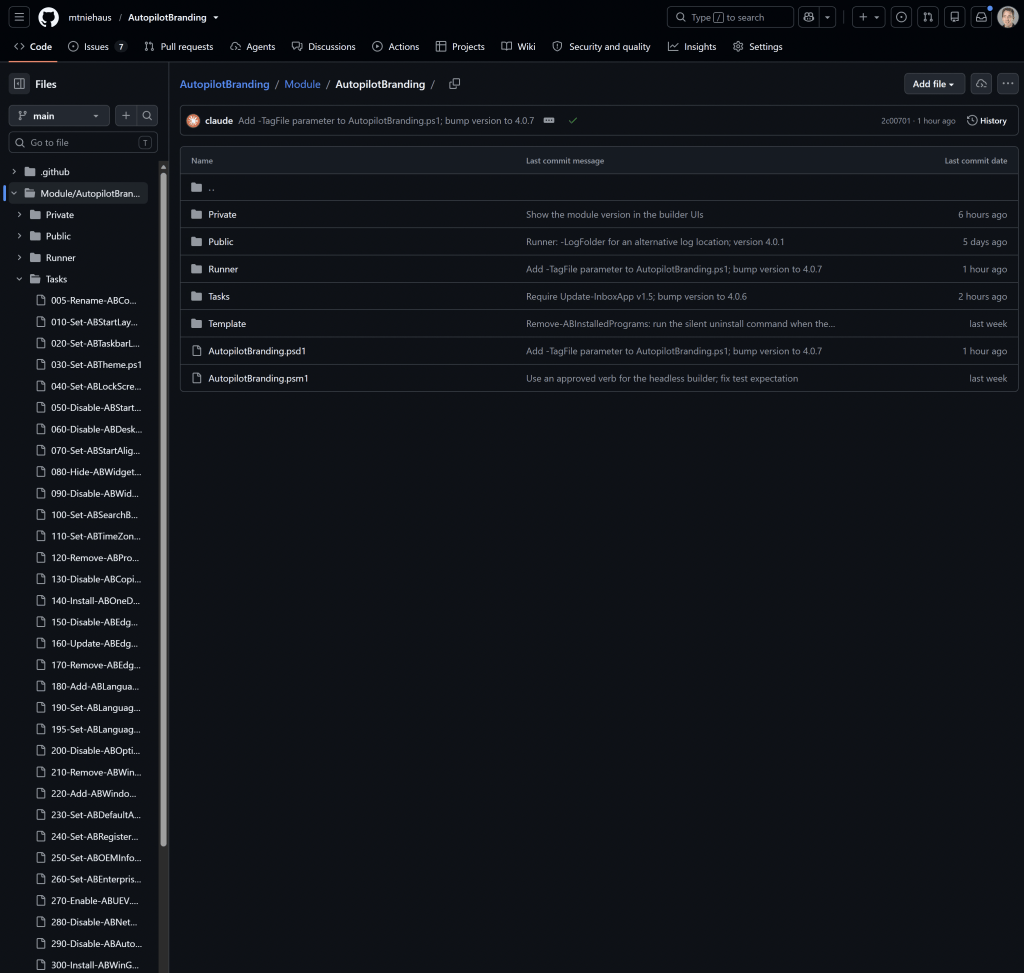
The original Autopilot Branding version, basically a single PowerShell script that you could tweak as needed, was published to https://github.com/mtniehaus/AutopilotBranding in 2019 (yes, over seven years ago). It has grown quite a bit over the years as more and more stuff was added into it, on the general belief that you don’t really want to do any more Win32 apps than you have to, so pack them all into one.
But with all of this extra stuff, the script became a bit unweildy, and the configuration required editing a JSON file and understanding what needed to be put where, before bundling it all up as a .intunewin file that Intune could deliver.
Enough background, what’s new?
So, what makes this “next generation”? A few things:
- The “one big PowerShell script” was restructured into a set of scripts that each perform a single task, with input parameters that control what configuration it applies. These were then all bundled into a PowerShell module, AutopilotBranding, that you can install from the PowerShell Gallery. (No more downloading and extracting zip files from GitHub is required, although you still can if you really want to.)
- Instead of editing the JSON configuration file yourself, a new PowerShell UI was created that shows each of the things you can configure (each script, which implements a single cmdlet). Fill in the blanks as needed, then press a button to have it spit out a .intunewin file that is ready to be uploaded to your deployment or management tool of choice.
- A fully browser-based equivalent. Don’t want to install anything? No problem, just make the configuration within your browser and have the browser generate the .intunewin file. (Yes, it is possible to generate a .intunewin file using only JavaScript running in the browser, with no server-side logic required.)
And the resulting .intunewin file is fully compatible with your existing Win32 app in Intune, so you can generate a new one, upload it to Intune, and it will work just fine with no other changes needed.
Since I was making changes anyway, I added a few other things along the way; check out the notes for each release at https://github.com/mtniehaus/AutopilotBranding/releases.
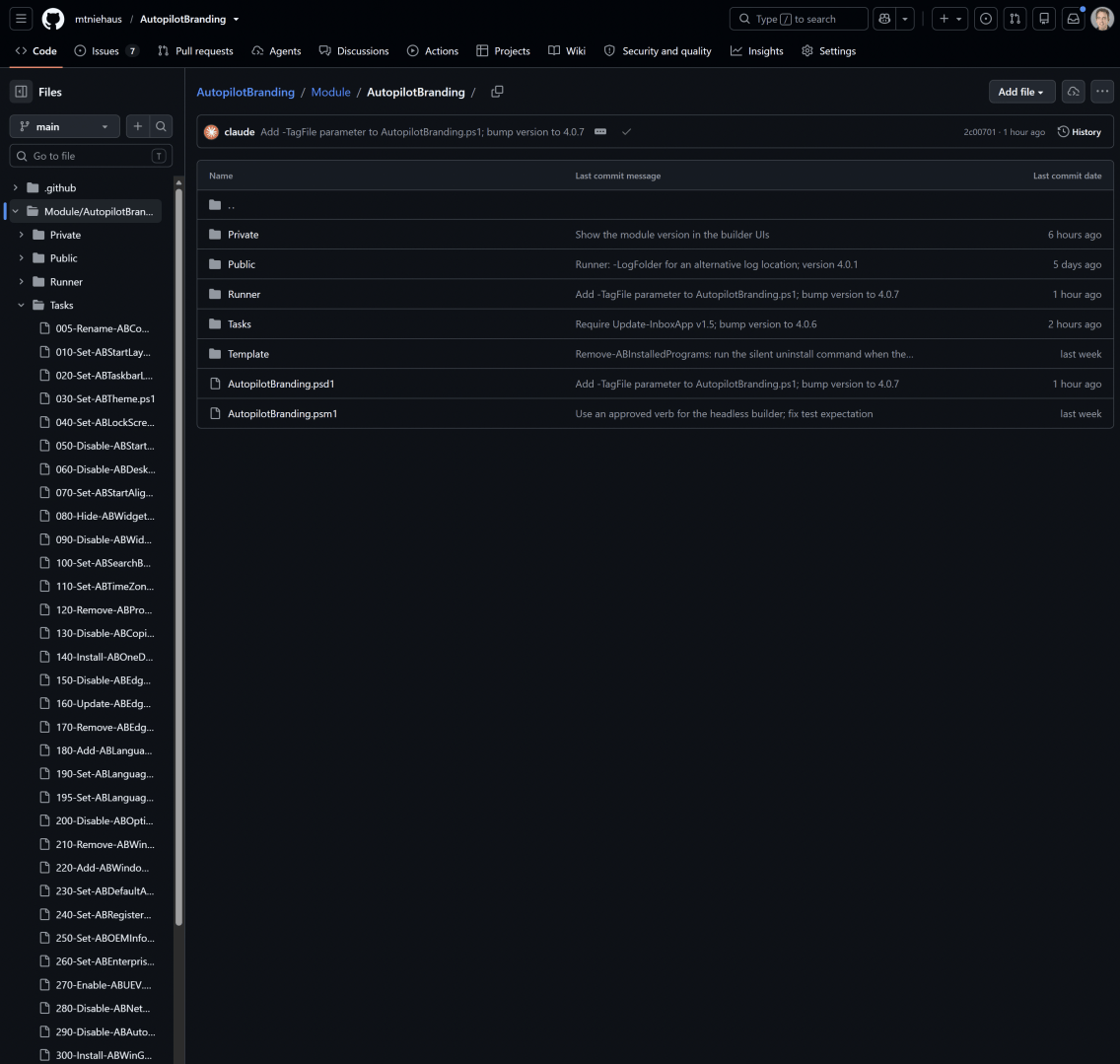
It’s all licensed under the MIT license, so you can do whatever you want with it, which is probably why there are 107 forks of it on GitHub. If you’re not into that sort of thing, let’s talk about the new options.
The AutopilotBranding PowerShell module
All of the scripts and sample files that they use are bundled together into a PowerShell module that is published to the PowerShell Gallery as AutopilotBranding. You can install that module and launch the UI directly from PowerShell (both 5.1 and 7 work fine).
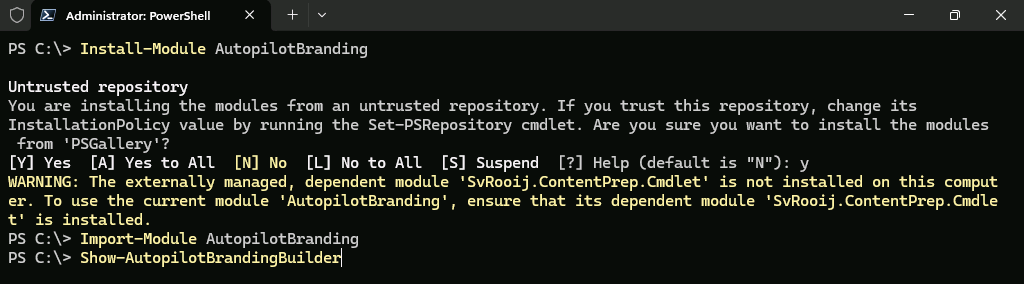
(Don’t worry about the warning. That is Stephan van Rooij’s PowerShell module that creates .intunewin files from PowerShell, without needing the IntuneWinAppUtil executable. It gets installed by the module if it is not present. It’s referenced in the module’s manifest so that it is listed as a dependency on the PowerShell Gallery.)
When the Show-AutopilotBrandingBuilder cmdlet runs, it shows a window like so:
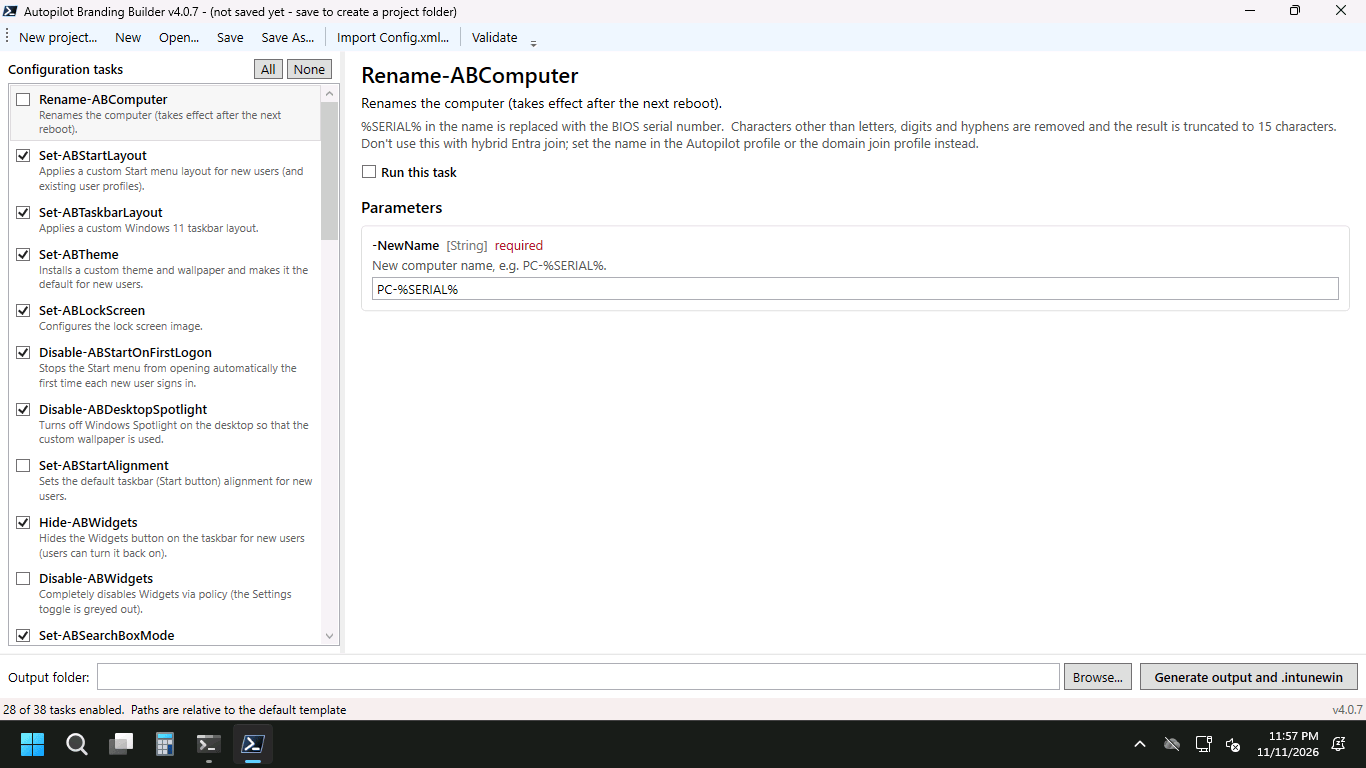
Check the boxes next to the items that you want to run, uncheck the ones that you don’t. Select each one to see the available parameters, fill in the blanks or make adjustments as needed. Save these to a “project” directory so that you can come back and tweak the configuration later, then click the “Generate output and .intunewin” button to generate the .intunewin file.
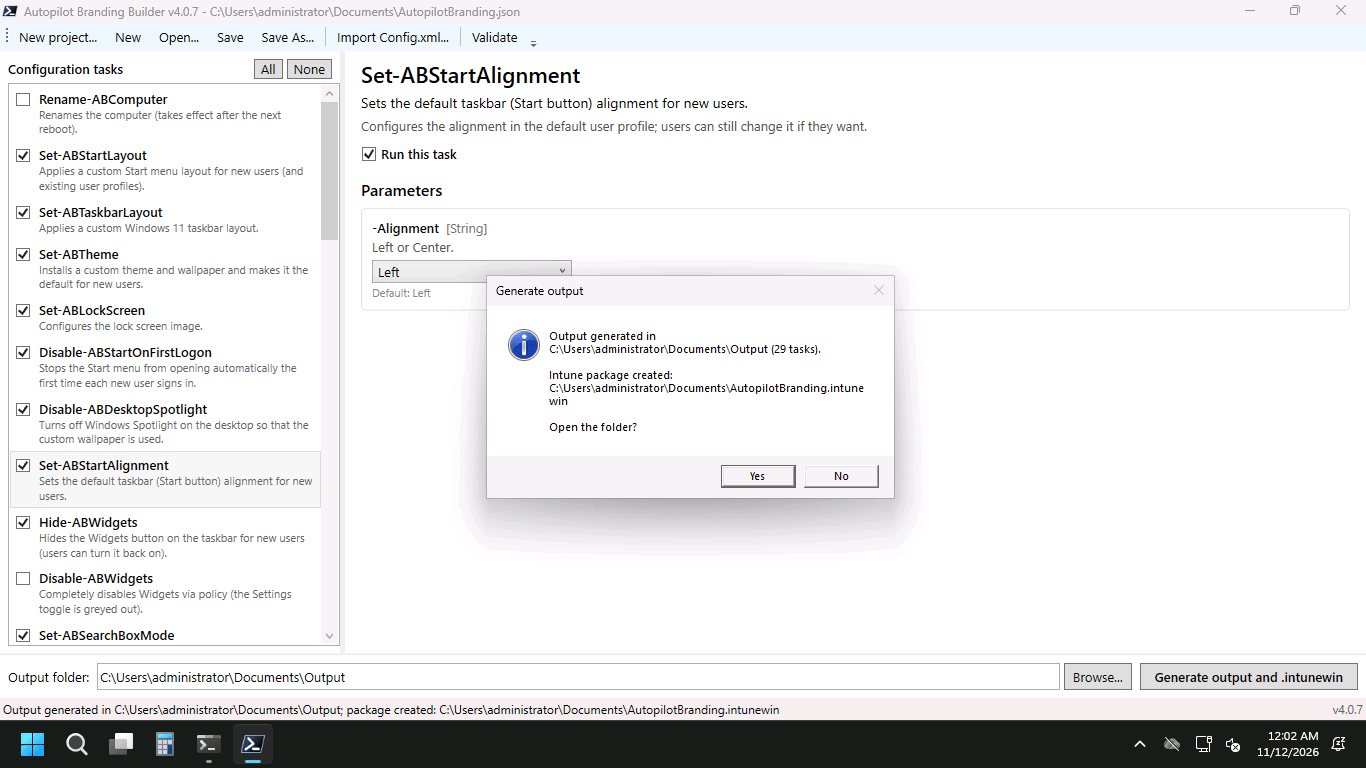
Then you can add a new Win32 app in Intune using that .intunewin file, specifying the needed app configuration:
Command line:powershell.exe -noprofile -executionpolicy bypass -file .\AutopilotBranding.ps1
Uninstall command:cmd.exe /c del %ProgramData%\Microsoft\AutopilotBranding\AutopilotBranding.ps1.tag
Detection rule:
Path: %ProgramData%\Microsoft\AutopilotBranding
File or folder: AutopilotBranding.ps1.tag
Assign that app as needed, add it to the Autopilot profile (v2) or ESP profile (v1) list of blocking apps and you’re all set.
The AutopilotBranding web page
If you don’t want to install the module, you can actually do everything through your browser by navigating to https://mtniehaus.github.io/AutopilotBranding/. This will display a very similar UI:
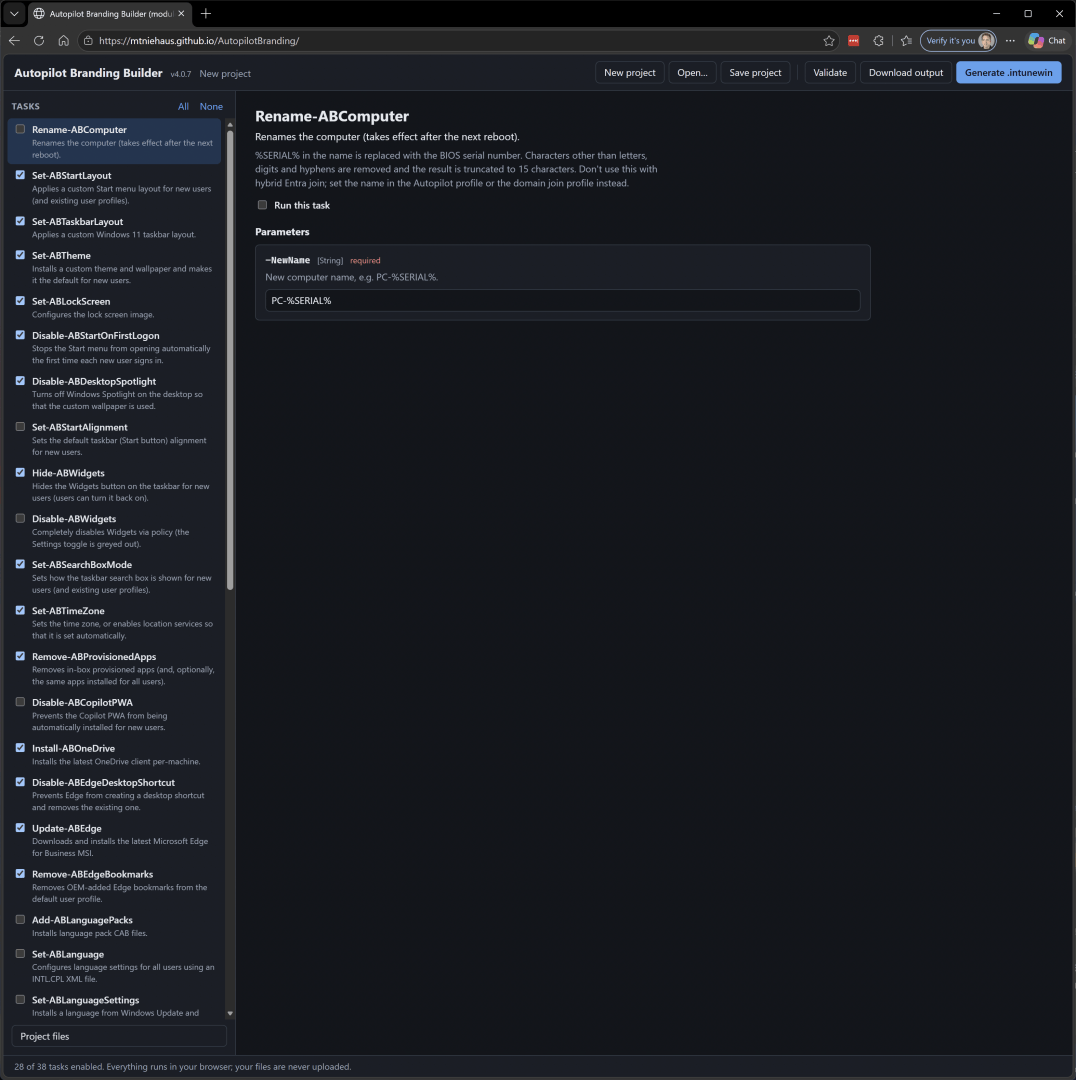
If you want to just try it out, check the boxes and fill in the blanks as needed, then click the “Generate .intunewin” button and it will download in a few seconds.
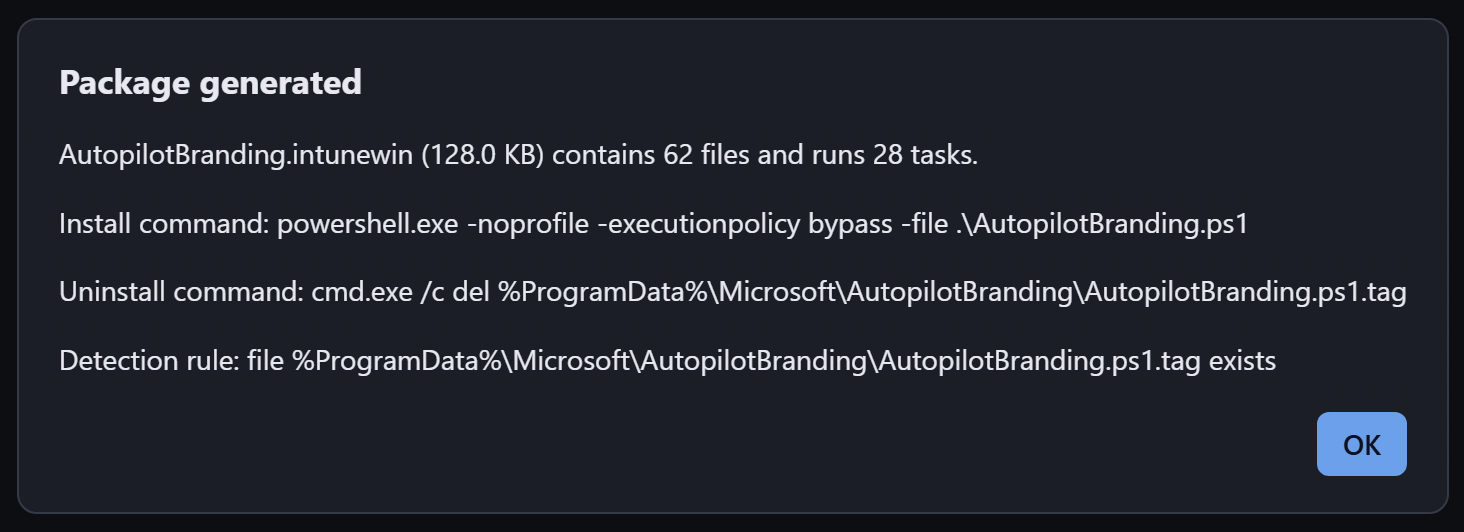
You can also “save” the project (download a JSON file with what you configured), “open” the project (upload it back to the browser), etc. Granted, there are some things you probably don’t want to do via a browser (e.g. uploading language packs), but it all works using the browser’s local storage.
(Want to see how to build a .intunewin file in JavaScript? See intunewin.ts.)
Is this only for Intune?
Of course not. That .intunewin file just contains a bunch of scripts, the configuration file that you built, and other files that are referenced in the configuration. You can use them with any management or deployment tool by extracting them. See this blog for more details:
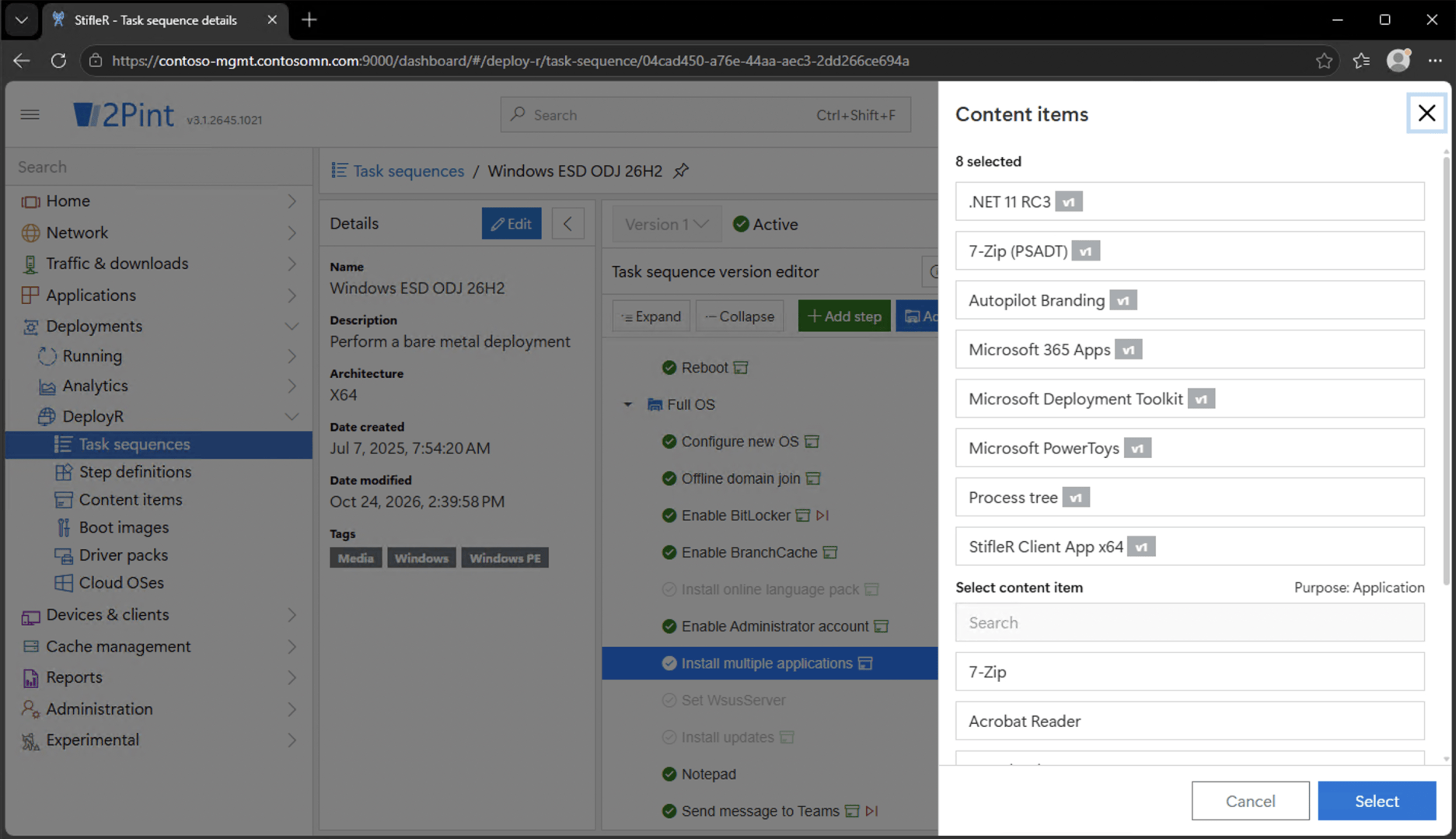
We built that logic into DeployR (both in the free DeployR Community version and the paid DeployR Enterprise version) to understand .intunewin files, so you can add an app in DeployR to install the exact same .intunewin file:
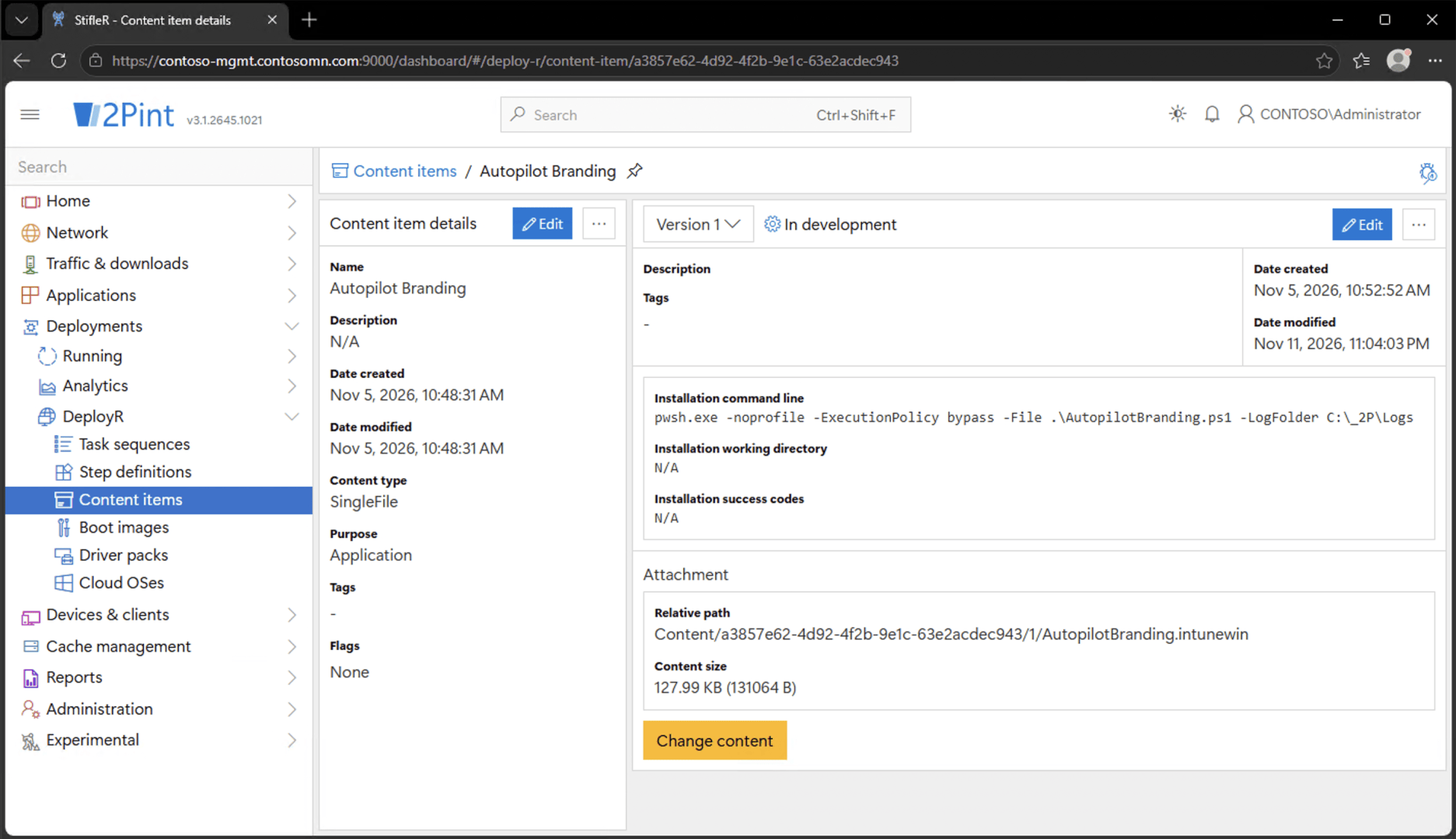
The command line is slightly different, using pwsh.exe instead of powershell.exe (because we prefer PowerShell 7), and adding a custom log destination so that the log file is picked up automatically by DeployR and uploaded to the server when the task sequence completes.
Add that app into any of your DeployR task sequences and it will do the same configuration as part of a bare metal deployment.
Any suggestions?
Feedback is welcome on GitHub through the issues list, https://github.com/mtniehaus/AutopilotBranding/issues. Or, create a fork and submit a pull request to have additional features added. (Don’t consider yourself a Git expert? Just e-mail me at Michael@Oofhours.com.)



Leave a Reply