
In my previous post about pre-provisioning, I showed three apps (MDT, Office, and PowerToys) that I was installing as part of a task sequence. What I didn’t show was the details for those apps. Sure, you can always add the same original app source files to SCCM, MDT, or DeployR and install them with the same command line that you have in Intune. But what if you could install the apps using the .intunewin files directly?
As it turns out, that’s fairly easy — the pieces already exist, they just need to be combined together. First, you need to understand the structure of the .intunewin file that is created by the IntuneWinAppUtil.exe tool. You can open it using 7Zip or similar utilities, as it’s just a .zip file. It looks something like this:
- Sample.intunewin
- IntuneWinPackage\
- Contents\
- Sample.intunewin
- Metadata\
- Detection.xml
- Contents\
- IntuneWinPackage\
Simple enough, right? But wait, how can a file be inside itself? It can’t, obviously, so this internal .intunewin file is different from outer one. The internal .intunewin file is a .zip file containing the source folder that you specified to the IntuneWinAppUtil tool — but the contents are encrypted, so you won’t be able to get 7Zip to open that one.
The Detection.xml is then key to this process. It contains the decryption information, and other stuff. Here’s an example from an AutopilotBranding package:

So what’s the point of encrypting content and then including the decryption key inside the same container? Simple: you’re encrypting the content locally so that Intune doesn’t need to do it (saves them time and CPU). When you upload the .intunewin file to Intune, it doesn’t use it directly. It grabs the internal encrypted .intunewin file, stores that, and then grabs the needed metadata from the Detection.xml file. It will only distribute the encrypted file; it can discard the outer “container” file once it’s been processed.
So if you’re thinking ahead, you are probably thinking “OK, I can use that key myself to extract the .intunewin file content.” Yes, and fortunately Oliver Kieselbach has already built a tool for doing that. You can read more about that in his blog post. Most importantly for us, that points to an IntuneWinAppUtilDecode.exe executable that does the work of taking the outer .intunewin file, extracting the metadata, and then using that to decrypt the content zip. That’s 90% of the work. Then all you have to do is copy the command line from Intune and use that against the extracted content.
Put into simple PowerShell logic, it looks like this (granted, there are some DeployR task sequence variable references in there, but I think you can follow the logic, which would work fine any any management tool):

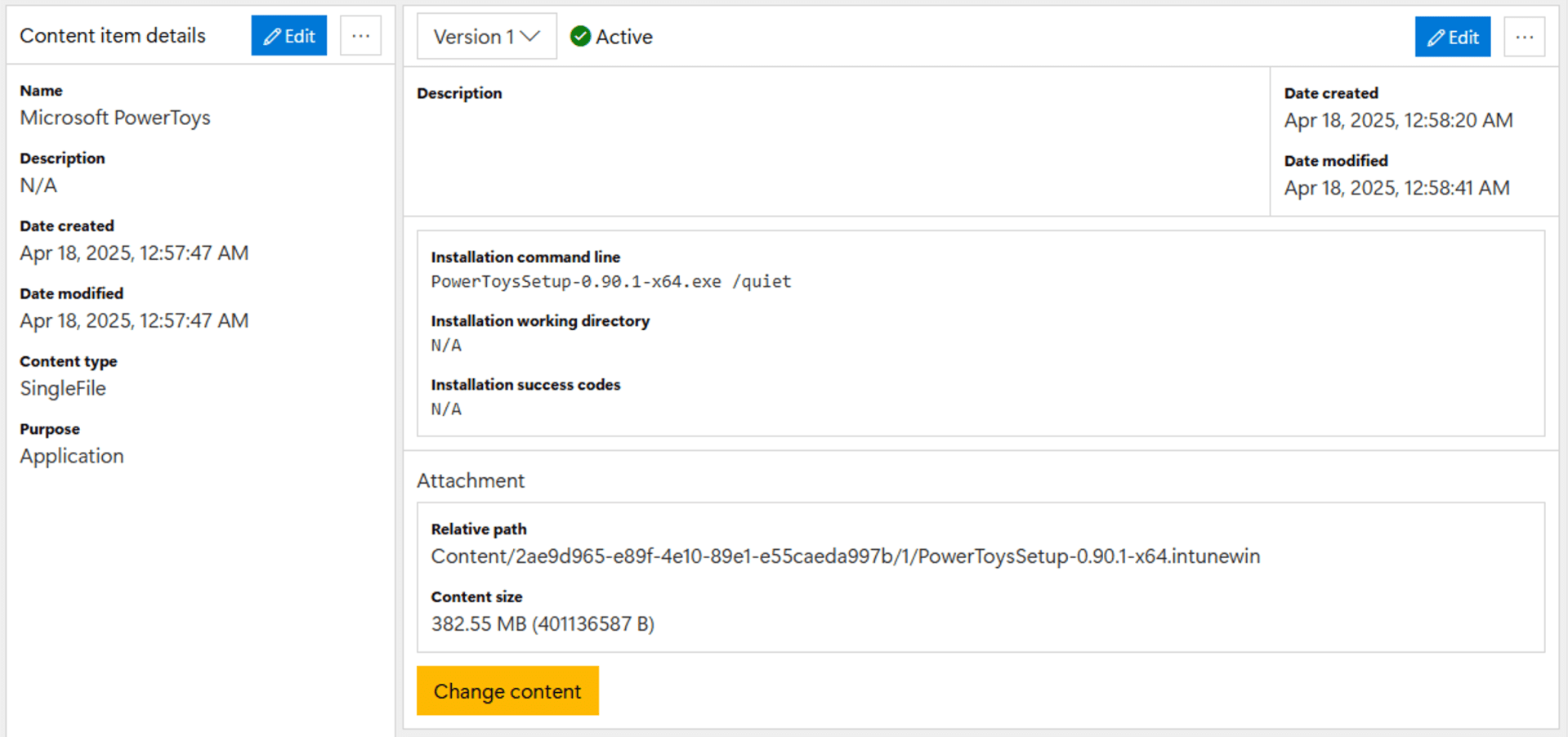
Since that seemed like a generally useful approach, that’s built into the 2Pint DeployR product. You can build an app and specify an .intunewin file as the source; it will recognize that and automatically extract the content (as shown above) before running the command line. An example:
This would actually have a lot of benefits in SCCM too: SCCM can get really bogged down dealing with apps that have lots of small files in them. Some people would create a single WIM file containing the whole set of install files as a way of making this work much better; creating a .intunewin file would be the equivalent. (A WIM file is very similar to a ZIP file anyway. WIMs do have the advantage of single-instance storage, so if there are lots of duplicated files the WIM could be slightly smaller.)
Now if only the .intunewin file contained the command line details and other metadata for the app. But that’s a topic/rant for some other time…


 Out of Office Hours