

Over a year ago when Autopilot v2 (a.k.a. device preparation) was announced, one of the missing features was pre-provisioning (formerly “white glove provisioning”). Maybe one of these days it will finally emerge. But until then, are there other options? Certainly.
First, it’s worth looking at the existing “Autopilot for existing devices” process. Since many orgs are imaging the devices first anyway, you might as well use a task sequence (e.g. SCCM or MDT) to do the pre-provisioning of any needed apps. SCCM has a built-in task sequence template to do that, which works fine for APv1: it drops in an AutopilotConfigurationFile.json that is ignored for Autopilot-registered devices, serving as a fallback to force the device through the APv1 process. So how would you modify that for APv2? Simple: just disable the step that copies that JSON file.

Now you can add whatever apps you want (right after the “Install Updates” step would be a good place).
So what’s the downside of this setup? Well, it’s going to take a while. The imaging process is pretty quick (depending on network speeds), but the OS is specialized, then generalized (Sysprep/”Prepare Windows for Capture”), then generalized again. And there’s always a chance that some app updates get installed while everything else is going on, prior to Sysprep, and as a result, Sysprep fails.
I published a quicker version of that task sequence, but that doesn’t help in this case: that task sequence finishes while still in Windows PE, so there’s no ability to install updates or apps; you can only do offline tweaks.
You could potentially replace the “Prepare Windows for Capture” step with one that just runs “sysprep.exe /oobe /restart” — in most cases that will probably work, but I have seen instances where it didn’t.
So what other options are there? For most of what you might want to customize, there is another flow in Windows that was designed specifically to handle this: audit mode. You boot the device up after applying an image, boot into audit mode, make your customizations, then run “sysprep.exe /oobe /restart” to boot back to “normal” OOBE. Updates won’t install during audit mode, and in fact they can’t install — any servicing attempt will fail telling you that the system is still in setup mode. But otherwise, you can do any customizations that you want: install apps, tweak Windows settings, etc.
So how can you run a task sequence that deploys an OS, boots into audit mode, continues in audit mode, and when it finishes boots back to OOBE? Well, that would require some significant tweaking of MDT or SCCM — probably doable in both cases, but not a trivial task. As an alternative to that, I used 2Pint Software’s new DeployR solution to do it, where I can have a task sequence that looks like this:
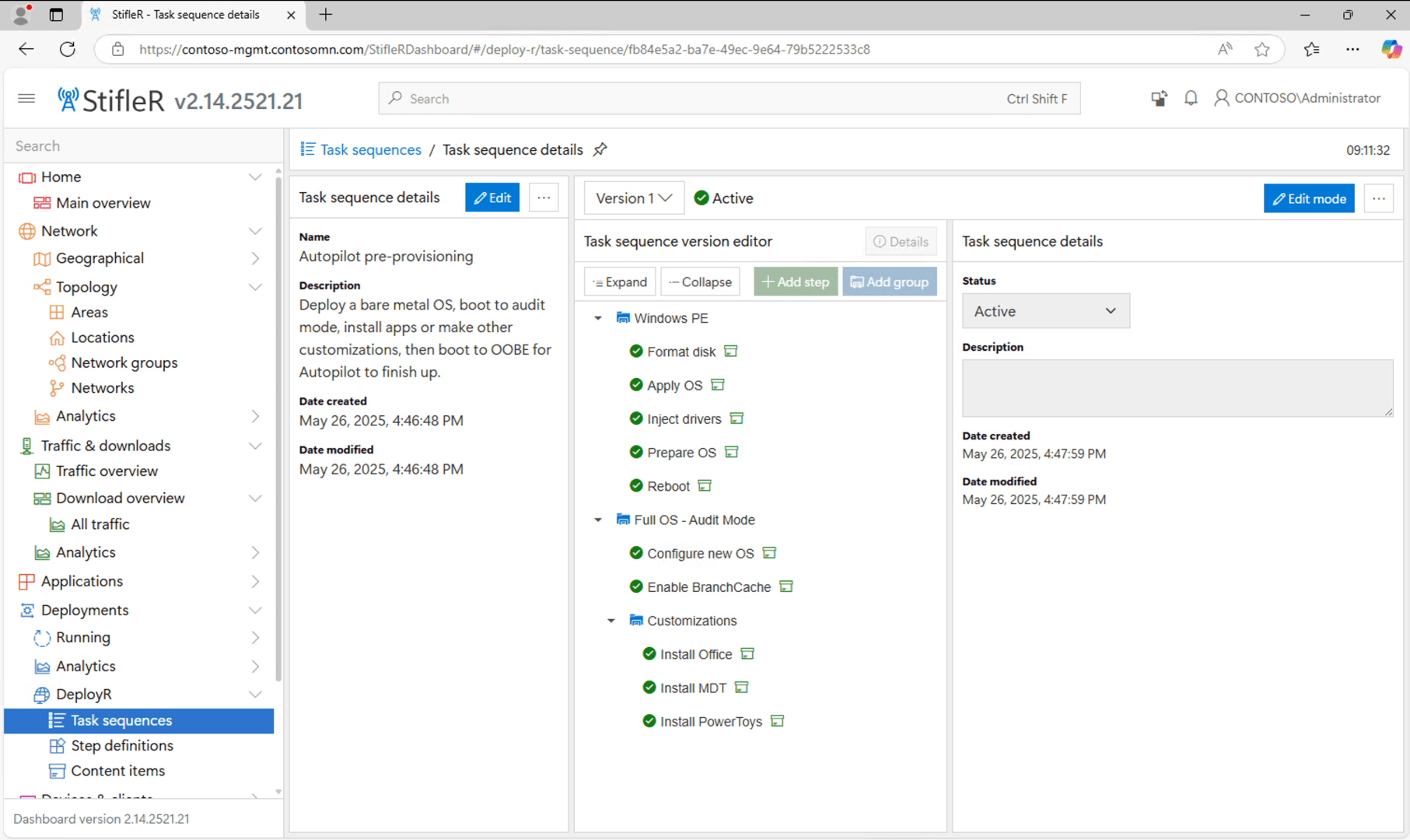
How does it boot to audit mode? You specify that in the “Apply OS” step, and it automatically configures an unattend.xml accordingly:
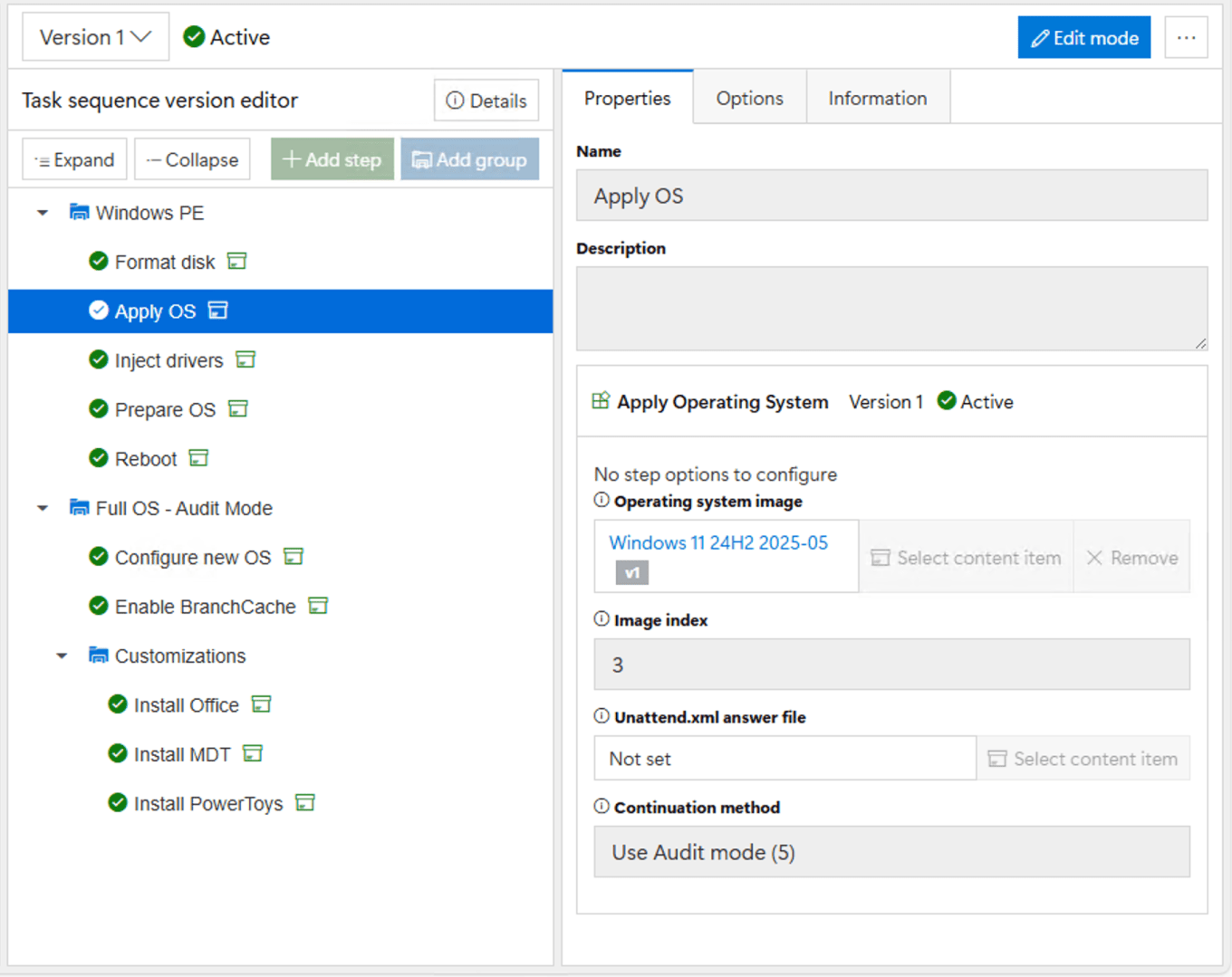
When the task sequence finishes while in audit mode, it knows to run “sysprep.exe /oobe /reboot” to get back into “normal” Windows OOBE.
So what’s that end up looking like? Here’s a video:
Since Intune can detect that the apps in the APv2 deployment preparation profile are already present on the device, it won’t download or install those, so the process can finish pretty quickly. (Normally, you would shut the machine down after the pre-provisioning process and then power it back up for the user to complete their piece, but those two are combined together in this video.)
The exact same process works for APv1 or APv2, and since it doesn’t actually join or enroll the device while it is being pre-provisioned, you don’t need to worry about stale objects being deleted from Entra or Intune; those will get created/enabled later when the user performs their piece of the process.
Now if you aren’t imaging the device (using a pre-installed OS from the OEM), you can’t do this quite as easily, but you could still do it: At the start of OOBE, press Alt-F3 to boot into audit mode, and then run an app-only task sequence from there. That’s pretty easy to do with MDT or DeployR, more involved with SCCM (you have to install the SCCM client first). So there are options. But if you’re managing the drivers anyway (for break/fix scenarios) and you have a bare metal imaging process available, it’s easier to just reimage the device and do the pre-provisioning process this way.


 Out of Office Hours