

When Microsoft announced Autopilot v2 (a.k.a. Autopilot device provisioning), they mentioned:
Hybrid AD join is no longer recommended for use with Autopilot deployments. Autopilot device preparation profiles do not support Hybrid AD Join, but the existing Autopilot flows that do are still usable.
And if you dare mention it at an event, or on Reddit or other social media sites, you’ll likely be attacked by a swarm of bees, pack of wolves, etc., telling you that you shouldn’t do it because it kills kittens or some such hyperbole.
So of course that motivated me to try to do it. And yes, it can be done. The basic process:
- Let the machine be Entra ID joined, which triggers the MDM auto-enrollment.
- Remove the device from Entra ID.
- Join it to AD.
The first item is pretty much the default with APv2, so nothing magic there. The second isn’t very hard either, doable via PowerShell:

Delete a few certs and presto, now you can join the device to Active Directory. (Not coincidentally, this is exactly what APv1’s HAADJ pre-provisioning process does. Since the TPM attestation-driven pre-provisioning process needs an Entra token in order to do its thing, it joins the device to AD then waits for the AD offline domain join token to be received, and then it injects it.)
Joining the device to AD is actually the hardest part. Well, if you want it to be done securely and over the internet. An initial thought was to leverage the Intune Connector for Active Directory (ODJ Connector) just like APv1 does. If OOBE sends an “OdjSync” alert to the MDM server (Intune), will it respond back with the a blob? Sadly, no it won’t, which implies it’s doing some sanity checks and deciding no to respond.
Could you write your own ODJ service? Yes (written several of those myself), but you have two challenges to overcome: how to keep it secure, and how to get it onto the internet (which also requires keeping it secure). That is doable, but beyond what I’d like to do right now.
So let’s start simple. If we assume that the devices will only be provisioning while on the corporate network, then it’s a lot easier. You can just join it directly using some simple PowerShell logic, and hard-code a user ID and password (hopefully restricting what that user ID is able to do if the password gets out). That can be something like this:

A few comments on that:
- Line of site required; this won’t work over the internet unless you’ve installed a VPN client of some sort that can automatically connect.
- The username and password are in clear text — not neccesarily a good idea. You could obfuscate them, but that’s still not terribly secure.
- You can specify any computer name you want, which is great for more complex naming patterns. And you can even replace an existing computer object. But those are also potential problems — make sure that account has minimal rights, and only to specific OU(s).
Put those together with some logic that makes this all run as a Win32 app, with some extra code to generate computer names, and you’re set to go.
You can find the complete script, along with all the files that will turn it in an .intunewin file, on https://github.com/mtniehaus/HybridJoin. Update that as needed (you might want to change the naming logic, and you’ll certainly need to add in your own domain, account, and password), run makeapp.cmd to generate a new .intunewin file, then upload it to Intune to create a new Win32 app, specifying the right command lines and detection rules:
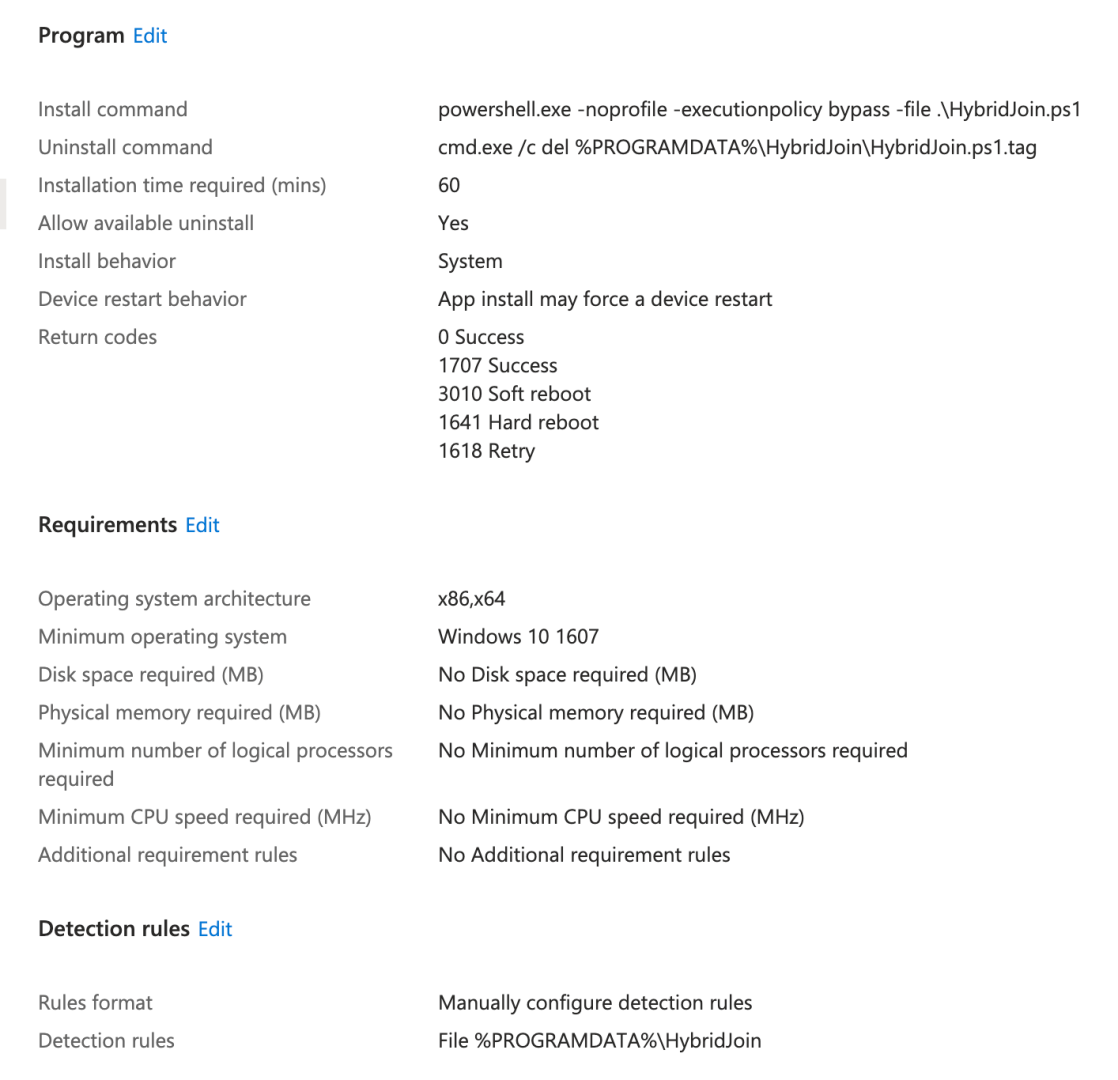
Assign that to an appropriate group (e.g. the machine group attached to your APv2 device provisioning profile). So what does this end up looking like? Here’s a video showing the whole process:
At the end, you can see the AD sign-in, group policies, etc. So we’re just an ordinary AD-joined, MDM-enrolled device at that point.


 Out of Office Hours
3 responses to “APv2 + HAADJ: Sure, why not”
Any suggestion how to obfuscate credentials? Tried but failed when I used CPAU.exe, AutoIt, SecureString
LikeLike
Something like this still works:
https://mikefrobbins.com/2017/06/15/simple-obfuscation-with-powershell-using-base64-encoding/
It is still “fake” security though.
LikeLike
I wanted to share an update regarding the Intune device provisioning.
The enrollment worked very well — I successfully pointed the device to the designated OU (
Intune Devices). However, I noticed the following behavior:In Azure > Devices, the Intune icon is no longer visible next to the device.
There are now three entries for the same device name:
Microsoft Entra Registered
Microsoft Entra Joined
Microsoft Entra Hybrid Joined
I’m unsure whether it’s safe to delete any of these duplicate entries without causing issues. Any guidance on this would be appreciated.
Additionally, when I go to Intune > Devices > Enrollment, the Device Profile section appears empty for this machine.
Please let me know if there’s any recommended cleanup or further configuration needed.
LikeLike