

I’ve done a few troubleshooting blog posts over the years, and they are easily the most popular on my site. This one in particular is still going strong (#1 post of all time), almost five years later:
Windows Autopilot diagnostics: Digging deeper
That post introduced a script called Get-AutopilotDiagnostics.ps1, which is still available on the PowerShell Gallery and has been downloaded 6.5 million times. (Now you might say that fact indicates the frailty of Autopilot, if things are failing that often, but maybe there’s more to it.). But alas, the last time that script was updated was back in August of 2020, shortly before I left Microsoft (not surprising, since I was the only person working on it). That script is still controlled by Microsoft, and they haven’t had any interest in updating it (“real devs don’t write PowerShell”).
Eventually, there was a need to make some fixes, so in 2023 a community version of that was born, forked from the Microsoft original. I talked about that in posts like this one. This community version is available on the PowerShell Gallery as well, and since it is owned and maintained by the community, you can find the master version on Andrew Taylor’s GitHub repo.
I’ve made a number of small fixes to the script in the last two years, as have others in the community. But with a “Next-generation Autopilot troubleshooting” session coming up at MMS, I started digging in to figure out what else needs to be added. On the top of that list: support for Autopilot v2 (a.k.a. “Windows Autopilot device preparation”), so that’s where I started. But there were plenty of other enhancements I made along the way.
Try it out
First off, I suggest you try it yourself. You can install it from the PowerShell Gallery and run it either on a “live” system (one that has gone through the Autopilot process, either successfully or not) or point it to a set of captured logs. Here’s an example using a CAB file captured by the “MDMDiagnosticsTool.exe -area Autopilot -cab filename.cab” (make sure you run that from an elevated command prompt):

So, to run it for a .cab or .zip file:
Install-Script Get-AutopilotDiagnosticsCommunity -Force
Get-AutopilotDiagnosticsCommunity.ps1 -File C:\Autopilot.cab
Or, if you want to run it on a “live” system:
Install-Script Get-AutopilotDiagnosticsCommunity -Force
Get-AutopilotDiagnosticsCommunity.ps1
So make the switch: any time you think about using Get-AutopilotDiagnostics.ps1, use Get-AutopilotDiagnosticsCommunity.ps1 instead.
Enhancements
Autopilot v2 support
From the example above, you can see that support for Autopilot v2 has been added. In that case, you’ll see the APv2 scenario, plus the settings configured in your APv2 device preparation profile (fewer settings compared to Autopilot v1):

Next, you’ll see information on the PowerShell scripts (platform scripts in Intune included in the APv2 device preparation profile) that were executed:

And after that, you’ll see information on the blocking apps:

If your eyes are sharp, you will notice that the scripts are listed using their GUIDs, not their names, but the apps show the actual names. Previously, to get the names of anything you needed to add the “-Online” switch to look up the GUIDs in Intune, but now with APv2 the friendly app names are available in the registry on the device, so they’re easy to retrieve. But for the script names, you would need to add the “-Online” switch to fetch those from Intune:

Finally, you see the sequence of events on a timeline:

You can see the Intune Management Extension being downloaded and installed, then the scripts run, then the Win32 apps install. What happens after appears to be an Intune bug: it tries to send the IME installer (an LOB/MSI app) down to the computer again (using a GUID with two sets of braces instead of one, hence Windows sees it as “new”). Windows downloads it and tries to install it, but because it’s the same version it fails. No harm done overall, but probably something Microsoft should fix at some point.
Finding that IME failure did expose a bug in the original Get-AutopilotDiagnostics script too: It wouldn’t detect installation failures in LOB/MSI apps. (They aren’t used heavily and rarely fail, so it just wasn’t something tested.) That’s now fixed, obviously.
Support for Intune diagnostics log files
In the Intune portal, you can click the “Collect diagnostics” button to send a request to the device to gather a bunch of logs and upload them to Intune:
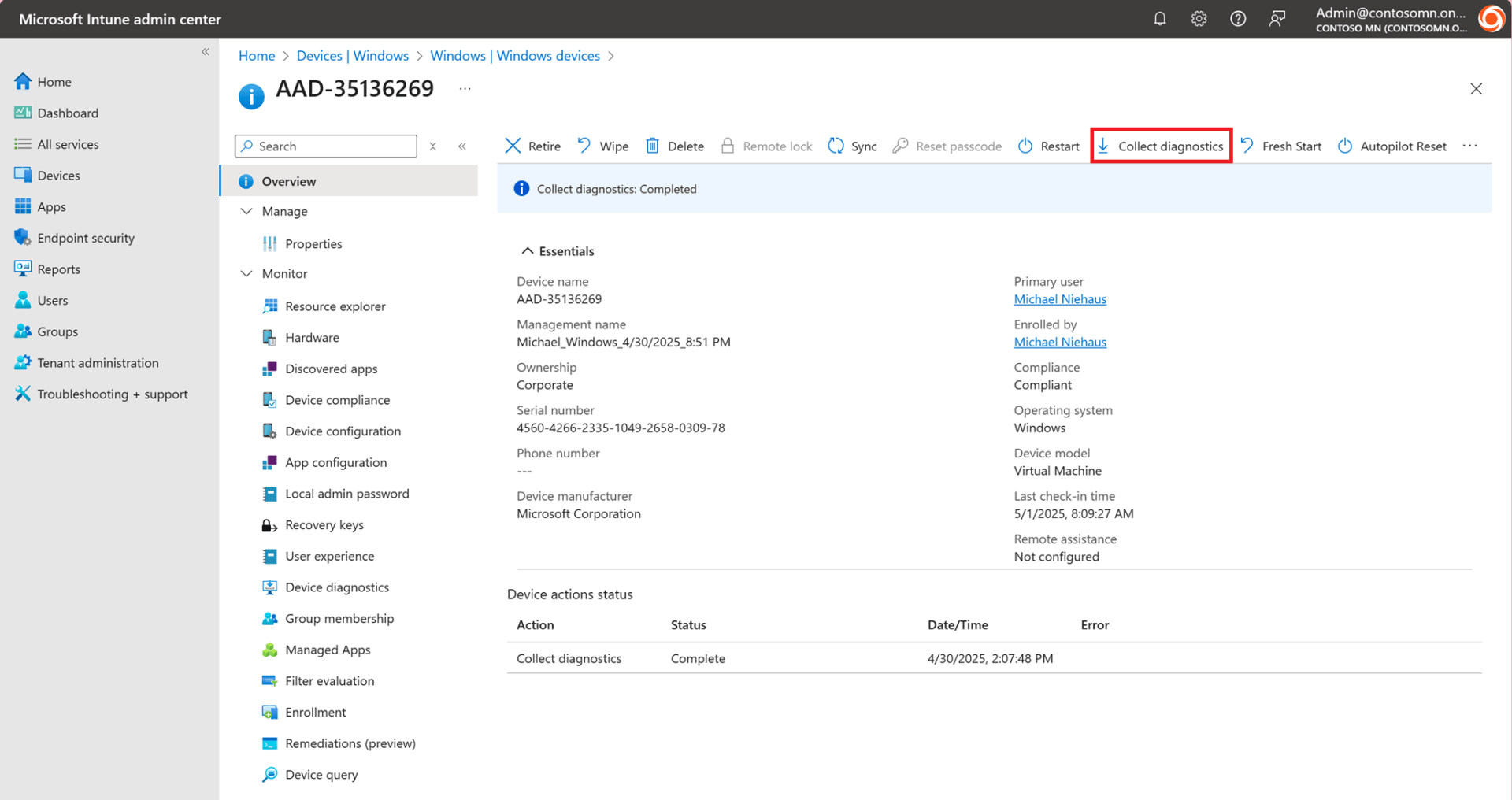
Several minutes later, you can download the resulting logs in a zip file:

There’s a lot of stuff in that zip file, but what you need for troubleshooting Autopilot is in one of the folders:
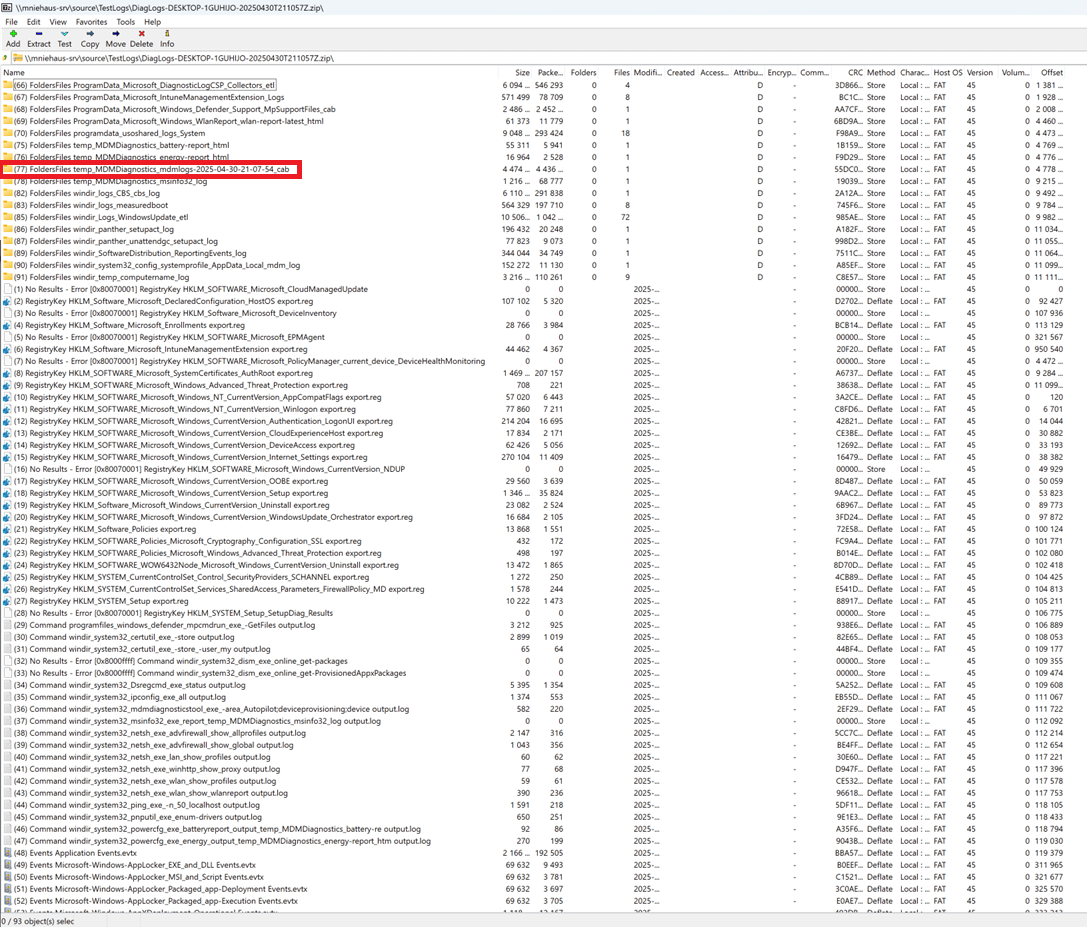
You could always extract that out of the zip and then feed that file to the Get-AutopilotDiagnosticsCommunity script directly, but to simplify things I added logic to do that automatically so you can just point to the downloaded zip file:

(Some of the content in the .zip file is also contained in the .cab file inside the zip file. Nothing like a little duplication.)
I had initially thought about just being able to specify “-Online -DeviceName DESKTOP-1GUHIJO” so that the Get-AutopilotDiagnosticsCommunity script could use the Graph API to find the latest diagnostics .zip file, download it, and then process it. But sadly, the Graph API calls do this seem to only work in the Intune portal — if you try to do the same things yourself, they fail with an error 403. There have been a number of reports about this over the years on Reddit and GitHub, just not clear if this is a bug or a feature. But why provide Graph calls and documentation for those calls if you can’t use them? In any case, at least being able to manually download the .zip yourself and use it directly makes things easier.
More Delivery Optimization information
If you run the Get-AutopilotDiagnosticsCommunity script on a “live” system, you can get information about the Delivery Optimization downloads for Intune content; it’s always useful to see how much time is spent downloading versus installing. I added additional logic to also capture information about Microsoft 365 Apps (Office 365) Click-to-Run downloads, in cases where you haven’t included the M365Apps source files in a Win32 app (or if you’re still using the built-in M365Apps app type in Intune). That’s useful so that you can see the individual file downloads and the time that they are taking.
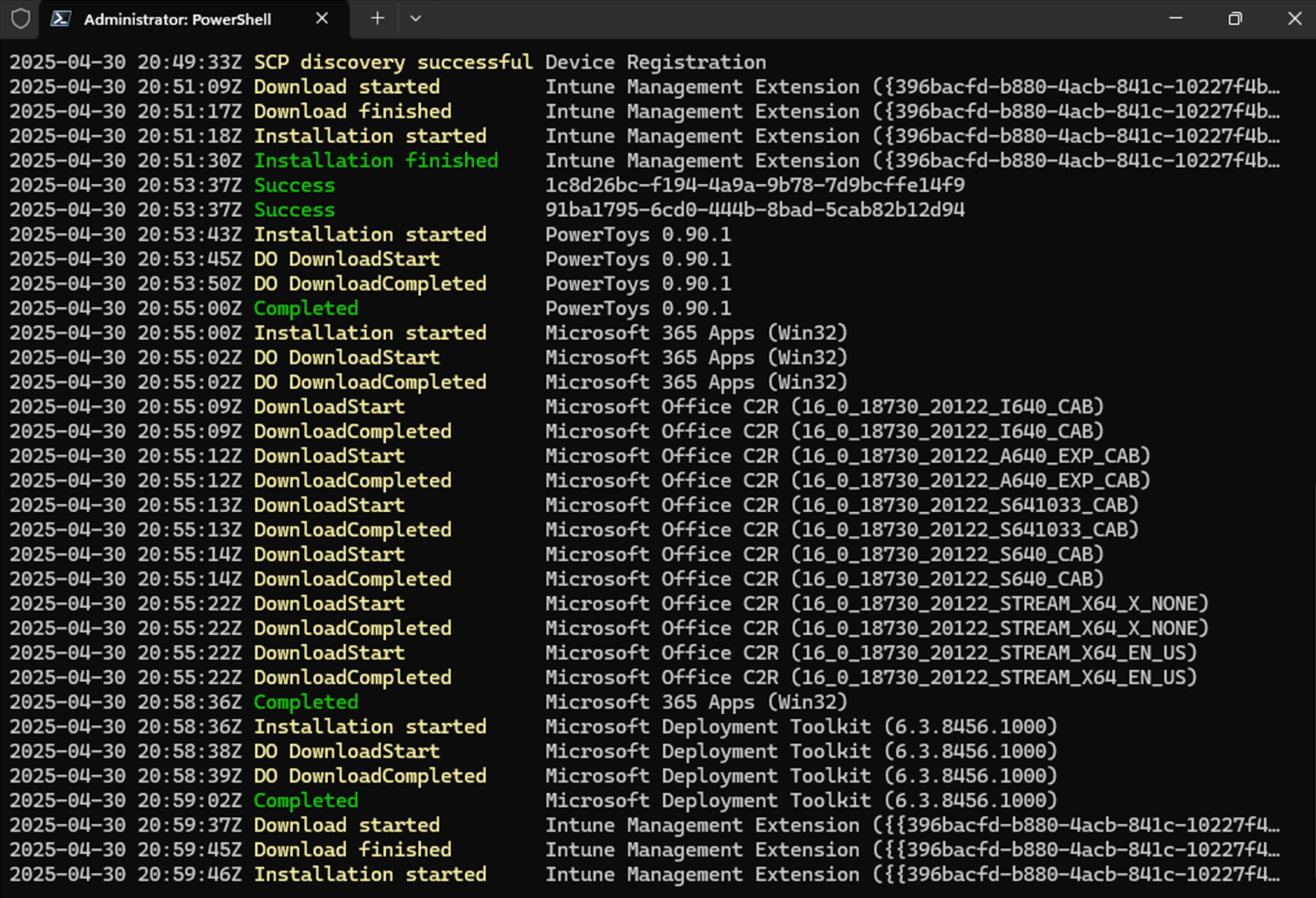
Sadly, the Delivery Optimization information is not included in the MDMDiagnosticsTool .cab file, or even in the Intune-gathered diagnostics .zip file, so this information is not available when you aren’t running the Get-AutopilotDiagnosticsCommunity script against a set of log files. (And don’t get me started on the Delivery Optimization information returned by the Get-DeliveryOptimizationLog cmdlet, where all the interesting information is stored in a single string message that you have to parse apart to get anything useful from it…)
Processing batches of files
To test out the script logic, I gathered several sets of log files (.cab, .zip, .zip from Intune diagnostics, etc.). I found myself wanting to quickly process all of those files, so I added some logic to handle files from a pipeline:

Any suggestions?
There’s always more that can be done, so if you have any suggestions for improvements to the script please let me know.



 Out of Office Hours
5 responses to “Next-generation Autopilot Troubleshooting”
Hi Michael! Thank you for providing this upgrade of your script. I have tried it out.
I just want to let you know that there’s an error on the Device ESP part of the script. See the output below:
DEVICE ESP:
2024-10-02 23:13:14Z
Policy ./Vendor/MSFT/DMClient/Provider/MS%20DM%20Server/EntDMID : 1 (Processed)
Add-Member : Cannot bind argument to parameter ‘InputObject’ because it is null.
At C:Program FilesWindowsPowerShellScriptsGet-AutopilotDiagnosticsCommunity.ps1:315 char:37
mmand
Cannot index into a null array.
At C:Program FilesWindowsPowerShellScriptsGet-AutopilotDiagnosticsCommunity.ps1:317 char:9
~~~~~~~~~~~~ProcessSidecar : Cannot bind argument to parameter ‘currentKey’ because it is null.
At C:Program FilesWindowsPowerShellScriptsGet-AutopilotDiagnosticsCommunity.ps1:1255 char:26
~~~~~~~~~~~~~LikeLike
Interesting, will need to see if I can duplicate that.
LikeLike
It looks like the errors happen when there are no policies of the specified type (e.g. no Win32 apps targeted to the machine). I’ll add a check for that.
LikeLike
Hi Michael,
Is there any way you can add logic into the script to detect Azure Government/GCC High logins to MS Graph?
LikeLiked by 1 person
I assume the ask is to let you specify which cloud (public or sovereign) that you would want to sign into?
LikeLiked by 1 person