

Yes, I know the official name is “Windows Autopilot Device Preparation.” But that’s too much of a mouthful and doesn’t really even describe what this is, other than “something different.” And overall, I think it is useful to think of it in “v1” vs. “v2”:
- With Autopilot v1, you (or OEMs/resellers acting on your behalf) registered devices with the Autopilot service, a “big database of devices in the cloud,” and assigned profiles to groups containing those devices. That often required creating dynamic groups (although if you were registering the devices yourself, you could just as soon use a static group) and targeting Autopilot profiles to that group. When devices are deployed, they ask the Autopilot service for the Autopilot profile details and use those to complete OOBE, AAD or AD join, MDM enrollment, and then the rest of the provisioning process.
- With Autopilot v2, there is no “big database of devices in the cloud” (well, sort of — more on that later). So when a Windows device starts up, it goes through the normal OOBE screens, e.g. accept the EULA, choose personal vs. work/school accounts, up to the point where you enter your Entra ID (AAD) credentials. That initiates the Entra ID Join (AAD Join) and MDM enrollment process, and the Autopilot device preparation details (a combination of what you used to know as the Autopilot profile + the ESP profile) are sent to the device as part of the enrollment payload.
If you read through my “reading the tea leaves” post, you might have thought that there was a “new ESP page” as well as “a new profile type” (a.k.a. Autopilot Device Preparation). And you might have assumed, as I did, that this “new ESP page” would come to all Autopilot scenarios, v1 or v2. But now I realize that’s not the case: all of the changes are coming to v2; v1 won’t get any of those changes.
If you want to see the new ESP UI, you need to be using Autopilot v2. If you want any of the improvements for enrollment-time grouping, you need to be using Autopilot v2. If you want the better Autopilot reporting, you need to be using Autopilot v2.
That also brings another logical conclusion to all of this: Microsoft is not investing any significant resources into Autopilot v1. Microsoft says that they will consider bringing some of the improvements to v1. (Personally, there are things I’d like to see first, e.g. installing updates, sequencing apps, specifying a time zone, etc.) From the FAQ:
We’re continuing to work on Windows Autopilot in parallel with developing Windows Autopilot device preparation. The first release of Windows Autopilot device preparation doesn’t have all the scenarios of Windows Autopilot, specifically pre-provisioning and self-deploying modes, so we’ll continue to invest in those areas. Additionally, in the future, we plan to add any high value features from Windows Autopilot device preparation to Windows Autopilot to improve the experience for all customers.
Let’s hope that is indeed the case. Otherwise, v1 becomes “legacy” and starts to get phased out and v2 takes over.
What features does Autopilot v1 support that Autopilot v2 doesn’t? These are mentioned in the original Microsoft post:
- Self-deploying. Today, this is built around TPM attestation so that the device can get an Entra ID (AAD) device token to join AAD and enroll in Intune; that TPM attestation process requires the hardware hash. Microsoft stated that they are working on a solution for this.
- Pre-provisioning. This effectively uses self-deploying behind the scenes, so it has the same challenge.
- Hybrid Entra ID Join (HAADJ). This isn’t coming to Autopilot v2, so it will go away.
Getting started
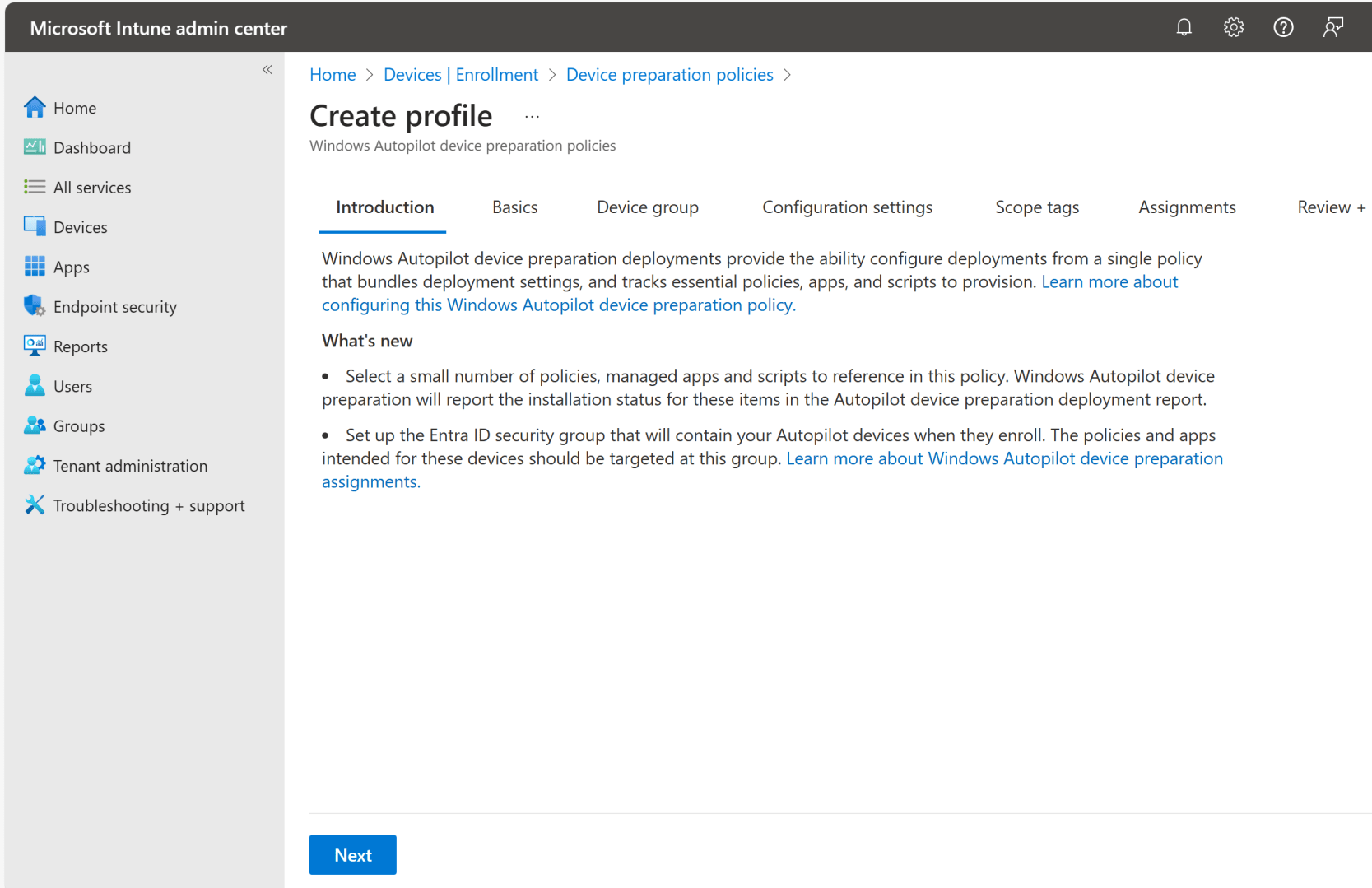
So you want to try this out? Start with the documentation. Microsoft has posted a completely new set of documentation for Autopilot v2 (leaving the old Autopilot v1 docs untouched). Pay attention to the tabs on the documentation pages:

You will be missing quite a bit if you don’t look at those other tabs. (I’m not sure why they like that format, people routinely miss the tabs and therefore most of the content.)
From my perspective, the most important items are on the requirements, FAQ, and known issues pages. My summary:
- You need to have a supported Windows version. Autopilot v2 is only supported on Windows 11; it won’t be supported with any Windows 10 release. For Windows 11, the needed functionality is contained in Windows 11 24H2, and it is delivered to Windows 11 22H2 and Windows 23H2 via KB5035942, released at the end of March 2024, or any later cumulative update. If you are imaging your devices yourself (which is kind of an “anti-Autopilot” thing to do, but still common nonetheless), it’s no big deal to start using images that have been patched with the April 2024 security update or later. But OEMs shipping devices with Windows 11 23H2 are unlikely to update their images to include new fixes, so you’re probably stuck waiting for them to start shipping devices with Windows 11 24H2. For ARM64 devices, that will happen soon, but for x64 devices, you’ll probably need to wait until October or November for that.
- When you enroll devices using Autopilot v2, they will be enrolled as personal devices. Eventually, you’ll be able to use corporate device identifiers (basically, registering devices again, but using make+model+serial instead of the hardware hash), but the FAQ says that’s presently broken — more on that later.
- Autopilot v2 can conflict with AAD settings for local device administrators — be careful with that as the result can be a failure to install any apps. (The FAQ describes how to work around this.)
The docs, as well as an assortment of blog posts and videos, walk you through the configuration steps, so it seems silly to repeat them here. Check out all of these posts, which dive in deeper:
- https://joostgelijsteen.com/autopilot-device-preparation/
- https://call4cloud.nl/2024/06/autopilot-device-preparation-the-hardware-hash-voyage-home/
- https://call4cloud.nl/2024/06/autopilot-device-preparation-flow/
- https://www.joeyverlinden.com/windows-deployment-with-autopilot-device-preparation/
- https://www.linkedin.com/pulse/sorry-whats-intune-console-its-windows-autopilot-device-karan-rustagi-mudse/
And a few videos too:
So what do I gain with Autopilot v2?
You get a new ESP user experience, you don’t need to register devices, and you get better monitoring/reporting. But there’s more:
Better performance detecting needed apps. If you’ve ever watched the Autopilot v1 process in detail, you’ll see it spends a fair amount of time on “Preparing your device for management.” What goes on during that time? Mostly, it’s Intune figuring out what Win32 apps need to be deployed to the device — that can take a few minutes before anything actually happens. With v2, Intune can directly add the newly-enrolled device to a group that you specify and speed up that process. To do that, Intune needs to be an owner of the group. As noted in the docs, that account might not exist, or it might be named “Intune Autopilot ConfidentialClient” instead of the expected “Intune Provisioning Client” name. You can search for the name or the GUID (f1346770-5b25-470b-88bd-d5744ab7952c), and worst case you might need to add it. It was present in my tenant:

You would ideally want the apps you intend to deploy assigned to that same group (I suppose “All Devices” would work reasonable well too), and you would assign the device preparation policy (v2 Autopilot profile) to the same group.
Only install selected apps during OOBE. With Autopilot v1, you could select what apps were blocking, but that didn’t change when apps were delivered — all the apps targeted to a machine were likely still installing during device ESP, and depending on the order, that could delay the installation of apps that you actually cared about. With Autopilot v2, apps not selected in the device preparation policy will not install until after the provisioning process completes (installing in the background later).
PowerShell scripts. Another advantage with Autopilot v2 is that the device preparation policy will allow you to select both PowerShell scripts and apps that should be installed during the Autopilot process; Autopilot will wait for them to complete as before.
MSIs and Win32 apps won’t collide. There’s also no longer an MSI stigma — you can mix and match MSIs and Win32 apps as much as you want. Intune will make sure that the MSIs install first, then run the PowerShell scripts, then the Win32 apps. (Don’t get too excited though, you still can’t control the order of installation for Win32 apps.)
Sovereign cloud support. Autopilot v1 didn’t support any government or sovereign clouds, since the Autopilot service was only available in the public cloud. With Autopilot v2, there’s no need for that service, hence it can work in other clouds.
What do I lose?
There are some tradeoffs — some likely more temporary than others. The docs note the biggest ones: no support for self-deploying or pre-provisioning yet, no Hybrid AADJ support ever. A few more that are a little less obvious, but important to understand:
OOBE shows more pages. With Autopilot v1, most OOBE pages are hidden; with Autopilot v2, some of the pages will “reappear.” That’s because when you start OOBE, there’s currently no indication that this will be an Autopilot v2 device. So pages like the EULA and the “Is this a personal or work/school device” questions will be shown; you also can’t configure a keyboard or locale (but that only worked for wired connections anyway). The user will also be able to configure the computer name themselves (no more naming template is available, although in theory you could rename the device later using an Intune policy, since this is an AAD-only scenario anyway). Only after the device has enrolled in Intune can the Autopilot v2 configuration come down to suppress additional OOBE pages. Interestingly, though, it’s not suppressing the security/privacy settings page, so the users can make choices themselves — those values might end up being ignored when Intune policies are received to configure those, but it is another prompt that users will see.
Personal vs. Corporate. Devices registered with Autopilot v1 were always considered corporate devices. By default with Autopilot v2, they will be considered personal devices. So if you have an enrollment restriction in place that prevents personal devices, Autopilot v2 will fail. What’s the fix for that? Corporate device identifiers. What are those? Well, they’ve been around a long time. Basically, you register the device with Intune to say “if you see this device, consider it corporate.” Great, so we’re back to registering devices, but you don’t need the hardware hash, just the manufacturer, model, and serial number. (There’s one further challenge: there’s a bug that prevents corporate identifiers from working at all with Autopilot v2, as mentioned in the “known issues” list. Presumably a fix is being worked on for that. So for now, all Autopilot v2 devices have to be personal devices.)
Only 10 apps. You can only select up to 10 apps (MSIs, Win32, and M365/Office) in the device preparation policy. From the FAQ: “Looking at our telemetry, almost 90% of all Autopilot deployments are deployed with 10 or less fewer apps.” If you want more than that, I would assume you can still use dependency chains for that, but Microsoft doesn’t want you to do more.
No more user ESP. You can target apps to devices and target the Autopilot v2 device preparation policy to users. But Autopilot v2 is only going to track the device-targeted stuff. User-targeted items will install in the background after the user is signed in.
No policy tracking/blocking. Interestingly, Autopilot v2 will not track or block on any policies. With Autopilot v1, it blocked on minimal stuff (e.g. cert profiles, network profiles, a few select kiosk-related settings), so this isn’t a huge change, but I kind of expected it to go the other direction, i.e. to be able to get the device fully compliant before the user signs in. From the doc: “For policies, Windows Autopilot device preparation syncs any policies assigned to the device group. However, Windows Autopilot device preparation doesn’t track if the policies are applied during the deployment. The policies might be applied either during the deployment or after the deployment is complete.” This doesn’t matter much, at this point at least — it becomes more of an issue in “app-less” scenarios, e.g. self-deploying browser-based kiosks that aren’t supported yet, since app installs generally take long enough to ensure that any other policies have been received and applied.
Device naming. There is no setting available in the device preparation policy to specify a computer name template. Perhaps you can work around that with a separate Intune policy?
So do I or don’t I need to register devices?
With Autopilot v2, you don’t need to register devices with the Autopilot service using a hardware hash. But you may need to register the device with Intune so that it is considered a corporate device. This is critical if you don’t allow personal device enrollments (since all Autopilot v2 enrollments would be considered personal). To get the device registered with Intune, you need to upload a CSV file with the manufacturer, model, and serial number, or do the equivalent via Graph. There’s a certain irony with that: you can get rid of device registration, but you still need to do device registration.
To help with that, Andrew Taylor updated the Get-WindowsAutopilotInfoCommunity.ps1 script to add logic to upload corporate device identifiers. You can read about that in his blog:
These identifiers are a little weird. Of course Microsoft has yet another different CSV format for these. For hardware hashes, you needed column headers, no quotes, case-sensitivity; for corporate identities, you need no column headers, no quotes, and apparently case doesn’t matter at all — the values you upload end up being squished together into a single column, with most special characters and spaces removed and the whole thing converted to upper case:
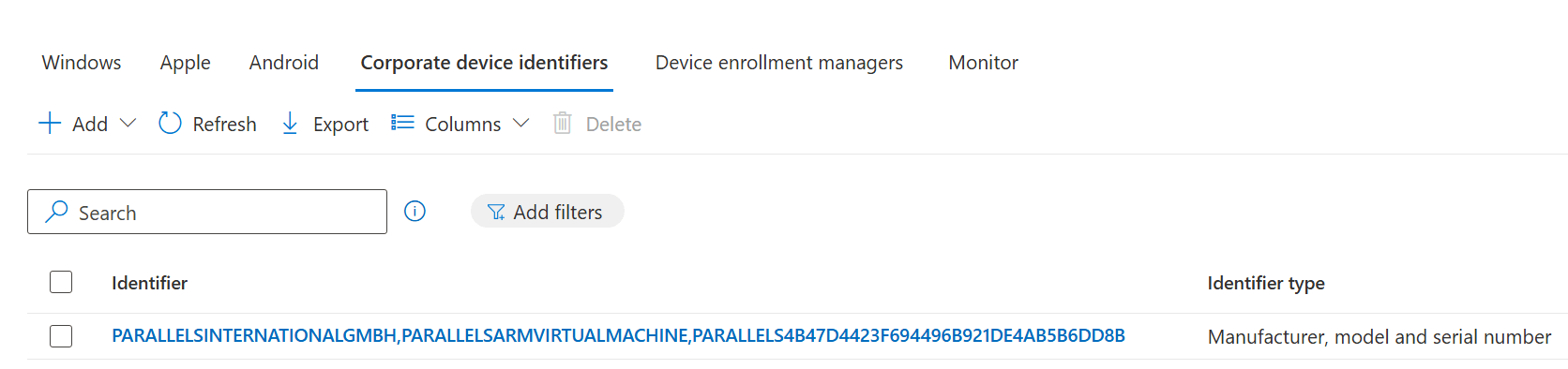
(You still need to wait for Microsoft to fix the issue where corporate device identifiers don’t work with Autopilot v2.)
What’s still to come?
The most interesting piece is the “tenant binding” feature mentioned in the original Microsoft blog. With this, a device could be tagged to say that it belongs to a particular tenant. That tagging could be done by the OEM or a reseller/partner, or by the customer themselves. Presumably this would record those details into the firmware of the device, likely using UEFI variables.
We’ll see if that enables some of the things that are currently missing, e.g. skipping the personal vs. work/school choice, skipping the EULA, etc. It will also be interesting to see if there is “secure” option in this case, or if this is just more of a convenience feature. For example, could anyone tag their machine to say that it should enroll in your tenant, or will there be a way to “certify” that the device belongs to you? You could see how self-deploying and pre-provisioning scenarios could be enabled with a “certified” option, but otherwise the “tenant binding” is just a convenience and user experience feature.
It will also be interesting to see if Microsoft makes this “tenant binding” also enforce an internet connection, because that’s otherwise an easy way to bypass the AAD join/MDM enrollment.


 Out of Office Hours
14 responses to “Digging into Windows Autopilot v2”
What about Co-Management Authority, would it still be compatible? We are heavily relying on PROVISIONTS when installing the CM client. Since it doesn’t track policy, I don’t see how the CM client and the TS would be tracked.
Thanks,
LikeLiked by 1 person
No idea. In theory, the v2 ESP should still support additional policy providers, so it *should* work but I still need to try it. Sadly, my main test tenant hasn’t been updated yet — almost like Microsoft put me at the end of the list. (I had another tenant that was updated, but it’s not connected to ConfigMgr.)
LikeLike
Our tenant recently got updated, I plan on testing this out today or tomorrow.
LikeLike
Hey Michael. Just a comment regarding the tabs in the Requirements documentation. We felt that having all of the requirements in one page was easier to consume than having it across multiple pages, like the Windows Autopilot requirement pages were. However, having it all on one page with no tabs would make the page too long and hard to consume. Using tabs helps break it down while keeping everything on one page. It will only show the relevant information that you are concerned about depending on what tab you select. We liked this format so much that we actually converted the Windows Autopilot requirements documentation to also use tabs, and I am considering moving the Windows Autopilot troubleshooting content (all spread out among several different pages) to a similar format.
I do hear you about customers sometimes missing that there are tabs, but we found that adding icons to the tabs makes is more apparent that there are tabs, and customers don’t miss the tabs as often when the tabs do include icons. I hope that everyone does see the tabs and appreciates that all of the requirements are in one page instead of having to change between different pages. Any feedback though is appreciated.
LikeLike
I hope you’re right. I missed the tabs the first time through even though someone mentioned that to me yesterday — went back again to find them 🙂
LikeLike
Hey Michael. We redesigned the Requirements page a bit to make the tabs more noticeable. Please let me know what you think!
LikeLike
Looks good, thanks!
LikeLike
Thanks for the right up Michael, we currently make extensive use of Group Tags., assigning them to devices at the hardware hash import stage, we then have dynamic groups that are based on the group tags, that assign device based profiles.
Do we know if group tags are being deprecated/removed in Autopilot V2?
LikeLike
I don’t think they really have any place in this new setup. The idea instead would be to have user-targeted profiles that link to device security groups that control what gets assigned.
LikeLike
We frequently have devices with duplicate or blank serial numbers in BIOS. Seems like the new “not” registration method is not secure at all and allows for easy spoofing of at least device to make it corporate.
LikeLike
We use DFCI to configure and lock UEFI. Device enrollment by the OEM/CSP is a requirement for DFCI to function, hopefully this gets addressed with the “tenant binding” feature.
LikeLike
The OEM/CSP requirement for DFCI was for “security reasons.” I don’t know if the “tenant binding” will be considered a security feature. I guess we need to wait and see, both on that as well as on DFCI overall — not convinced it has a future since no one but Surface ever adopted it.
LikeLike
Hi,
Just FYI
I´ve enroll via APv2 a vmware virtual machine without uploading the device identifier generated with Get-windowsautopilotinfocommunity script because the generated csv file seems not to be recognize by intune
(I´ve upload other csv files correspondig to physical laptops without problem). So I´ve added my virtual machine directly to the device group defined in the APV2 profile and it has enrolled without problems but after checking the v.m. in Intune it has been enrolled as a coporate device. In my tenant personally owned devices are blocked.
Thank you for your great posts!
LikeLike
With Autopilot v2, there’s no need to add the device to any groups; Intune takes care of that at deployment time.
It sounds like you have personal device enrollment enabled, hence why it works; after the personal enrollment completes, Autopilot v2 is flipping the device to corporate. Eventually, you would be able to disable personal device enrollment if you wished, upload the corporate identifier, and still get it to complete successfully, but that’s not working yet.
LikeLike