
Back in 2022, I did a post about using the MDM terms of use page (which is almost never actually used since Azure AD now has a better solution as part of conditional access) to prompt for information during the MDM enrollment process. It was a little messy in that you had to host a webpage somewhere, then run a PowerShell script as a Win32 app later to extract the information saved by the browser (IE11) to a local file on the system, but it worked.
But of course people have asked about different mechanisms. For example, could you use a Win32 app to prompt for information? There are some challenges that need to be overcome for that:
- The Win32 app would need to start a new process running in session 1 (where OOBE is running) instead of session 0 (where all services, including Intune Management Extension, are running). Fortunately, there’s a tool available in MDT, ServiceUI.exe, that can handle that piece.
- The new process would need a mechanism to put itself in front of the OOBE page. I did a blog post last year that explained how to do that by having a process send a Shift-F10 keystroke to OOBE; after that’s processed, then the process can display a window in front of the OOBE window.
All we need to do is put those two together and we’re good to go, right? Somewhat, but then you’ll quickly realize the next set of challenges:
- It takes a while before Intune gets around to installing Win32 apps, so even if you ensure that this new app runs first (by putting it at the beginning of a dependency tree) it could take a few minutes after the user puts in their Azure AD credentials before the UI appears. (You could package up the app as an MSI and get it to install faster, but that’s harder to do — historically people haven’t been willing to do that, so I’ll skip that option for now.)
- The clock continues ticking. If someone doesn’t respond fast enough, it can certainly cause ESP to time out.
- The app itself has a timeout before Intune will mark it as failed. It’s probably going to cause an ESP timeout anyway, so we can probably ignore that.
But still, someone may want to try it. I’ve published a sample app to GitHub at https://github.com/mtniehaus/OOBEPrompt. This includes two scripts:
- Launch.ps1, which invokes ServiceUI.exe to start a new PowerShell process in session 1.
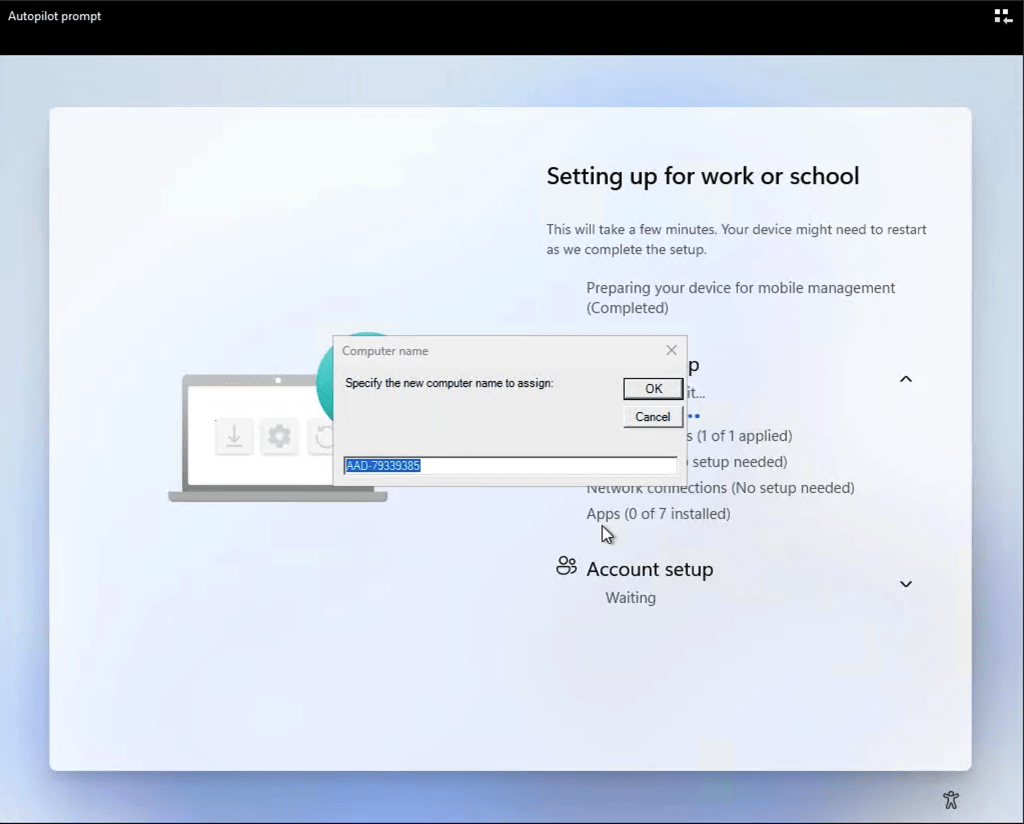
- OOBEPrompt.ps1, which runs ShiftF10.exe (“borrowed” from my previous post so that it can interact with the desktop) and then performs a very trivial prompt for a computer name. If the user types in a new value, it will perform the rename.
What does that end up looking like? Here’s a video, edited to reduce the time:
It’s certainly nothing special, but it does prove the concept. Feel free to try it out and customize it to do something a little more useful.


 Out of Office Hours
13 responses to “Prompt for information during Autopilot with an app”
Does conditional access have a way of prompting for info? Or am I reading that sentence wrong?
LikeLike
Yes and no to both questions 🙂 This is some good reading: https://learn.microsoft.com/en-us/entra/identity/conditional-access/terms-of-use
LikeLiked by 1 person
Nice blog! Just uploaded the .intunewin file, but dont know if I need to get the OOBEPrompt.ps1 or the Launch.ps1?
LikeLike
Both of those files are in the .intunewin file. If you need to make any modifications to them, you can change them in the OOBEEntertain subfolder and then recreate the .intunewin file with the makeapp.cmd batch file.
LikeLike
What did you use as the App install command?
LikeLike
powershell.exe -executionpolicy bypass -noprofile -file .\Launch.ps1
LikeLike
Hello Michael, thanks for the article, can you share the uninstallation command
LikeLike
It’s pretty simple. The script creates a file to say that it had run, so the uninstall just deletes that file:
cmd.exe /c del %ProgramData%\OOBEPrompt\OOBEPrompt.ps1.tag
LikeLike
What about Detection method?
LikeLike
Check for the existence of this file:
Folder: %ProgramData%\OOBEPrompt
File: OOBEPrompt.ps1.tag
LikeLike
For some reason, I only see command prompt. I did try both OOBE scripts posted and from launch.log it showed below. not sure where it got wrong.
Process Launching with PID [6980]
================
Exiting with [0]
=================
LikeLike
What command line did you specify to run it? It should be:
powershell.exe -ExecutionPolicy bypass -NoProfile -File .\Launch.ps1
LikeLike
yes, I did exactly that. I command prompt stay on top forever and timeout ESP.
LikeLike