
Updated 2023-10-23: This post has effectively been superseded by this new post. The issues described below are actually not caused by the Windows update process; more details on that here.
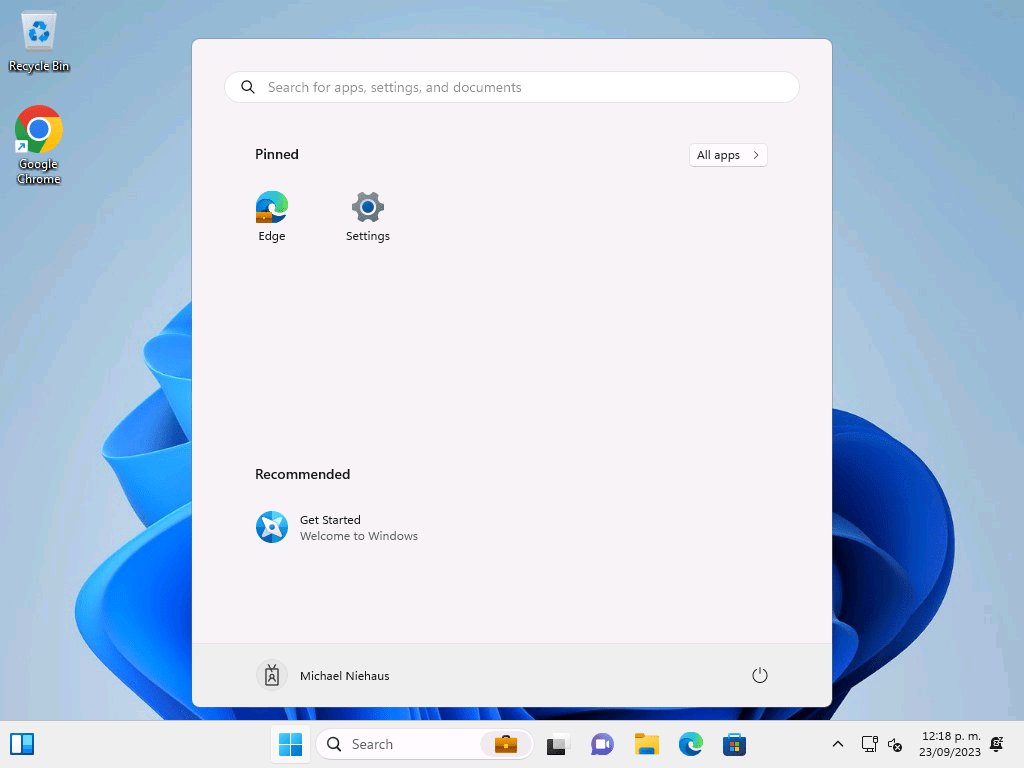
Back in 2019, I did a blog post about installing Windows updates during an Autopilot deployment. That was with Windows 10. There was no reason to believe that the behavior would be any different with Windows 11, but I hadn’t actually tried it — until now. And it wasn’t pretty: Autopilot and ESP really don’t deal with reboots triggered by Win32 apps at all. It’s not obvious if that’s a problem with ESP or with the Intune Management Extension, but either way I wouldn’t suggest trying it. Here’s what it ends up looking like:
After the reboot, Windows can’t sign back as the defaultUser0 account, so you have to put in some other credentials — we are AAD-joined at this point, so those credentials work, but then the whole process starts over again, and it will fail later when it tries to redo the MDM enrollment — an error is returned saying the device is already enrolled. So that’s no good.
So how does it work if we don’t do a reboot? It seems like getting the updates installed and then prompting the user to tell them a reboot is required would be a reasonable experience, and it at least hurries along the updating process which otherwise might be delayed until hours after the Autopilot provisioning process completes. Well, I didn’t see any notification, but at least when I manually rebooted it finished installing the updates.
The odd part is that if you open Settings before rebooting and check for updates, it will re-detect the same updates that PSWindowsUpdate already installed and go through all the motions of installing them again. This seems a little weird, but at least that’s not something normal people typically will do.
But still, without a notification they won’t know that a reboot is needed. If we can’t force a reboot during ESP due to the flakiness described above, we can at least schedule a deferred reboot. I added a “RebootTimeout” setting to the UpdateOS.ps1 script and set it to default to 120 seconds, so as long as user ESP is disabled (something I typically recommend) the reboot should be initiated after the remaining Autopilot process is complete. (If you have user ESP enabled, you’ll want to increase that timeout.) That does assume that the UpdateOS app is the last one in the list, which requires using a dependency chain to force that (useful anyway to make sure Windows is updating any optional features that might have been added in previous apps/steps).
With that reboot inserted, here’s what you see:
At some point, Autopilot will add the ability to do Windows update installs as part of the built-in process. That was something that was stated as a roadmap item back in 2018. We’re still waiting, but maybe not much longer?



 Out of Office Hours
5 responses to “Installing updates during Autopilot: Windows 11 edition”
The reality is not satisfactory, the version of the OEM random operating system is at least 1 year late, so when our users first turn on the computer, it may still be the version state of a year ago (21H2 initial version), and the first problem we will face after the start of Autopilot is the feature update, so the delivery logic is not perfect.
LikeLike
True, but having the user wait to download and install the feature update (potentially hours) is bad too.
LikeLike
Are the reboots during autopilot in Win11 still an issue as far as you know? I have just tested your win32 script on a few win10 and win11 laptops and it worked without issues while user ESP was enabled. All laptops had about 15 updates available including drivers and firmware.
LikeLike
The reboot issues are caused by something different: an MDT task sequence running as a Win32 app. This is breaking things due to what it does to AutoLogon registry keys. So the UpdateOS isn’t causing the issue and generally reboots are fine — just don’t mess with AutoLogon registry keys. When I get a chance I’ll update the blogs to explain all of this…
LikeLiked by 2 people
Is it not an idea to do this in pre-provisioning to have a better end-user experience. And maybe add a extra requirement script that checks if you are in autopilot phase. Something like below, this is prevents the script from running post autopilot.
$username = “defaultuser0”
$currentuser = (Get-Process -IncludeUserName -Name explorer | Select-Object -ExpandProperty UserName).Split(‘\’)[1]
if ($currentuser -eq $username)
{
return $true
Exit 0
}
else
{
Exit 1
}
LikeLike